A quiet page suddenly becoming noisy is often a permission choice rather than an audio fault. Firefox autoplay settings distinguish media with sound from muted video. That is why blocking sound can still leave a page moving while you read, and why replacing headphones is unlikely to address the cause.
Quick Answer
Open Firefox Settings, search for autoplay and select Block Audio and Video if you want to stop silent clips as well as sound. Check the site's exception if it keeps behaving differently. This is an R0 browser adjustment; establish whether clicking Play yourself works before spending on audio equipment.
🔇 Choose the behaviour you mean
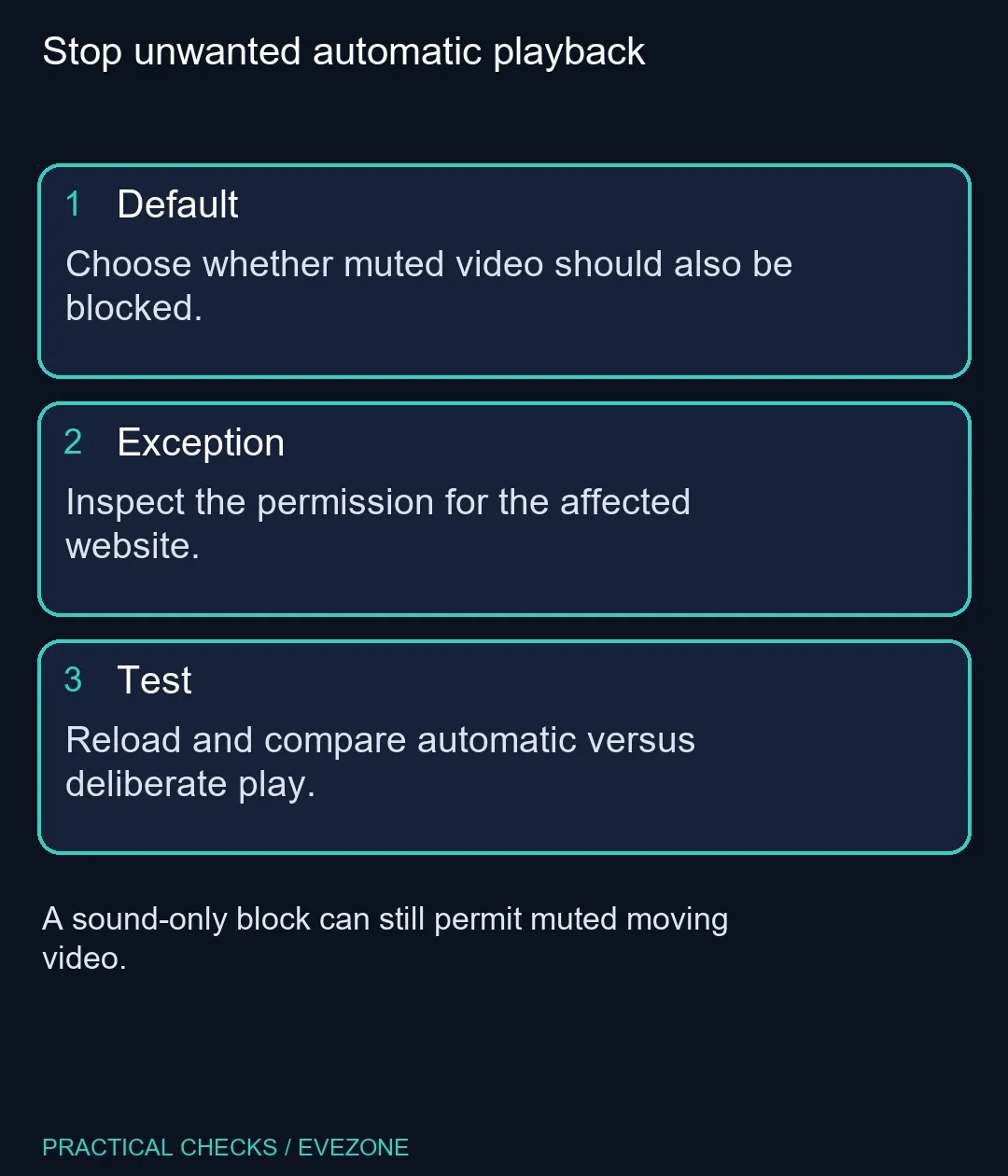
Firefox's default choices include a sound block, a broader audio-and-video block and an allow option. Pick deliberately rather than selecting whichever label looks most restrictive at first glance. A site you use for music may deserve different treatment from a news page with incidental clips.
Save the setting and reload an affected page. Observe what happens before you click anything, then try deliberate playback. Those are different tests. If a video plays only after your click, the automatic-start problem may already be resolved even though the page still contains a player.
🌐 Inspect an exception without clearing everything
A website-specific permission can explain why one page behaves differently from the global default. Firefox's current permissions panel lets you clear a changed permission to restore the default. Avoid instructions for the retired Permissions Manager: old browser settings pages can describe interfaces that no longer apply.
Record which site you changed so you can undo it if necessary. There is no need to erase every cookie or sign out of unrelated services just to test an autoplay rule. If you use headphones for calls, compare gaming headsets only when you have identified a separate comfort or hardware requirement.
🧪 Separate playback from a physical control problem
Try the same video with a deliberate click and check another trusted page. If both respond normally but one site starts media automatically, keep investigating the site permission. A button that does not respond in any application suggests a different issue from unwanted playback.
You can browse gaming mice if a physical click fault is independently repeatable, but do not use autoplay as evidence that the mouse is broken. For an SA household on a limited data plan, stopping unnecessary clips may also be useful; it does not establish a guaranteed data saving because pages can load content in other ways.
Frequently Asked Questions
Why does a muted video still start?
Block Audio can allow silent playback. Use Block Audio and Video when you also want to stop muted autoplay.
Where is the autoplay control?
Open Firefox Settings and search for autoplay. Open its settings and choose the default behaviour you want.
Can one site behave differently?
Yes. Site-specific exceptions can override the default. Check the affected website before changing the global choice again.
Does this mute every video I play?
No. Autoplay permission controls automatic starting. Test a deliberate click on Play separately from an unsolicited start.
Do I need different speakers?
No hardware purchase is required to change this browser permission. Check settings first if deliberate playback sounds normal.
Why is there no permissions icon?
Firefox may not show it when that site has no changed default permissions. The absence of an icon does not prove missing settings.
Make browser audio predictable
Choose the browser permissions you need first; compare Evetech audio gear only for a separate listening or microphone upgrade.