A tutorial can be easier to follow when the demonstration stays visible beside your work. Firefox picture in picture is designed for that situation. Its floating video panel is useful, but it can also hide a button or a line of text when you forget that it sits above another window.
Quick Answer
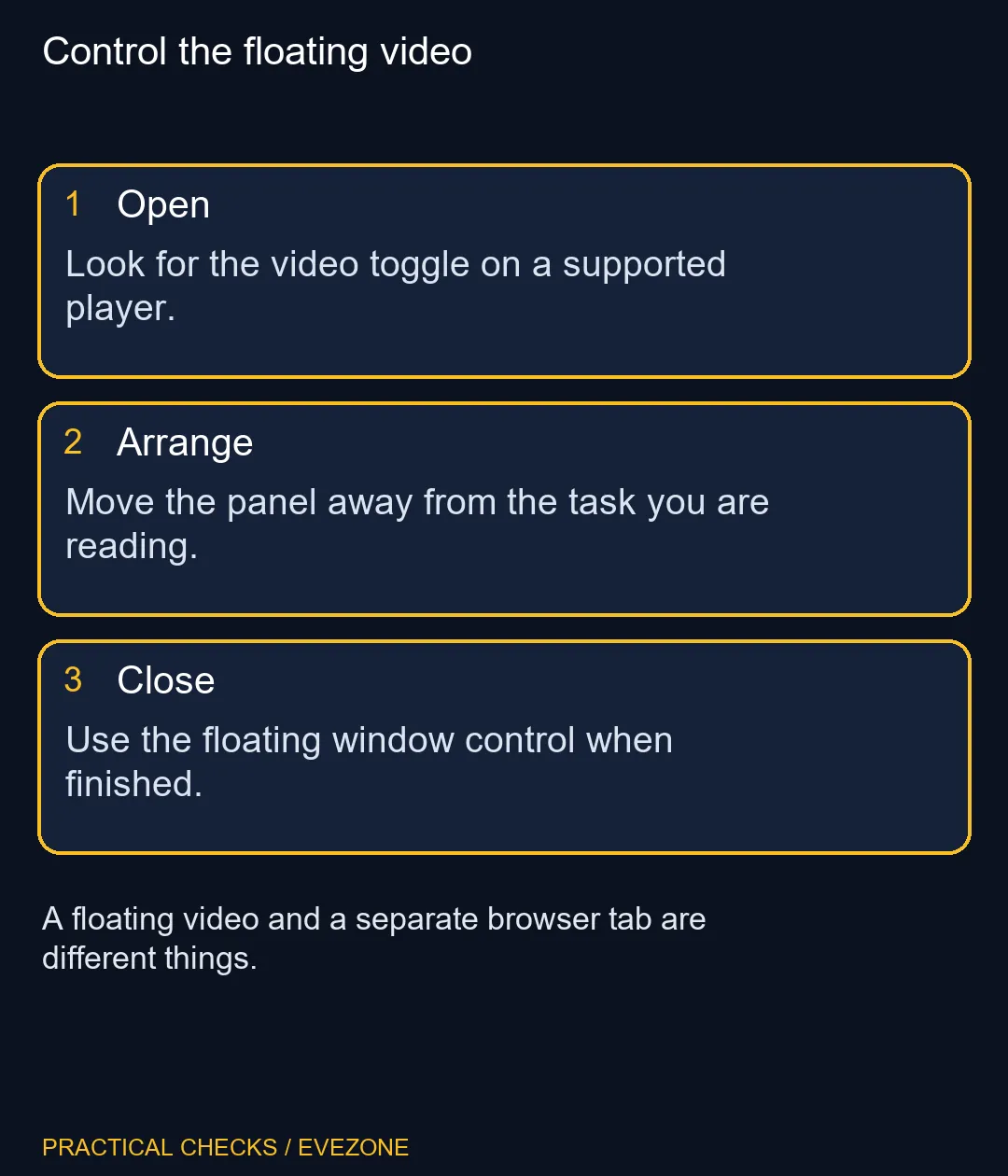
Hover over a supported video and use its Picture-in-Picture toggle to open the floating player. Move it where it does not cover your task, then use its own controls when finished. Try this R0 arrangement before buying a larger display purely to keep a small tutorial visible.
🎬 Begin with a supported video
First confirm the clip plays in its original page. Then look for the floating-player toggle rather than dragging the whole browser tab away. If the control is absent on one site, test a different known video before concluding that your browser or display is faulty.
This feature changes the viewing arrangement; it is not a download command. Keep the source tab available while you test. Use the player controls deliberately, and notice which window currently has focus before typing a shortcut intended for the document behind it.
🪟 Give the panel a clear place
Place the video in a corner that does not cover forms, navigation or the next paragraph you need to read. If it constantly blocks your task, a side-by-side window layout may be easier. The useful arrangement is the one that reduces switching without forcing you to keep moving the player.
Look at gaming monitors only after trying a sensible layout on your present screen. Physical size and readable text still matter, but a floating panel alone does not prove that a hardware upgrade is needed. Settle the software arrangement before spending on extra desktop space.
🖱️ Use visible controls to isolate shortcut problems
Mozilla notes that browser shortcuts can clash with commands assigned by the desktop environment. If a key combination does nothing, use the visible player control first. That distinguishes a shortcut conflict from a video that cannot open in the floating player.
Likewise, test a suspected click problem outside the video before browsing gaming mice. A single player may handle clicks differently from a normal page button. When finished, close the floating panel explicitly and return to your task; do not keep an unwanted window on screen simply because it looks different from the tab that created it.
Frequently Asked Questions
What does the feature do?
It detaches supported video into a floating window so you can keep watching while using another tab.
Where is its toggle?
Hover over the video and look for the Picture-in-Picture control. Availability can depend on the player and content.
Is a floating video a second monitor?
No. It is a window on your existing display, so it still occupies some of the same screen area.
Can I move the video out of the way?
Yes. Reposition the floating window to leave the important text or application controls visible.
Why might a shortcut fail?
Another application or the desktop environment may use the same key combination. Try the visible control to separate that issue.
Does it cost money to enable?
The browser feature itself needs no hardware purchase. Start with the built-in control before deciding whether you need more display space.
Build a screen layout that suits your work
Try Firefox window controls first, then compare Evetech monitors if your remaining problem is physical workspace.