

Humidity Damage to PC Components: Recovery Guide
Humidity Damage to PC Components: Recovery Guide. Everything you need to know with SA pricing, step-by-step instructions & expert recommendations.
Read moreIs a 240Hz monitor for gaming the right upgrade for you? This guide covers everything from performance benefits and setup to the best models on the market. Unlock ultra-smooth gameplay, gain a competitive edge, and master your favorite titles. Ready for the jump? 🚀🎮
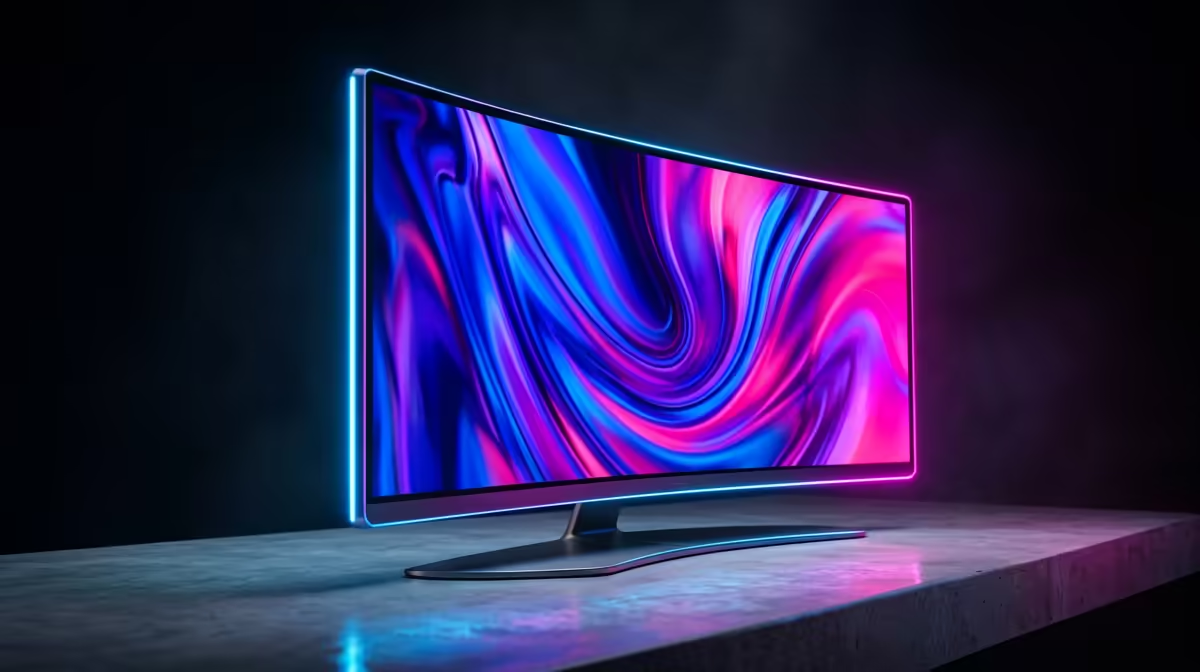
Staring down a tight angle in CS2, every pixel matters. That split-second where your opponent peeks… is your monitor fast enough to show you first? For competitive gamers in South Africa, the jump from 144Hz to a 240Hz monitor for gaming isn't just a number—it's a tangible advantage. It’s the difference between seeing a blur and seeing a headshot. But is this high-refresh-rate magic right for your rig and your budget? Let's find out.
In simple terms, refresh rate (measured in Hertz or Hz) is how many times your monitor updates the image on screen every second. A standard 60Hz screen refreshes 60 times. A 240Hz gaming monitor does it a blistering 240 times. 🚀
This means the motion you see is four times smoother than a standard display. When your GPU is pushing out high frames per second (FPS), a 240Hz monitor can actually display them, resulting in:
Is the difference noticeable? Absolutely, especially if you play fast-paced shooters like Valorant, Apex Legends, or Warzone. While a cinematic game like Baldur's Gate 3 won't see as much benefit, a high-quality 240Hz monitor for gaming transforms the competitive experience.
The superior motion clarity allows your brain to track targets more easily, making it feel like the game has slowed down just for you. For players looking to climb the ranks, this level of smoothness can unlock a new ceiling for their mechanical skill. For an even more engrossing view, many gamers are pairing high refresh rates with the immersive sweep of curved gaming monitors, pulling them deeper into the action.
Just plugging in your new 240Hz monitor isn't enough. You need to manually enable the high refresh rate in your Windows Display Settings or your Nvidia AMD control panel. Many gamers forget this step and play at 60Hz for weeks!
Here’s the crucial reality check: a 240Hz monitor is only as good as the PC powering it. To get the full benefit, your graphics card and CPU need to consistently push 240 frames per second (FPS) or more in your chosen games.
If your rig struggles to hit 144 FPS, upgrading your monitor first won't magically boost performance. You'll need a powerful GPU (think NVIDIA RTX 30-series/40-series or AMD RX 6000/7000-series) and a capable CPU to feed it frames. Before you invest, check your in-game FPS counters. If you're already hitting high numbers, a 240Hz display is your next logical step. It's a key part of a balanced setup, and you can browse a wide range of PC monitors and components to see how it all fits together. ✨
When you're ready to buy, the decision isn't just about the refresh rate. Consider these factors:
Ultimately, a 240Hz monitor for gaming is a specialist tool for the competitive player. It provides a clear, undeniable advantage where every millisecond counts. ⚡
Ready to See the Difference for Yourself? Stop letting screen tear and motion blur hold you back. Explore our massive range of high-refresh-rate displays and find the perfect visual upgrade for your battle station. Shop all gaming monitors at Evetech for performance that leaves lag in the dust.
Absolutely. For competitive gamers in fast-paced titles like FPS or racing sims, a 240Hz monitor offers noticeably smoother motion and reduced input lag, providing a real edge.
To consistently hit 240 FPS, you'll need a powerful GPU. Aim for an NVIDIA RTX 4070 or AMD RX 7800 XT or higher for 1080p, and even more for 1440p performance.
Yes, especially in competitive gaming. The jump from 144Hz to 240Hz provides a smoother, more responsive experience that can help with tracking fast-moving targets accurately.
While ideal, you don't strictly need 240 FPS. Technologies like G-Sync or FreeSync will still provide a tear-free experience, and any frame rate above 144 FPS will benefit.
First, use a DisplayPort cable. Then, go to your Windows Display settings, select 'Advanced display settings', and choose the 240Hz refresh rate from the dropdown menu.
The primary benefits are superior motion clarity, significantly reduced motion blur, and lower input lag. This results in a more fluid and responsive gaming experience.
Humidity Damage to PC Components: Recovery Guide. Everything you need to know with SA pricing, step-by-step instructions & expert recommendations.
Read more
Gamer Spending Trends April : Complete Setups. Clear setup instructions with SA-specific considerations, troubleshooting tips & recommended components.
Read more
Setting Up DDR5 32GB Kit. Tested & verified settings for best FPS and visual quality on SA hardware budgets.
Read more
Tech Setup Guide for SPU Res Students. Clear setup instructions with SA-specific considerations, troubleshooting tips & recommended components.
Read more
Monster Hunter Wilds Ultrawide Support: 21:9 and. Clear setup instructions with SA-specific considerations, troubleshooting tips & recommended components.
Read more
Apple iPad Durability Guide: Cases, Screen. Practical breakdown of costs, regulations & whether it makes financial sense for SA buyers.
Read more
AMD RX 9050 XT: Rumoured Specs, Price & Release. SA-focused analysis with local pricing data, real-world insights & actionable buying advice.

Can RTX 4080 Super Run AI Workloads for SA Developers Detailed answer with SA data, expert analysis & practical recommendations for local buyers.

Can RTX 4090 Run AI Workloads for SA Developers Detailed answer with SA data, expert analysis & practical recommendations for local buyers.

Top Settings for Intel Arc B580 at Ultrawide 1440p picks evaluated on performance, value & SA availability with current Rand pricing from Evetech.

RTX 4060 CS2 Low Settings at 1080p: FPS Results. Real-world benchmark data, FPS numbers & performance analysis. What SA gamers can actually expect.

Visual Artifacts: Possible GPU Issue Issue #1. Diagnosis steps, proven fixes & when to seek professional help. SA-specific support info included.

Can the RTX 4090 Handle 1440p 144Hz Gaming. Performance testing verdict with real data & practical recommendations for SA buyers.

Top ASUS GPU Under R15000 picks evaluated on performance, value & SA availability with current Rand pricing from Evetech.

GTA 6 Max Settings on RTX 5070. Tested & verified settings for best FPS and visual quality on SA hardware budgets.

Cyberpunk 2077 Max Settings on RTX 5080. Tested & verified settings for best FPS and visual quality on SA hardware budgets.

Starfield Max Settings on RTX 5070 Ti. Tested & verified settings for best FPS and visual quality on SA hardware budgets.

Top RTX 5090 Under R5000 picks evaluated on performance, value & SA availability with current Rand pricing from Evetech.