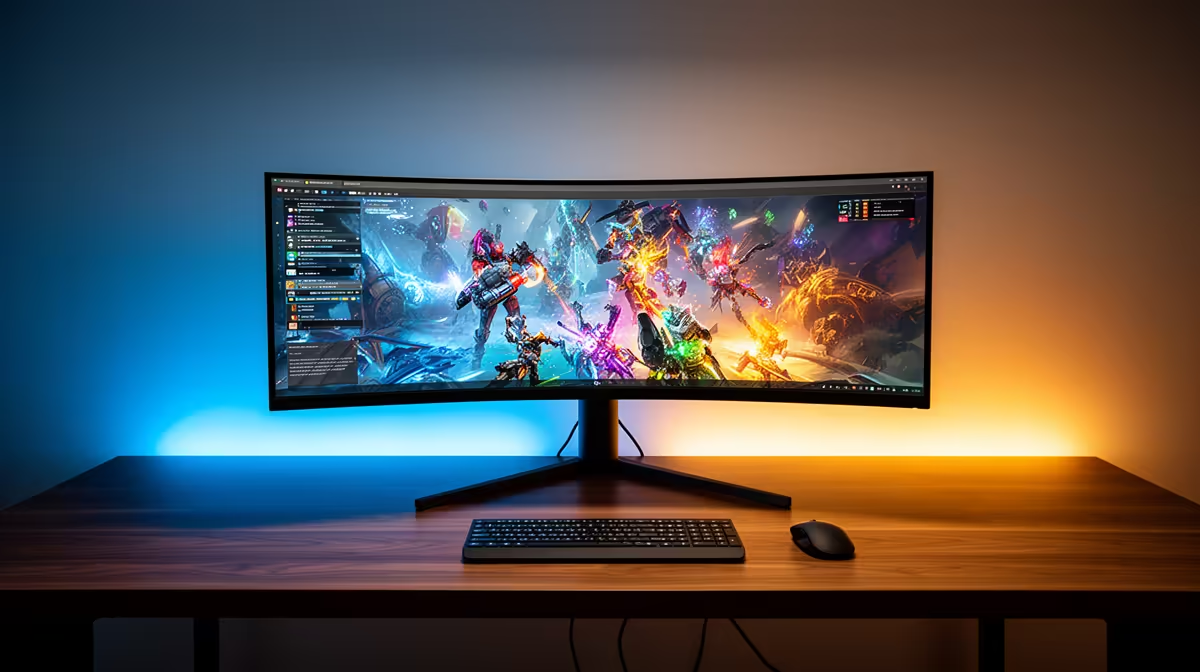
A 34-inch ultrawide can replace two monitors well when you want one uninterrupted workspace or a wider game view. Dual monitors remain stronger when each screen has a fixed job, such as a full-screen game beside chat, reference material or monitoring tools.
Quick Answer
Pick the ultrawide for racing, flight simulation, timeline editing and any workflow where a bezel through the middle gets in your way. Pick two monitors when you switch between separate apps, share one screen or need a portrait panel beside a landscape display.
Start with the available monitor range, then compare the specifications and stand designs among current monitor best sellers. A 34-inch label alone does not tell you the resolution, curve, refresh rate or port layout.
What a 34-Inch Ultrawide Feels Like
Most 34-inch ultrawides use a 21:9 shape and 3440 x 1440 resolution. Their height feels close to a 27-inch 16:9 monitor, while the extra width opens space at both sides.
In a supported game, that width can show more of the cockpit, track or landscape. It feels natural because the picture has no centre seam. Support still varies. Some games show black bars in cutscenes, place interface elements far apart or limit the field of view.
For work, the same panel can hold two broad windows or a large video-editing timeline. Window snapping matters because a maximised browser across the full width wastes space. PowerToys FancyZones or the operating system's layout tools can turn one panel into useful regions.
Where Two Monitors Win
Two displays give you hard boundaries. You can maximise a game on one and keep Discord, a stream preview or temperatures visible on the other. A designer can reserve one calibrated screen for the image and place palettes or references next door.
You also choose each panel for its role. A fast gaming screen can sit beside a cheaper office monitor. One can rotate into portrait orientation for code or documents. If a panel fails, the other remains usable.
The trade-off is the join. Bezels, different colour, mismatched scaling and unequal stand height can make the desk feel patched together. Windows may open on the wrong display, and a central dual-arm mount needs enough strength and adjustment range.
Measure the Desk Before Choosing
A 34-inch ultrawide takes less horizontal space than many side-by-side 27-inch screens, though its stand can be deep. Measure the distance from the wall to your keyboard and check where the feet land. A curved panel usually wants you near the centre of its arc.
Dual monitors spread farther and may push speakers outward. Their stock stands can collide. A monitor arm clears the desk, but the wall, clamp position and panel weight need checking first.
Your seating distance changes the result. Sit too close to a wide flat display and the corners feel remote. Sit far back and text becomes small. For a typical 34-inch 3440 x 1440 screen, start around an arm's length away and adjust for your eyesight and curve.
Gaming Performance Costs More Than 1440p
An ultrawide 3440 x 1440 frame contains about 34 percent more pixels than standard 2560 x 1440. Expect lower frame rates from the same graphics card. Look at benchmarks for the exact resolution rather than assuming ordinary 1440p results will carry across.
Adaptive sync helps smooth uneven delivery, but it cannot create performance. Check the panel's variable-refresh range, the ports needed for its top refresh rate and whether the laptop or graphics card supports that mode.
Two-monitor gaming usually renders the game on one display, so the second desktop has little graphics cost. Video playback, browser animation and capture software can still add load. Match refresh rates where possible if mixed rates cause stutter in your setup.
Resolution and Text Clarity
Avoid confusing 2560 x 1080 and 3440 x 1440 models. Both can be sold at 34 inches. The lower resolution is easier for a GPU, yet text and fine interface elements look softer at a close desk distance.
With two monitors, mismatched resolutions can make the pointer and windows change size as they cross the boundary. Matching scaling reduces that friction. If one screen is 4K and the other is 1080p, test the apps you use because older software may handle mixed scaling poorly.
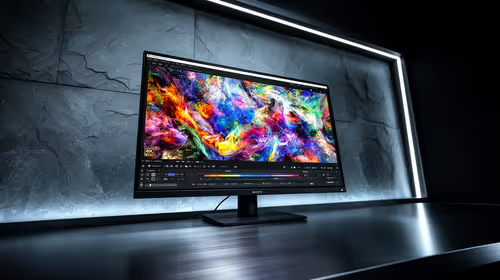
For colour work, inspect gamut, factory accuracy, uniformity and available calibration controls. Panel count does not decide image quality. A strong ultrawide can beat a weak pair, and two matched professional panels can beat a gaming ultrawide.
Ports and Daily Convenience
Count every device before buying. A desktop, work laptop and console can fill the inputs fast. USB-C video with enough charging power can make an ultrawide a clean one-cable laptop dock. A built-in KVM is useful when two computers share the same keyboard and mouse.
Dual monitors offer more inputs but require more cables. Confirm the computer can drive both at their intended resolution and refresh rate. Some laptops expose only one display output unless a compatible dock adds another.
Picture-by-picture mode lets some ultrawides show two sources side by side. Check whether refresh rate, HDR or adaptive sync becomes limited in that mode. The feature is useful for work, yet it does not behave exactly like two independent monitors.
Choose Around Your Main Two Hours
Think about the most demanding part of your day. If those hours involve a racing rig, a long editing timeline or several related windows, the seamless canvas earns its place. If they involve a full-screen task beside a separate reference or communication screen, two panels are easier to organise.
Do not buy around a showroom wallpaper. Open the apps and games you use, place them in a rough layout and see how much width each needs. You can even mark the proposed screen edges on the desk with removable tape.
FAQ
Is a 34-inch ultrawide the same height as a 32-inch monitor?
No. A 34-inch 21:9 screen is usually closer in height to a 27-inch 16:9 panel, with more width.
Can every game use 21:9?
No. Support is common, but some games, menus and cutscenes use black bars or awkward interface placement.
Can an ultrawide show two computers at once?
Some models support picture-by-picture. Check the exact input, resolution and refresh restrictions before relying on it.
Sketch your real window layout, measure the desk and choose the screen arrangement that keeps your main work or game free of awkward divisions.