Quick Answer
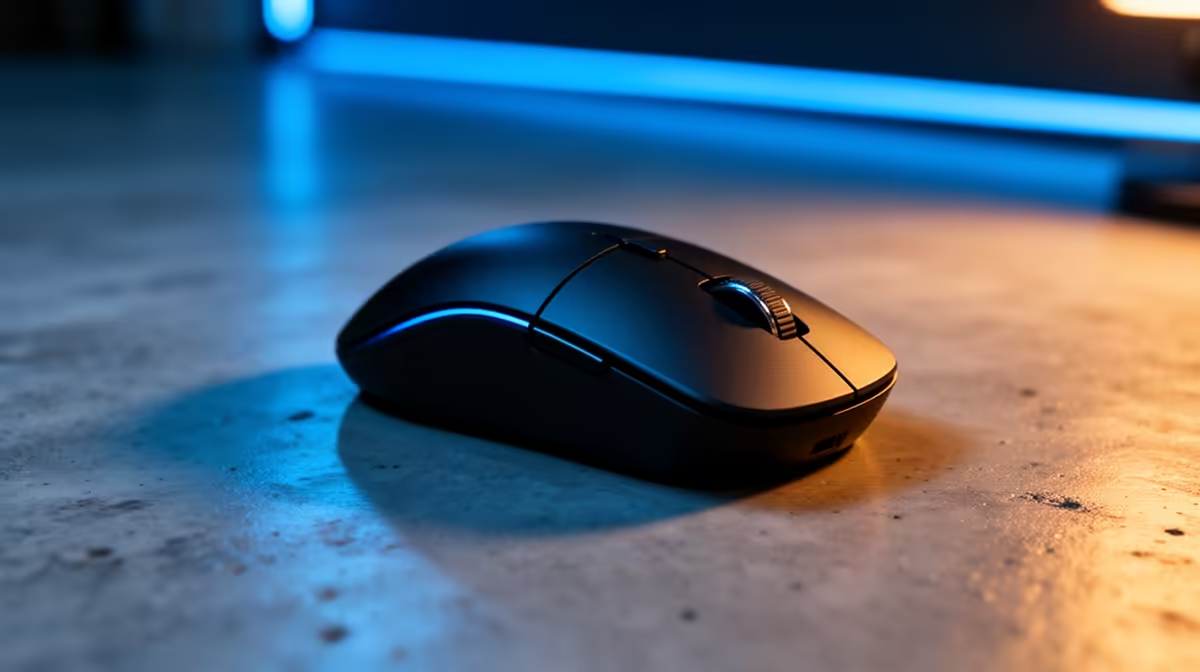
Microsoft Swift Pair is a Windows 10/11 feature that detects compatible Bluetooth devices nearby and shows a one-click pairing notification, eliminating the need to open Bluetooth settings. On a Swift Pair-compatible mouse, first-time setup takes under 20 seconds from power-on to cursor-active.
How Swift Pair Works Step by Step 🔧
When you power on a Swift Pair-compatible Bluetooth mouse within range of a Windows 10 or 11 machine, the device broadcasts a special advertising packet. Windows detects this and displays a pop-up notification in the bottom-right corner reading something like "New Bluetooth device found" with a Connect button. Clicking Connect completes the pairing without navigating into Settings or any menu. The entire sequence from power-on to connected state takes 10 to 20 seconds on most compatible hardware. For a South African office worker setting up at a new desk, a client site, or a hot-desk environment in Johannesburg's Rosebank or Cape Town's Woodstock business districts, this speed eliminates a two-minute manual pairing process.
Which Mice Support Swift Pair 🖱️
Microsoft's own Bluetooth accessories support Swift Pair natively, including the Microsoft Arc Mouse and several Surface-branded mice. Third-party mice from Logitech, HP, and other manufacturers increasingly include Swift Pair support in their Bluetooth 5.0 and 5.1 hardware. The product listing or box will state Swift Pair support if present; it is not universally available on all Bluetooth mice regardless of price. If a mouse supports Swift Pair, it typically also meets Windows 11's broader Bluetooth certification requirements, a secondary quality signal worth noting when comparing unfamiliar brands.
Standard Bluetooth Pairing When Swift Pair Is Absent 🔵
If your mouse does not support Swift Pair, standard Bluetooth pairing in Windows 11 is still straightforward. Open Start, navigate to Settings, select Bluetooth and Devices, click Add device, choose Bluetooth, and select your mouse from the discovered list. Most mice enter pairing mode by holding the Bluetooth button for three to five seconds until an LED flashes rapidly. The entire process takes 60 to 90 seconds on first setup. Subsequent reconnections are automatic. For standard office use, the absence of Swift Pair is a minor convenience difference rather than a meaningful limitation.
Enable Bluetooth Notifications to Catch Swift Pair Prompts ⚡
Swift Pair notifications only appear if Windows notifications are enabled for Bluetooth. Go to Settings, then System, then Notifications, and confirm that Bluetooth and Devices notifications are turned on. If this is off, the Swift Pair prompt never appears and you will not know the feature is available.
FAQ
Does Swift Pair work with all Bluetooth versions or only Bluetooth 5.0?
Swift Pair works with Bluetooth 4.0 and above, but compatibility is device-specific. The device must broadcast the correct Swift Pair advertising payload. In practice, most Swift Pair-compatible accessories released after 2019 use Bluetooth 5.0 or later.
Is Swift Pair secure or can it pair my mouse with a nearby stranger's PC?
Swift Pair is proximity-based and requires a deliberate click on the notification to complete pairing. It does not auto-pair silently. The pop-up disappears if not acted on within a few seconds, making accidental or unwanted pairing unlikely.
Can I use Swift Pair to reconnect a mouse that has already been paired to a different Windows machine?
Swift Pair is primarily for first-time pairing of a device in advertising mode. Reconnecting a mouse previously paired to another PC first requires clearing the old pairing from the mouse (usually by holding the pair button until it resets), then triggering Swift Pair on the new machine.
Want Bluetooth setup that takes seconds instead of minutes?
Evetech stocks Microsoft and third-party Bluetooth mice with Swift Pair support, alongside a full range of wireless options for every desk setup.