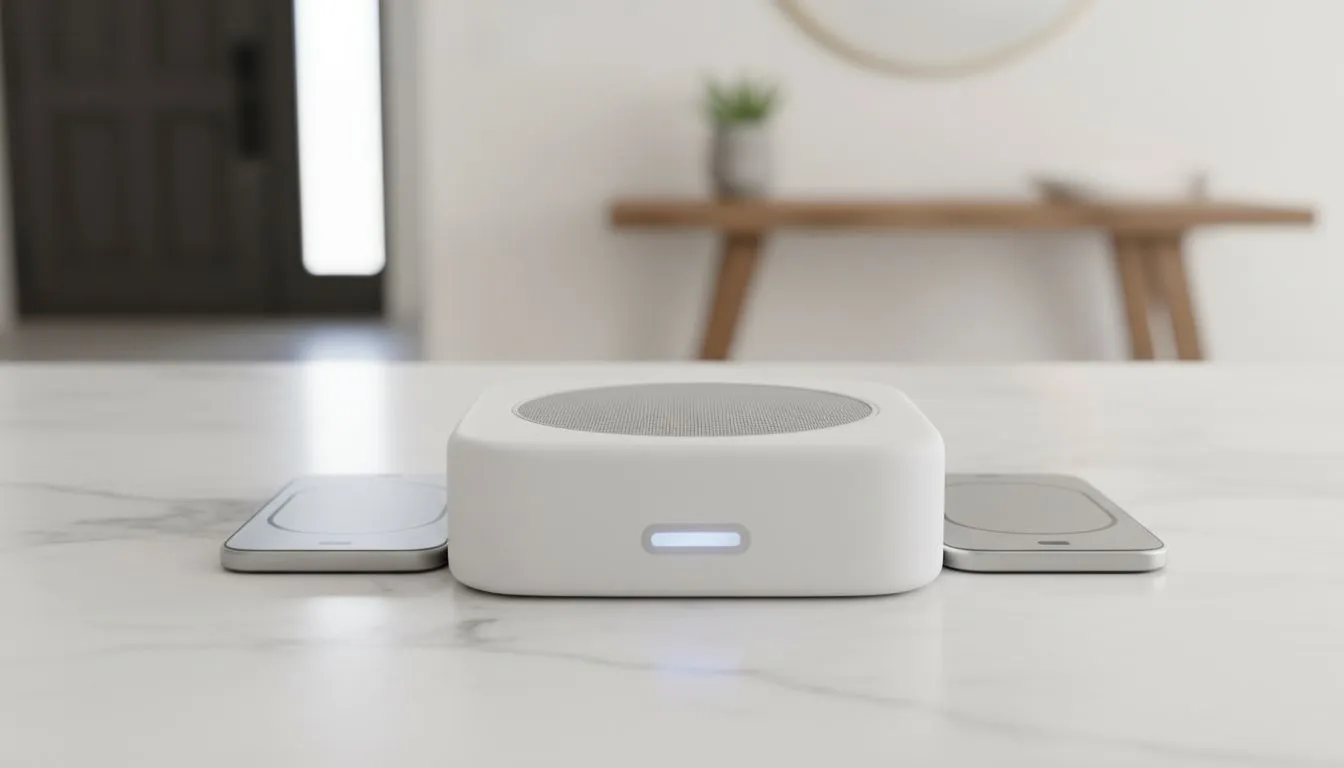
Ever lost your photos because of a dropped phone or a sudden load shedding surge? It is a nightmare every South African gamer wants to avoid. Imagine walking through your front door and having your phone instantly start backing up your latest clips. No cables... no monthly cloud fees... just pure, automated peace of mind. Let's look at setting up an automatic smartphone backup when you walk in the door.
Why Local Backups Beat the Cloud in South Africa
Monthly subscriptions for cloud storage can quickly drain your budget... especially when deals are priced in foreign currency. Relying on a local solution ensures your data stays within your four walls. By investing in diskless NAS storage solutions, you take full control of your digital life. You won't have to worry about slow international upload speeds or privacy concerns. Plus... your backups happen at local network speeds... which is significantly faster than any fibre line.
Hardware to Power Your Personal Cloud ⚡
To get started... you need a reliable place for those files to land. Many users prefer starting with Orico storage enclosures because they offer a cost-effective way to repurpose existing hard drives. If you want something more robust... exploring Minis Forum options can provide the processing power needed to run a dedicated media server alongside your backups. These compact units fit perfectly into any gaming setup without taking up much space.
Productivity Pro Tip ⚡
Use the 'Synology Photos' or 'Nextcloud' mobile app to trigger backups specifically when your phone connects to your home Wi-Fi. This ensures that your automatic smartphone backup when you walk in the door happens instantly without you ever needing to open an app or plug in a cable.
Setting Up the Automation Trigger
The magic happens through geofencing or Wi-Fi SSID detection. Most modern NAS software allows you to set a "Home Zone". As soon as your phone detects your home network... it begins syncing. This is perfect for preserving those high-quality 4K videos of your latest gaming wins. You can even configure the system to only run when your phone is charging... which helps preserve your battery life during those long gaming sessions.
Final Thoughts on Data Security 🚀
In a world where digital memories are everything... leaving your data to chance is a risk you shouldn't take. Setting up an automated system is a one-time task that pays dividends for years. You will never have to manually copy files again. It is the ultimate "set and forget" solution for the modern South African tech enthusiast.
Ready to Find Your Perfect Match?
The Mac vs Windows debate is complex, but for maximum power, choice, and value in South Africa, Windows is hard to beat. Explore our massive range of laptop specials and find the perfect machine to conquer your world.