Stop squinting at your screen during those midnight Warzone sessions in Joburg. Most users leave their screens on "Blinding White" out of the box. Finding the best brightness settings for monitor use ensures you see every detail while protecting your eyes from strain during long South African winter nights. Let’s calibrate your view. 🔧
Finding the Ideal Brightness for Your Workspace
Most displays arrive with brightness set to 100%. This is great for a bright showroom floor but terrible for a home office. For a standard room, you should aim for a luminance of 120 to 150 nits. On most screens, this means setting your OSD brightness to somewhere between 30% and 50%. If you are currently hunting for the best PC monitor deals, remember that a screen with high peak brightness gives you more headroom... but you rarely need to use all of it.
High brightness levels cause eye fatigue and can lead to headaches over time. A good rule of thumb is to match your monitor brightness to the ambient light in your room. If your screen looks like a glowing lantern compared to the wall behind it, it is too bright. Adjusting these levels is the first step in mastering the best brightness settings for monitor longevity and personal comfort.
Why sRGB Mode Matters for Colour Accuracy
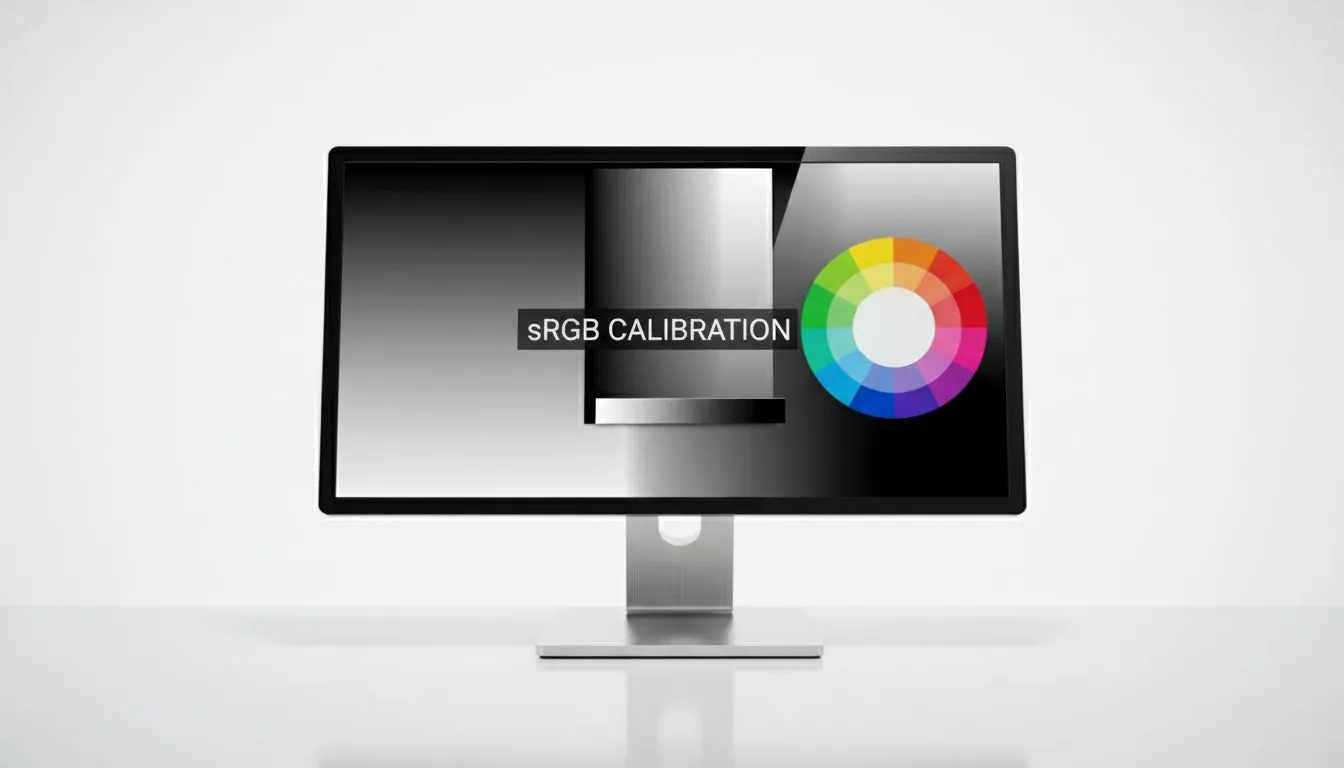
If you do any creative work, colour accuracy is non-negotiable. The sRGB colour space is the standard for the web and most digital content. Many modern PC monitors come with a dedicated sRGB mode in their settings menu. Activating this mode often locks the brightness and colour temperature to calibrated levels.
This prevents your images from looking oversaturated or "neon". While pro-grade 5K and 4K monitors usually offer the best factory calibration, even entry-level screens benefit from this setting. It ensures that the photo you edit in Cape Town looks the same when someone views it in London or New York. ✨
Productivity Pro Tip ⚡
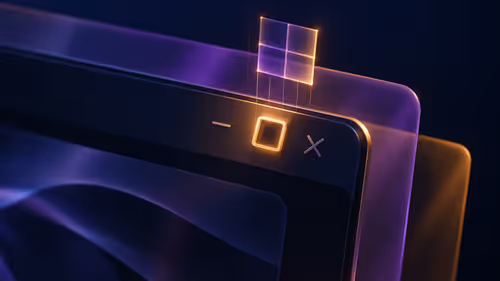
On Windows, use the PowerToys FancyZones utility to create custom snap layouts for your windows. It's a lifesaver for managing multiple apps on an ultrawide monitor, letting you organise your timeline, preview window, and asset folders perfectly for video editing.
Visibility Tips for Competitive Gaming
In the world of competitive gaming, visibility is life. If you cannot see a player hiding in a dark corner, you have already lost. High-refresh gaming monitors often include features like "Black Equalizer" or "Shadow Boost". These tools brighten dark areas without overexposing the highlights.
Using these visibility tips allows you to maintain a competitive edge. If you prefer a more cinematic experience, curved monitors can help with immersion... but they also require careful brightness management to avoid glare on the curved glass. Adjusting your gamma settings to 2.2 is generally recommended for the best balance between deep blacks and visible detail. 🚀
Optimising Your Setup for Mobility and Ergonomics
Not everyone works from a fixed desk. If you are using portable monitors while working remotely, you will likely need to boost your brightness to combat sunlight. Glare is the enemy of productivity.
Beyond the software settings, consider your physical environment. Adding the right monitor accessories can make a massive difference. A simple monitor arm allows you to tilt the screen away from light sources. This reduces the need to crank the brightness to maximum. Whether you spent R2,000 or R20,000 on your display, taking ten minutes to calibrate it will transform your viewing experience.
Ready to Find Your Perfect Match?
Finding the right display is about more than just specs; it is about how you see your world. For the best deals and expert advice on displays in South Africa, we have you covered. Explore our massive range of monitor specials and find the perfect machine to conquer your world.