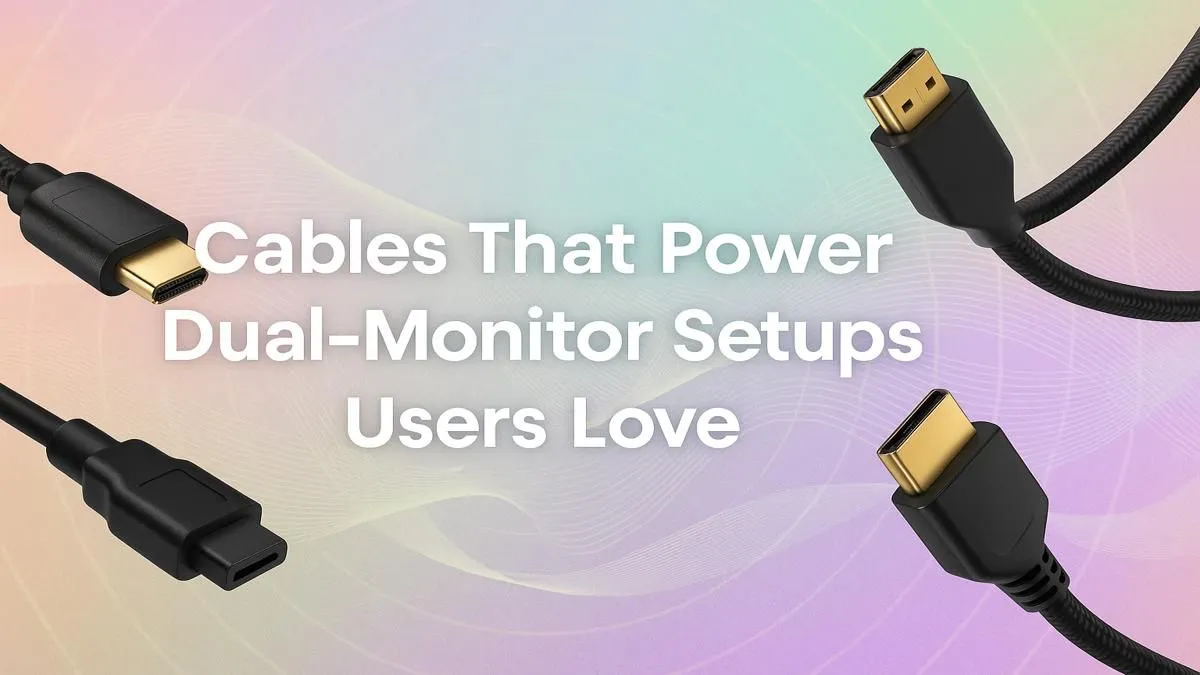
So, you’ve finally got two screens on your desk. Awesome! But now you're facing a nest of random cables, and one monitor is flickering or just... not working. In South Africa, a clean, reliable dual-monitor setup isn't just for looks; it's about maximising productivity between load shedding slots. The secret isn't just the screens; it's choosing the best cables for your dual-monitor setup to unlock its full potential. Let's get it sorted.
Your Guide to Dual-Monitor Cables
Before you buy anything, you need to play detective. What ports does your graphics card (GPU) have? And what about your monitors? The goal is to match the best output from your PC to the best input on your screens. The three main contenders you'll find are DisplayPort, HDMI, and USB-C. Each has its strengths, and picking the right one is crucial for getting the performance you paid for.
DisplayPort: The Gamer’s Choice 🚀
If you’re running high-refresh-rate gaming monitors (144Hz or higher), DisplayPort is almost always the answer. It was designed specifically for PC-to-monitor connections and packs more bandwidth than most HDMI versions. This makes it one of the best cables for dual-monitor setups geared towards competitive gaming, ensuring you get every single frame your GPU pushes out.
A key feature is Multi-Stream Transport (MST), or "daisy-chaining," which lets you connect multiple monitors using a single DisplayPort output on your GPU... provided your monitors support it. For a reliable connection, quality matters. Check out these excellent GIZZU cable options to ensure a stable signal.
Check Your Version!
Not all DisplayPort cables are equal. A DP 1.2 cable is fine for 1080p at 144Hz, but for 4K at high refresh rates, you'll need a DP 1.4 cable. Always match the cable to your monitor's and GPU's capabilities to avoid bottlenecks!
HDMI: The Versatile Veteran
HDMI is everywhere—on your TV, your console, and your PC. It’s a fantastic, simple option for most dual-monitor setups, especially for work or general use. If your monitors are 60Hz and your resolution is 4K or below, HDMI is a perfectly capable and cost-effective choice.
The key is the version. HDMI 2.0 supports 4K at 60Hz, while the newer HDMI 2.1 is needed for 4K at 120Hz or 8K. Just make sure both your GPU and monitor support the same version. Sometimes, you might need an adapter to make things work, and you can find plenty of reliable HP adapters if your ports don't match up.
USB-C: The Modern All-in-One ✨
For laptop users and those who crave a minimalist desk, USB-C is a dream. A single cable can handle video (using DisplayPort Alt Mode), transfer data, and even charge your laptop. This is the ultimate plug-and-play solution for connecting a second monitor to a modern notebook.
However, there’s a catch: not all USB-C ports are created equal. You must ensure your laptop's port supports "DisplayPort Alternate Mode" or Thunderbolt 3/4 to output video. Check your device's specs first! If you're good to go, these versatile Promate cables offer a clean and powerful connection.
Finalising Your Setup
Choosing the right dual-monitor setup cables comes down to three steps:
- Identify Your GPU Outputs: Look at the back of your PC. What ports do you have available?
- Check Your Monitor Inputs: What options do your screens offer?
- Connect the Dots: Pick the highest-performance option that both devices share. For two 144Hz gaming monitors, that likely means two DisplayPort cables. For a work-from-home setup, two HDMI cables might be perfect.
Don't let the wrong cable hold your battle station back. A small investment of a few hundred Rand ensures your setup is clean, reliable, and performing at its peak.
Ready to Double Your Screen Space?
Now that you know exactly what you need, stop struggling with flickering screens and messy desks. Explore our comprehensive cable solutions at Evetech for performance that leaves lag in the dust.