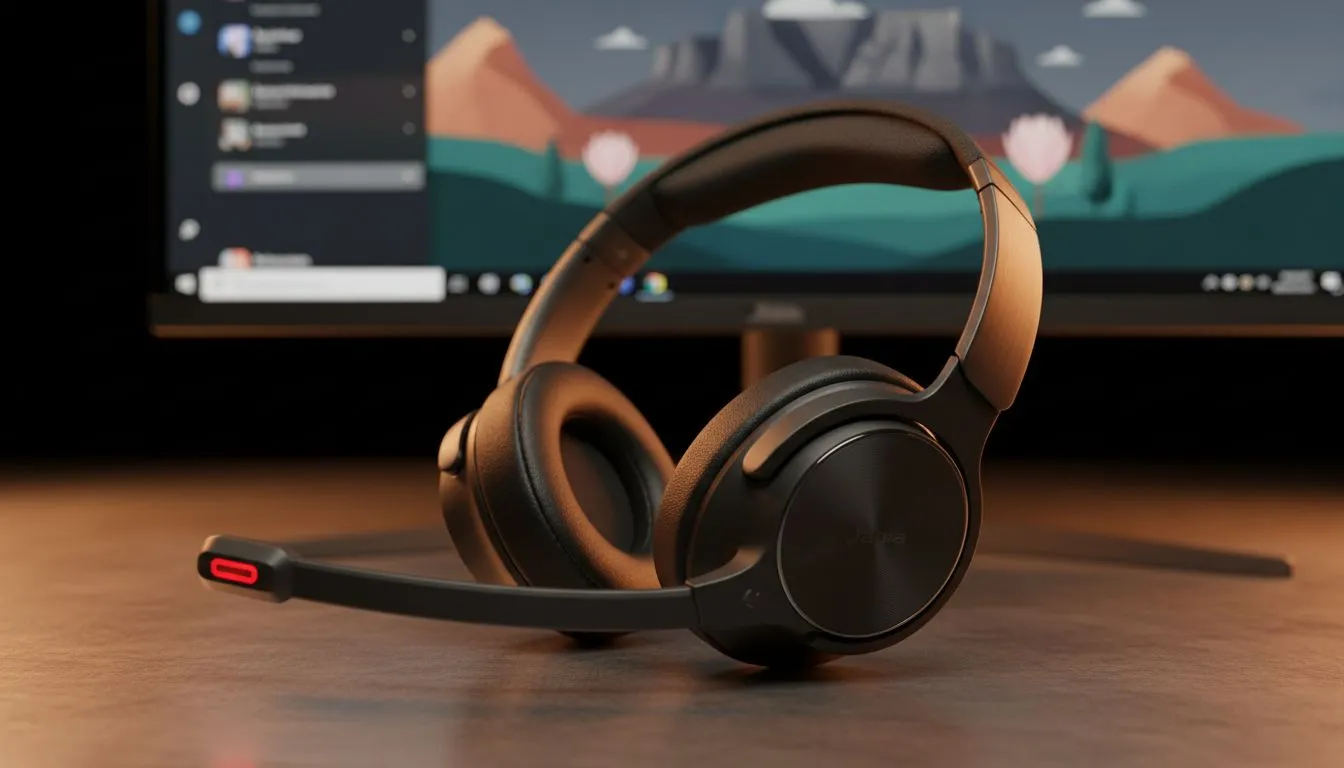
Whether you are handling support tickets in Sandton or sales calls from a home office in Cape Town, audio quality is king. Finding the best headset settings for call centres — Windows + Teams ensures your voice cuts through the background noise. It is the difference between a frustrated client and a successful resolution. Let us look at how to optimise your setup for crystal clear communication. 🔧
Optimising Windows Sound for Voice Clarity
The foundation of a good call starts within your operating system. Many users ignore the Windows Sound Control Panel, yet it holds the key to professional audio. Ensure your default format is set to 48,000Hz (DVD Quality). This matches the standard for most modern VOIP applications used in South Africa.
If you are currently browsing for high-quality office headsets, always check if they support "Exclusive Mode" in the advanced properties. This allows Teams to prioritise your audio stream over background system sounds... ensuring no random notification pings interrupt your flow.
Crystal Clear Mic Tip ⚡
Always check the 'Allow applications to take exclusive control of this device' setting in Windows. While it sounds helpful, it can sometimes let Teams 'hijack' your mic volume, causing it to fluctuate wildly during a call. Keeping it off often provides a more stable volume level for your listeners.
Perfecting Microsoft Teams Audio Settings
Microsoft Teams has evolved significantly with AI-powered features. Under the "Devices" tab, you will find noise suppression settings. Setting this to "High" is ideal for busy South African environments... like those with nearby construction or the hum of a desktop fan.
For professionals using Razer’s pro-grade audio gear, you can often find a sweet spot between hardware gain and software suppression. This prevents your voice from sounding "robotic" while still removing that pesky background chatter. Remember to disable "Automatically adjust mic sensitivity" in Teams if your colleagues say your volume is jumping up and down.
Hardware Integration with Razer Barracuda X
Sometimes, software can only do so much. The Razer Barracuda X Chroma is a standout choice for those who need versatility between work and play. It features a dedicated cardioid microphone pattern. This means it focuses on your voice and ignores noise from the sides and back.
When you combine this hardware with the right software configuration, you create a bubble of silence for your clients. At a price point often under R2,500, it represents a significant upgrade for any remote worker. High-quality hardware reduces the "listener fatigue" your clients feel during long consultations. 🚀
Testing Your Setup Before the Shift
Never start a shift without a quick test. Use the "Make a test call" feature in Teams. This records a short snippet of your voice and plays it back. Listen for any clipping or muffling. If your voice sounds too quiet, adjust the "Levels" tab in your Windows Microphone Properties. Aim for a peak that does not hit the red zone... keeping it around 70% to 80% is usually the sweet spot for clarity. ✨
Ready to Find Your Perfect Match?
The right audio setup is essential for professional success in any call centre environment. For maximum clarity, choice, and value in South Africa, our curated selection is hard to beat. Explore our massive range of headset specials and find the perfect gear to make every call sound like a premium experience.