Quick Answer
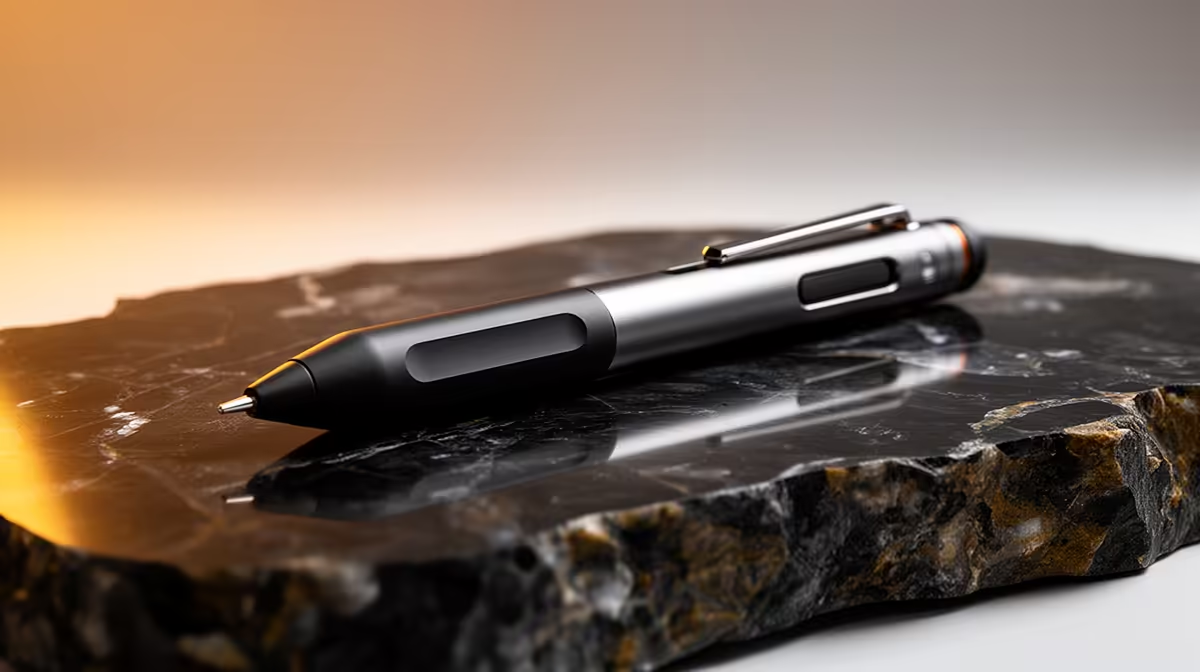
The best stylus pen features for drawing are 4,096 pressure levels, tilt support, and palm rejection. For studying, prioritise palm rejection, low latency, and a fine nib. For work-from-home productivity, multi-device pairing, a rechargeable battery, and programmable side buttons matter most. A single well-chosen mid-range stylus at R800 to R1,500 can serve all three use cases adequately.
Features That Serve All Three Contexts 🖊️
Palm rejection is the one feature that directly improves drawing, studying, and productivity equally; without it, resting your hand on the screen creates constant stray marks that interrupt every session. A rechargeable USB-C battery eliminates the cable management and cost of AAAA cells, which are difficult to source in South Africa. Replaceable nibs ensure you can maintain tip quality without buying a new pen; look for pens that include at least three spare nibs and accept third-party replacements. Low latency (sub-20 ms) keeps strokes feeling natural rather than dragging behind your hand, which matters whether you're shading an illustration, annotating a lecture slide, or marking up a client document.
Drawing-Specific Features Worth Prioritising 🎨
For digital illustration and art: tilt support (60-degree minimum) adds shading versatility that pressure alone cannot deliver. A barrel rotation sensor (present on top-tier pens like the Wacom Pro Pen 3) allows brush texture to rotate as you twist the pen, which mimics a calligraphy nib or flat brush. For most artists below the professional tier, tilt and 4,096 pressure are sufficient. The pen nib material also matters for drawing: felt nibs create paper-like friction on textured tablet surfaces, which helps with controlled shading. Plastic nibs are smoother and faster-moving, better for inking and lettering.
Study and Remote Work Feature Priorities 📝
For students at SA universities taking handwritten digital notes: a fine-tip nib (cone or narrow round) keeps small handwriting legible on screen without crowding. A pen with magnetic attachment to the tablet edge (like the Surface Slim Pen 2 or XP-Pen Thin Pen) prevents loss in lecture halls and digs. For remote workers annotating PDFs, marking up reports, or presenting wireframes: a second side button mapped to right-click or erase removes the need to reach for the mouse during stylus work. Multi-device Bluetooth pairing is valuable if you switch between a work laptop and a personal tablet during the day.
Silent Mode for Library and Lecture Use ⚡
Some active styli, particularly those with Bluetooth side buttons, produce an audible click when a button is pressed. In library or lecture settings this is disruptive. Choose a stylus with silent side buttons (soft-press rather than click-action) if you plan to use it regularly in quiet shared environments across SA campuses.
FAQ
Can one stylus pen genuinely cover drawing, note-taking, and work tasks?
Yes, if it has 4,096 pressure levels, palm rejection, tilt support, and at least one programmable side button. Most mid-range styli in the R800 to R1,500 range meet all four criteria.
Is a stylus better than a mouse for work-from-home productivity?
For annotation, PDF markup, and form-filling, a stylus is significantly faster and more precise than a mouse. For spreadsheet navigation and general desktop use, a mouse remains more efficient. Many remote workers use both: stylus for creative and annotation work, mouse for navigation.
What stylus features help with studying specifically?
Palm rejection and low latency matter most for note-taking speed and accuracy. A fine nib tip keeps small text readable. A quick-launch button that opens your note-taking app or inserts a new page saves time during fast-paced lectures.
Need a stylus that covers drawing, studying, and remote work in one pen?
Evetech stocks mid-range and premium active styli built for SA multitaskers, with all the features that matter most for your daily workload.