Bluetooth Connectivity Failures: The Full Diagnostic 📡
Bluetooth drops without warning, pairs inconsistently, or won't connect at all. These frustrations are usually fixable through systematic troubleshooting rather than hardware replacement. SA's humid climate and electromagnetic interference from an unexpected outage diesel generators compound connectivity issues — we'll address both.
Step 1: Verify Bluetooth Hardware Exists
Not all PCs ship with Bluetooth. Before diving into fixes:
- Right-click the Windows Start button and open Device Manager
- Expand "Bluetooth" section — if empty, your PC lacks Bluetooth
- Expand "Network adapters" and look for "Bluetooth" in the name
- Check your motherboard's specification sheet (search model number + "specs" online)
- Older motherboards and some budget builds skip Bluetooth entirely
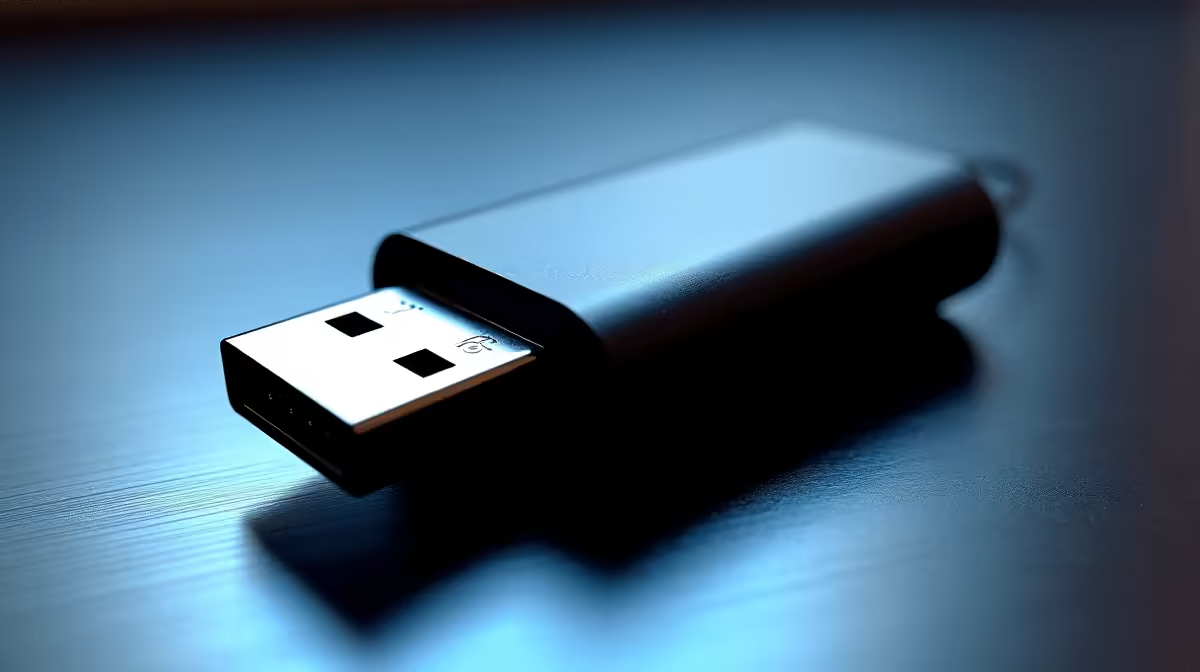
If missing, you'll need a USB Bluetooth adapter (search "USB Bluetooth 5.0" at Evetech's component store).
Step 2: Enable Bluetooth in BIOS and Windows Settings
Hardware can be disabled at two levels:
- Restart your PC and enter BIOS (usually Delete or F2 key)
- Search for "Wireless," "Bluetooth," or "Onboard Devices"
- Ensure Bluetooth is set to "Enabled" (not Disabled or Auto)
- Save and exit
- In Windows Settings > Devices > Bluetooth, toggle the switch to On
- Ensure the PC is visible to other devices
Step 3: Update or Reinstall Bluetooth Drivers
Outdated or corrupted Bluetooth drivers are the #1 culprit:
- Open Device Manager (Windows + X > Device Manager)
- Expand "Bluetooth" and right-click your adapter
- Select "Update driver" > "Search automatically"
- If found, Windows installs it automatically
- If no update available, right-click again and select "Uninstall device"
- Restart Windows; it auto-detects and reinstalls the default driver
- Visit your motherboard or PC manufacturer's support page for the latest Bluetooth driver
- Download and install manually for most reliable results
Bluetooth Connectivity Pro Tip ⚡
interference from an unexpected outage diesel generators and microwave ovens disrupts the 2.4GHz band that Bluetooth uses. If your wireless mouse or keyboard also stutters during an unexpected outage, Bluetooth interference is likely. Move further from the interference source or switch to 5GHz devices if possible.
Step 4: Clear Paired Device Cache and Re-pair
Corrupted pairing data causes phantom connections:
- Settings > Bluetooth > Related settings > Devices and printers
- Right-click your Bluetooth device and select "Remove device"
- In Device Manager > Bluetooth, right-click your adapter
- Select "Properties" > "Driver" tab > "Uninstall device"
- Restart Windows
- Wait 60 seconds, then try pairing fresh
When pairing, keep the Bluetooth device close (within 2 metres) and ensure no other devices are trying to pair simultaneously.
Step 5: Disable Power Saving on Bluetooth Controllers
Windows suspends Bluetooth to save power, breaking connections:
- Device Manager > Bluetooth, right-click your adapter
- Properties > Power Management tab
- Uncheck "Allow the computer to turn off this device to save power"
- Apply and restart
Step 6: Run Windows Bluetooth Troubleshooter
Windows has a built-in diagnostic tool:
- Settings > System > Troubleshoot > Other troubleshooters
- Scroll to "Bluetooth" and click "Run"
- Follow the prompts; Windows tests connectivity and applies fixes automatically
- Often resolves issues without manual intervention
Step 7: Check for Windows Updates and Firmware
System-level bugs cause widespread Bluetooth failure:
- Settings > Update & Security > Check for updates
- Install all pending updates and restart
- Visit your motherboard manufacturer's website (ASUS, MSI, Gigabyte, etc.)
- Download the latest Bluetooth firmware utility and run it
- Some boards allow firmware updates directly from BIOS
Hardware Replacement Path
If Bluetooth still won't function after all steps, your adapter has likely failed. A USB Bluetooth 5.0 dongle from Evetech's components section provides instant connectivity with no additional troubleshooting.
Ready to restore wireless convenience?
These troubleshooting steps resolve 95% of Bluetooth issues without hardware replacement. If you do need to upgrade your connectivity, Evetech stocks reliable Bluetooth adapters and wireless peripherals to get you back online instantly.