Connector names describe possible display routes, not a finished workstation. DisplayPort 2.1b, HDMI 2.1b and GPU displays must be planned through the monitor input, cable capability, chosen resolution, refresh rate and simultaneous-screen requirement.
Quick Answer
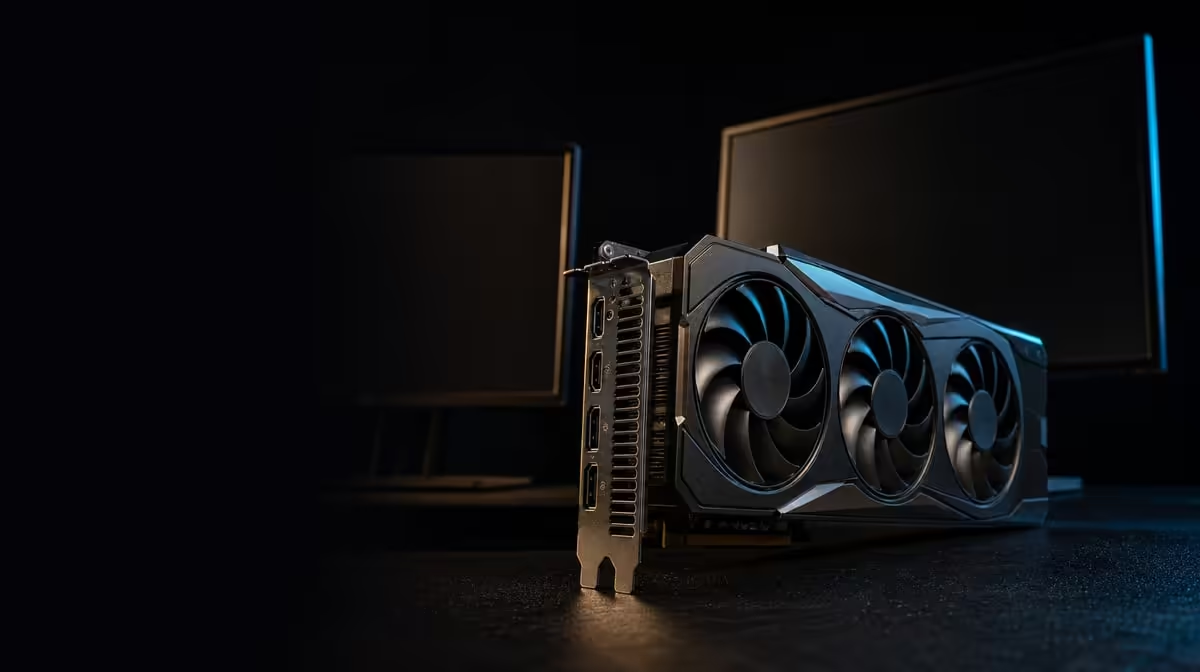
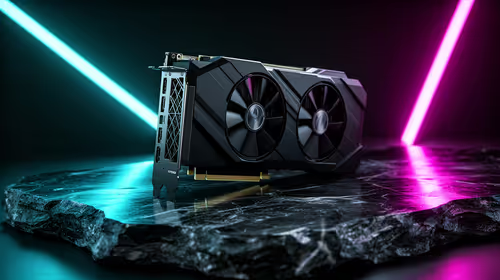
The R73,599 ASUS TUF RTX 5090 provides three DisplayPort 2.1b and two HDMI 2.1b connections. Neither standard is universally preferable: allocate each port to a compatible screen and mode, then confirm the entire five-link plan in hardware and software.
🔌 Read the connector inventory correctly
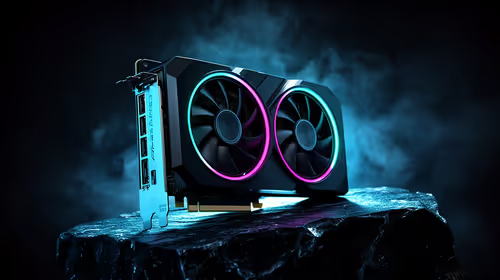
Five sockets sit on the card: a DisplayPort trio and an HDMI pair. This physical count offers useful flexibility for gaming, creation and general desktop screens.
The standards are not interchangeable merely because both carry video. Monitors expose different inputs and capabilities, while the intended resolution and refresh rate determine what the path must handle.
Start at each display. Record input choices, native resolution, desired refresh, primary role and whether audio or another supported feature is part of the connection.
Then assign GPU ports, giving the most demanding or least flexible screen first choice. A monitor with one suitable native input leaves less room for improvisation than a secondary panel with both connector types.
Do not translate five sockets into guaranteed support for any five modes. Simultaneous-output behaviour deserves a separate check using the exact screen combination.
Add an "active together" column to the inventory. A projector used once a week or a review screen switched on for clients may share a workflow without requiring every display to run continuously.
Measure the desk and normal viewing position. Connection flexibility has little value when another panel causes uncomfortable reach, blocks speakers or forces the main screen away from the user's centre.
Compare port layouts in Evetech's ASUS graphics-card range after completing the display inventory.
🧵 Make cables part of the specification
A connector-shaped fit does not prove a lead supports the selected mode. Identify cable capability and length, label its intended route and remove uncertain leads from a demanding setup.
Cable routing should remain mechanically safe. Leave enough slack for monitor arms or an adjustable desk, avoid severe bends near plugs and do not let cable weight pull continuously on the GPU socket.
Adapters can convert between connector types only within their stated capabilities. They do not add a native graphics output, and some conversions may not preserve every feature.
Prove the primary screen directly before adding an adapter, dock, capture device or switch. Each extra component creates another boundary to test.
Keep a simple cable register. Note monitor, GPU port, connector type and working mode. It can prevent a visually similar lead from replacing a known-good one after the desk is moved.
Test each lead directly before hiding it in cable channels. Confirm the demanding mode, restart once and move the adjustable desk through its range if relevant. A concealed cable is harder to replace after the layout is complete.
Use sensible strain relief outside the computer without tying the lead so tightly that movement reaches the GPU socket. Mechanical reliability supports electrical capability.
Review alternatives via Evetech's NVIDIA graphics-card category, treating cable readiness as part of the total setup.
🖥️ Configure a mixed-monitor workstation
Attach one screen, choose its input and confirm detection. Set native resolution and intended refresh in the operating system before connecting the next panel.
Arrange virtual positions to match the desk. Unequal resolutions and scaling can create pointer catches or window-size changes, so adjust boundaries deliberately rather than accepting the first arrangement.
Set the primary monitor and open the actual applications. A game, editor or presentation tool may have its own display selector. Confirm full-screen, preview and window placement.
Mixed panels can serve different jobs. The main high-refresh display may use one route while a reference screen prioritises colour or resolution. Their connections need to suit their roles rather than match for appearance.
If a display has several inputs, label the selected one in its on-screen menu or workspace note. A monitor accidentally switched to another source can resemble a failed GPU output.
Test restart, wake and cable reconnection. If windows move or a mode disappears, note the exact event and isolate one panel or cable per diagnostic pass.
Preserve a screenshot of virtual arrangement and scaling. Operating-system updates or docking changes can reset positions, and a visual reference is faster to restore than a written left-right description.
Check creator colour and preview settings after the desktop is stable. Connector choice alone does not calibrate panels or make mixed displays match.
The RTX 5090's 32GB GDDR7 and 3352 AI TOPs address processing and memory, not monitor configuration. A stable desk still depends on correct routing and software choices.
📋 Validate all screens under real use
Open the ordinary gaming or creator workload with every required panel active. A static desktop proves connection, but it may not reveal behaviour during full-screen play or a hardware-accelerated preview.
Check that the main monitor retains its resolution and refresh target. Confirm secondary panels stay stable and that the mouse travels through expected boundaries.
If a display fails, use a known-good cable and port as separate tests. Determine whether the symptom follows the monitor, lead, GPU connector or software setting.
Do not rearrange all five connections at once. A small fault table preserves evidence and makes the final fix repeatable.
Swap the simplest element first. A known-good cable on the same port can reveal a lead problem; the same screen on another native route can narrow the issue further. Return each unsuccessful swap before the next.
Keep chassis ventilation open despite the cable bundle. Its chamber-and-axial-tech-fan assembly move heat through the card, while the case needs unobstructed intake and exhaust.
At R73,599, the output mix should solve a recurring layout need. Count a port as value only when it carries a useful, confirmed display role.
Include the price of appropriate cables, adapters or monitor changes in the workstation total. The card provides sockets, while the rest of each link remains part of the user's build.
The best final plan may leave a port unused. Spare physical capacity can be convenient, but a stable three-screen arrangement is better than an unreliable five-panel showcase.
Consult Evetech's GPU best-seller page after testing the desk plan and check current availability.
Frequently Asked Questions
What output mix appears on the ASUS TUF RTX 5090?
It has three DisplayPort 2.1b sockets and two HDMI 2.1b sockets.
Are DisplayPort 2.1b and HDMI 2.1b interchangeable?
No. Both can form capable links, but the monitor, cable, desired mode and supported features decide which route works.
What determines whether a cable supports the chosen mode?
Its stated capability, length and the requirements of the GPU-to-monitor connection must align.
Why does simultaneous-display support need its own check?
Physical connector count does not guarantee every combination of screens, resolutions and refresh rates.
How should ports be assigned in a mixed-monitor workstation?
Start with the most demanding or least flexible display, then allocate remaining routes by role and native input.
Can an adapter add another native GPU output?
No. It converts an existing route within its capabilities rather than creating a sixth connection.
Which software settings complete the physical connection?
Set resolution, refresh, scaling, virtual position and primary display, then confirm application-specific screen choices.
Building a mixed DisplayPort and HDMI desk?
Inventory every screen and cable, then compare Evetech graphics cards by the complete modes their output plan can support.