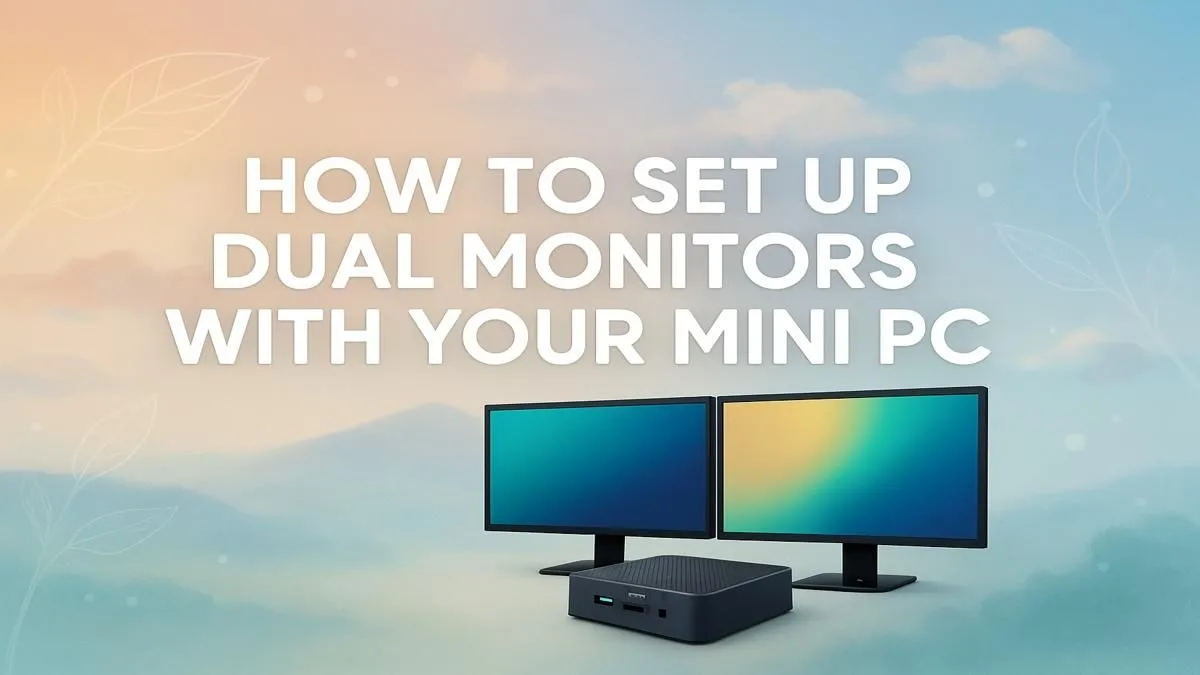
So, you’ve embraced the small-form-factor life. Your desk is clean, your setup is minimalist, and you’re loving the quiet power of a mini PC. But what if you could double your screen real estate without cluttering your space? A dual monitor setup for your mini PC is the ultimate productivity and immersion upgrade. It’s easier than you think to transform your compact rig into a multitasking command centre, perfect for the modern South African workspace.
Why a Dual Monitor Setup for a Mini PC is a Brilliant Idea
Before we dive into the "how," let's quickly cover the "why." Expanding to two screens with one of these compact yet mighty mini PCs isn't just for stock traders and developers anymore.
For gamers, it means running Discord, OBS, or a guide on one screen while your game runs flawlessly on the main display. For professionals and students, it’s the power to have research open on one monitor while you write on the other… no more constant alt-tabbing. A well-executed mini PC dual monitor configuration simply streamlines your workflow. 🚀
Your Pre-Setup Checklist: What You'll Need 🔧
Getting your dual monitor setup for a mini PC right the first time comes down to a quick check of your hardware. A few minutes of prep saves hours of frustration.
1. Check Your Mini PC's Video Outputs
This is the most critical step. Your mini PC needs at least two video-out ports. Look at the back of your device for a combination of the following:
- HDMI: The most common standard, found on almost every modern device.
- DisplayPort (DP): Another popular standard, often preferred by gamers for higher refresh rates.
- USB-C (with DisplayPort Alt Mode or Thunderbolt): Many modern mini PCs use a powerful USB-C port to output video. You must confirm in the specs if it supports video output, as not all USB-C ports do.
Many modern options from leading brands like Minisforum often come with a versatile mix of these ports, specifically designed for multi-monitor setups. Always check the product page specs to be 100% sure.
2. Choose Your Monitors & Cables
For the best experience, try to use two monitors of the same size and resolution. This creates a more seamless viewing area. Once you know your mini PC's ports and your monitors' inputs, grab the correct cables. A direct connection (e.g., HDMI to HDMI) is always better than using adapters, but sometimes an adapter is necessary if your ports don't match up.
Step-by-Step: Connecting Your Dual Monitors ✨
Got your gear ready? Let's get this multi-monitor mini PC setup running.
Step 1: Power Down and Connect
Shut down your mini PC and both monitors. Connect the first monitor to one of the video ports on your mini PC. Then, connect the second monitor to another available video port.
Step 2: Power Up and Configure
Turn on your mini PC and then your monitors. Windows should automatically detect both displays. Your desktop will likely be duplicated on both screens initially. To fix this, right-click on your desktop and select "Display settings."
Step 3: Extend Your Desktop
In the Display settings menu, scroll down to the "Multiple displays" section. Click the dropdown menu and change the setting from "Duplicate these displays" to "Extend these displays."
Now, you can drag and drop the numbered monitor icons at the top of the window to match the physical layout on your desk. This ensures your mouse moves correctly between screens. Click "Apply," and you're done!
Productivity Pro Tip ⚡
On Windows, install Microsoft PowerToys and use the FancyZones utility. It lets you create custom grid layouts to snap your windows into place perfectly across both screens. It’s incredible for organising your code, browser, and communication apps, giving your dual monitor setup superpowers.
Troubleshooting Common Glitches
Sometimes things don't go perfectly. If you're having trouble with your dual monitor setup for a mini PC, here are a few quick fixes:
- No Signal on Second Monitor: Double-check that the cable is securely plugged in at both ends. Try a different cable or port if possible. Ensure the monitor is set to the correct input source (e.g., HDMI 1, DisplayPort).
- Wrong Resolution or Fuzzy Text: Your graphics drivers might be outdated. Visit the website of your mini PC's manufacturer (or Intel/AMD) to download and install the latest drivers.
- Monitors are Mirrored: You're in "Duplicate" mode. Follow Step 3 above to switch to "Extend these displays."
A dual monitor setup is one of the best upgrades you can make for both work and play. And with the power-efficient and space-saving designs available today, finding a machine with the right ports is easier than ever.
Ready to Build Your Compact Powerhouse?
A dual monitor setup transforms a great mini PC into a productivity and gaming beast. If you're ready to upgrade or start fresh, explore our massive range of Mini PCs and find the perfect tiny titan for your desk.