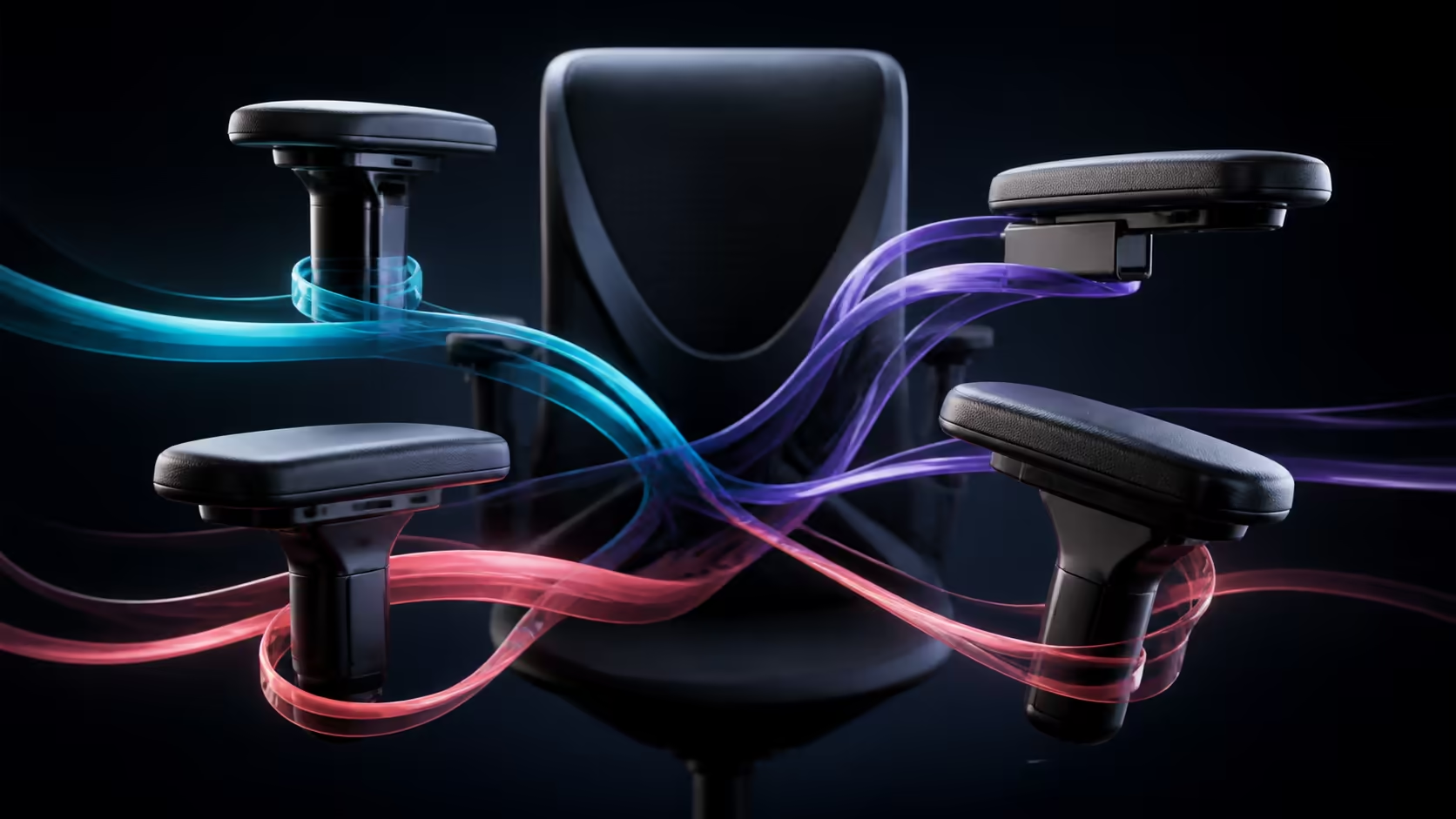
Four-dimensional armrests move in height, depth, width and pivot so forearm support can follow the body, desk and input task. The names describe directions; comfort comes from the order and purpose of each adjustment.
Quick Answer
Stabilise feet, pelvis and lumbar support first. Set armrest height for relaxed shoulders, width for elbows near the ribs, depth for desk access and useful forearm contact, and pivot for the keyboard or mouse line. Test typing, broad mouse movement and controller use separately. Remove contact that creates numbness or restricts movement.
Establish the body baseline
Sit against the backrest with both feet supported. Set seat height so elbows can approach the input surface without shoulder lift. When the desk requires a higher chair, use a stable footrest.
Let the arms hang naturally before touching the pads. This reveals shoulder position without the armrests influencing it.
The gaming chair range helps compare fixed, 2D, 3D and 4D support options.
Height: meet the forearm
Raise each pad from below until it makes light contact. Stop if the shoulder rises or the neck tightens. A low pad can cause leaning or unsupported hanging; a high pad produces shrugging.
Left and right settings may differ slightly for keyboard and mouse. Keep shoulders level even when the hands use different devices.
Width: align elbows with the torso
Move pads inward or outward so upper arms rest near the ribs. Excess width makes elbows flare and shoulders work. Too little spacing crowds the torso and can angle the wrists inwards.
Measure natural elbow spacing and check the adjustment range of the exact chair. An XL user may need a wider chair and greater armrest spacing, while a smaller user needs a suitable minimum.
Depth: control support and clearance
Move pads backwards to clear the desk or free a mouse sweep. Slide forwards only far enough to support useful forearm length without pressing the wrist. The correct position changes between typing and low-sensitivity gaming.
If pads still collide, check desk drawers, cable trays and front-edge thickness. Do not lower the chair until feet and wrists become misaligned.
Pivot: follow the input line
Rotate inward for a compact keyboard or align the mouse side with the forearm path. Use a small angle; extreme pivot leaves only a corner under the arm and can twist the wrist.
Test movement across the whole key or mouse range. A static pose can hide contact problems that appear during play.
Build a typing profile
Centre the letter keys and keep the mouse nearby. Set near-symmetrical height and width, moderate depth and minimal pivot. Type for at least fifteen minutes while watching shoulder lift and wrist extension.
Move the whole chair closer rather than reaching forwards. Lumbar contact should remain stable throughout.
Build a low-sensitivity mouse profile
Slide the mouse-side pad backwards and, if needed, slightly outwards. Make repeated sweeps without catching the elbow. The keyboard side may stay farther forward.
Keep mouse sensitivity and mat position unchanged during comparison. Save the winning armrest clicks.
Build a controller profile
Hands move towards the lap and centre. Bring pads inward, adjust depth and use modest backrest recline while keeping the lumbar area supported. Restore the desk profile afterwards.
At R5,299, the standard Pink Vernazza Supersoft combines 4D arms and lumbar support. Its rocking range reaches 12 degrees, and the backrest can be set as far as 165 degrees. It is not an XL chair.
Account for pad surface
Inspect length, width, edge shape and friction. The pad should carry forearm contact rather than press a nerve near the elbow or wrist. Clothing thickness changes effective height.
Numbness or tingling calls for reduced contact and a break. Persistent symptoms need appropriate professional assessment.
Account for recline and rocking
Backrest angle changes where the forearms meet the pads. Save a break profile rather than using desk settings at 165 degrees. During rocking, check that arms do not slide or press against the desk edge.
Lock movement for precise tasks when the chair-to-desk relationship must remain constant.
Support shared users
Store each person's four settings using photographs or click counts. Reset height and width first because they determine basic shoulder alignment. Then tune depth and pivot for the current task.
Compare premium choices in the gaming chairs above R4,000 category, and use the Arozzi setup selection for brand context.
Decide whether 4D is worth it
List the mismatches fixed armrests leave: pads too wide, desk collision, changing input angles or broad mouse movement. Four directions earn their price when they solve frequent problems. If fixed pads already fit, prioritise seat and backrest compatibility.
Work around desk accessories
Clamp-on microphone arms, steering wheels, drawing tablets and cable trays change where the chair can enter the desk. Install regular accessories before final armrest adjustment. Measure underside clearance after clamps are tightened.
For a steering setup, armrests may need to move backwards or outwards entirely. Restore desk-input positions when the wheel is removed.
Know when to reduce support
Continuous pad contact is not mandatory. Broad mouse movement or drawing can be easier with the forearm free. Move the pad away rather than twisting around it, while the backrest and other side continue supporting the body.
Alternate supported and unsupported periods. The user should still avoid holding the shoulder in a raised or forward position.
Check pad movement and locks
Apply ordinary forearm pressure and confirm each direction remains stable. A pad that drifts can change wrist and shoulder position gradually. Tighten only user-serviceable fasteners according to instructions.
New rattles, cracks or failed locks need mechanical attention. Do not use adhesive or improvised wedges around moving components.
Review the profile late in the session
Fatigue encourages sliding forward and leaning. At the thirty- and sixty-minute marks, reset the pelvis before deciding the pads are wrong. If the original setting works again, posture drift was the main issue.
If the pads still create pressure, reduce contact or revise height and width. Record when the problem begins.
Integrate movement breaks
Drop the arms to the sides, stand and walk at natural task boundaries. Armrests reduce sustained shoulder work but do not replace broader movement. Keep stretches comfortable and avoid forcing a painful range.
Persistent numbness, weakness or pain deserves qualified assessment rather than continued armrest experimentation.
Finish by testing the saved settings on the following day. A position chosen while tired can feel different after recovery, and the repeat trial helps separate durable support from a short-lived preference over time.
Frequently Asked Questions
Which adjustment should be set first?
Start with height, then width, depth and pivot after the body and desk baseline is stable.
Can armrest width replace an XL chair?
No. Seat, backrest, height and capacity must also fit the intended larger user.
Why move a mouse-side pad backwards?
It frees the elbow and forearm for larger sweeps.
Should the pads support the wrists?
No. Aim for light forearm contact and keep hard edges away from the wrists.
Do settings change with recline?
Yes. Torso angle changes forearm contact, so work and break profiles can differ.
Ready to give every armrest direction one clear job?
Build the body baseline, tune height through pivot in order and save separate profiles for every input style.