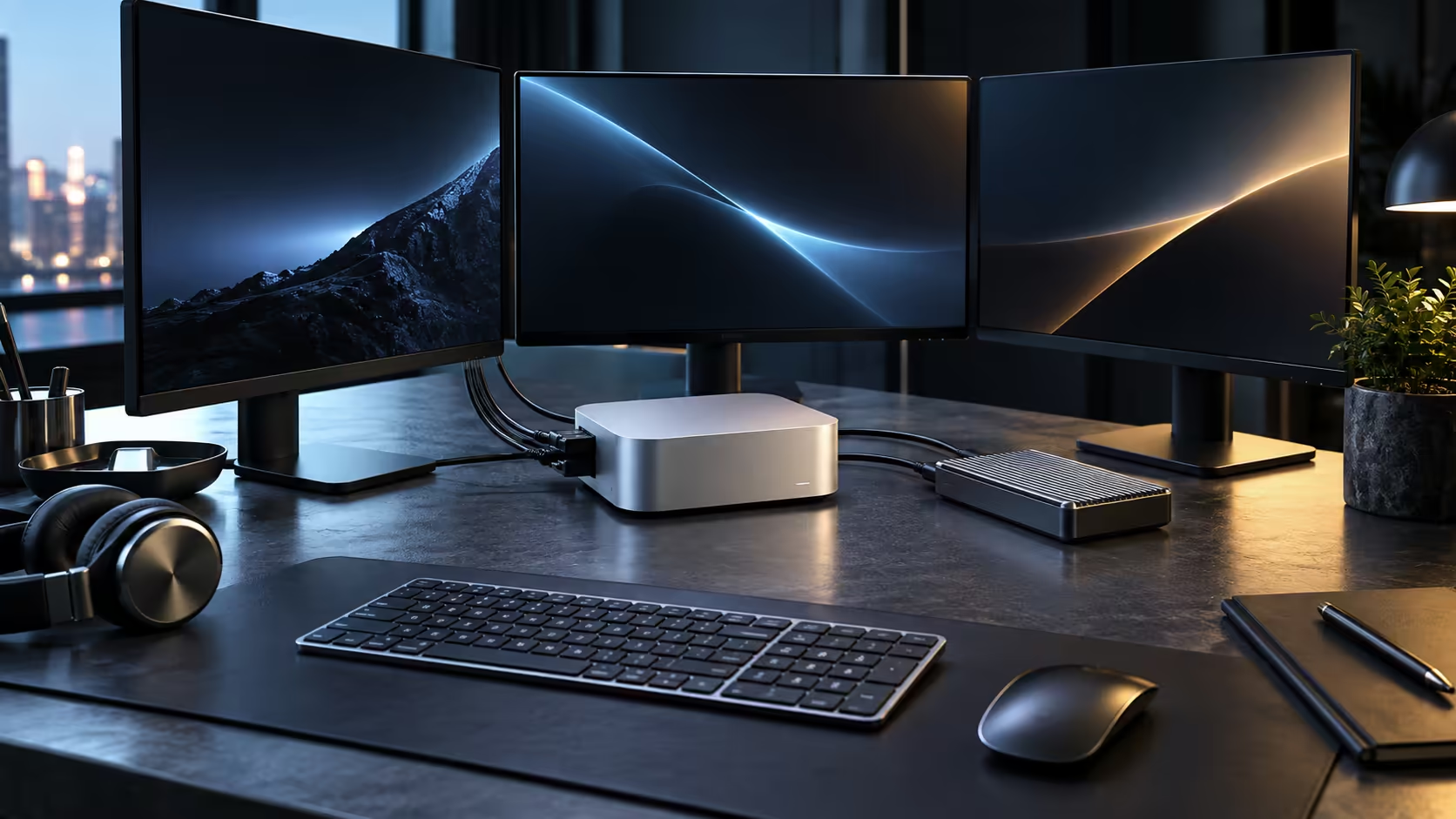
Two screens are the easy case on a Mac Mini M5 Pro. A third is where planning actually starts, because the outputs on the back panel and the chip's own display ceiling are two separate questions that only look the same until you try to answer both.
Quick Answer
One screen over Thunderbolt 5 or HDMI needs nothing extra. Two screens split cleanly across the two output types. A third depends on the exact combination of resolution and refresh rate, and Apple states the hard limit for the M5 Pro chip on its own specifications page, so confirm it there before buying stands for three monitors on this R33,599 machine.
🖥️ One screen: the simplest setup
A single monitor connected through any of the three Thunderbolt 5 ports, or through the dedicated HDMI output, runs at its native resolution and refresh rate with no adapters and no configuration beyond opening Displays in System Settings. This is the setup that never runs into the chip's display engine ceiling, because one screen sits comfortably within any Mac's limit.
🖥️🖥️ Two screens: still comfortable
Adding a second panel, whether both run over Thunderbolt 5 or one moves to HDMI, is where most desks land and stay. A common pairing is a large primary monitor for the working window and a smaller secondary screen for reference material, chat or a browser. Two screens at up to 3840x2160 each run without strain on this configuration.
🖥️🖥️🖥️ Three screens: read the chip's limit first
A third monitor is where the resolution and refresh rate combination matters. Three panels at 1920x1080 is a lighter request than three at 3840x2160, and the M5 Pro's stated ceiling accounts for that trade-off rather than giving one flat "three screens, yes or no" answer. Read the figure for this specific chip on Apple's specifications page, then plan the resolution of all three panels around it before ordering office-ready monitors.
🖇️ Reference material versus active canvas
Deciding which content lives on which screen before you plug anything in saves a lot of dragging windows around later. A common, effective split puts the primary working canvas on the panel around 27 inches, a browser and reference material on the second screen, and a chat client or file browser on the third, so muscle memory quickly learns where to look for each kind of task rather than hunting across three identical-looking screens.
🌡️ Why three screens sometimes run hotter than two
Driving three panels at 3840x2160 each, especially at a high refresh rate together, keeps the GPU's display engine working harder continuously than a one or two-screen setup does, and that shows up as a slightly warmer case and a fan that spins up sooner under otherwise identical work. It rarely affects performance meaningfully on everyday tasks, but it is worth knowing before assuming any warmth or fan noise increase means something is wrong with the machine.
🖱️ Assigning a primary display deliberately
In System Settings, under Displays, macOS treats one screen as the main display, the one carrying the menu bar and where new windows open by default, and it is worth choosing this on purpose rather than letting the system decide. A common setup puts the sharpest, largest panel as primary, with a secondary screen dedicated to reference material or a chat client, so the eye always knows where the active work sits.
🔌 Cabling three screens without a mess of adapters
Each additional monitor is a full cable run, not just a logical connection, and three screens can mean three separate leads back to the machine if none of them daisy-chain. Check whether any of your panels support pass-through to a second display from one port, since that can save a cable and a Thunderbolt port on a desk that is already tight for space. Where pass-through is not available, plan the cable route along the back of the desk before the monitors are mounted, not after.
🌓 Colour and brightness consistency across screens
Three panels bought at different times rarely match perfectly on colour temperature or brightness out of the box, and that mismatch is more distracting on a three-screen desk than on two, simply because your eyes cross more boundaries during normal work. A quick manual calibration pass through System Settings, matching brightness and warmth roughly by eye if not with a dedicated tool, makes a noticeable difference to how comfortable a long session feels, even without buying identical monitors.
🔧 Getting the arrangement to stick
Connect one screen first, confirm it runs at its native settings, then add the next. In System Settings, under Displays, drag the panels into the same physical order they sit on the desk, and set the main display by dragging the menu bar icon onto it. Naming each display consistently and keeping it on the same port every time it is reconnected avoids the arrangement resetting itself after a sleep cycle.
Compare configurations across the Mac Mini range, or the wider mini PC range if a different compact desktop suits your display plan better.
Frequently Asked Questions
Does mixing Thunderbolt and HDMI for two screens cause problems?
No, both feed the same display engine and can be mixed freely for a two-monitor desk.
Will a lower-resolution third screen make three monitors easier to run?
Generally yes, since a lower-resolution panel uses less of the display engine's shared bandwidth than a high-resolution one.
Does the arrangement reset every time I restart the machine?
It should not if each monitor stays on the same port; changing ports between sessions is the most common cause of a scrambled layout.
Can I run three identical high-resolution monitors on this machine?
Only if the combined resolution and refresh rate fall within the limit Apple publishes for the M5 Pro chip; check that figure before ordering three matched panels.
Does adding a third screen slow down the machine itself?
Not the CPU or general performance; the display engine handles video output separately, though the case may run slightly warmer and the fan may spin up a little sooner under sustained use.
Is it better to buy three identical monitors or a mix of sizes?
A mix is often more practical: a large primary screen for detailed work and one or two smaller panels for reference material typically serves most workflows better than three identical panels.
Ready to plan your multi-monitor Mac Mini M5 Pro desk?
Confirm the display ceiling for your exact resolution plan before adding a third screen.