



How to Use a Nano SIM 4G Router for Reliable Home Internet
Master using a Nano SIM 4G router as your primary internet solution. Get stable speeds and seamless connectivity for gaming and streaming at home! 🌐🚀
Read moreStruggling with unstable wireless connections? Discover why Bluetooth dropouts happen and how to fix them permanently. 🔧️📶

Picture this: you're in the final circle in Apex, your squad is down, and it's all on you. Suddenly, your wireless headset crackles... then disconnects. Frustrating, right? Bluetooth dropouts can ruin a perfect gaming session. But don't rage-quit just yet. We’re here with a practical guide to stop Bluetooth dropouts, so you can focus on clutching the win, not fighting your gear. This is all about stabilizing your wireless connections for good.
Before you can fix the problem, you need to know what’s causing it. Most unstable wireless connections boil down to a few common culprits.
Often, the hardware itself plays a role. The very best gaming laptop deals today feature modern Bluetooth 5.2 or 5.3 standards, which are specifically designed to be more resilient to these kinds of interruptions. ✨
Let’s get our hands dirty and start stabilizing those wireless connections. Work through these steps from simple to more advanced.
Start here. These simple checks solve more problems than you'd think.
If the basics didn't work, it's time to look at the software side.
Still having issues? Let's dig a little deeper into Windows settings. The most common advanced fix involves power management. Many powerful systems, including top-tier Intel laptops on special, have robust power plans, but this setting can still cause trouble.
This single change is often the key to solving connection stability for good.
If you use a USB Bluetooth dongle plugged into the back of your PC, it might be getting swamped by other signals. Use a short USB extension cable to move the dongle to the front of your PC or onto your desk. This gives it a clearer line of sight and moves it away from potential interference.
If you've tried everything and your connection is still dropping, the problem might be your hardware. Technology moves fast, and older Bluetooth versions (anything before 4.2) are much more susceptible to interference and dropouts. ⚡
Your laptop's internal adapter could be failing, or maybe that old headset has just seen better days. A fantastic and affordable solution is a modern USB Bluetooth 5.0 (or newer) dongle. For under a few hundred rand, it can completely revitalise your wireless experience.
Of course, if your whole system is feeling a bit long in the tooth, it could be the perfect excuse for an upgrade. Many of the latest gaming laptops under R20k offer a huge leap in performance and connectivity. The newest platforms, like those found in the latest Intel laptops on special, come packed with Wi-Fi 6E and Bluetooth 5.3, ensuring your wireless connections are as stable and fast as your gameplay.
Ready for a Rock-Solid Connection? If you're tired of troubleshooting and just want a wireless experience that works, it might be time for an upgrade. Explore our best gaming laptop deals at Evetech for performance that leaves dropouts in the dust.
Interference, outdated firmware, poor signal strength, or hardware issues often cause disconnections.
Yes. Worn components in refurb gadgets may struggle to maintain stable Bluetooth connectivity.
Reduce interference, update firmware, reset pairings, or use Bluetooth signal amplifiers.
Most Bluetooth 5.0 devices reach 30–100 meters, but walls and signal blockers reduce this range.
Yes, resetting settings often resolves stubborn connectivity problems with wireless devices.
For zero-latency stability, wired connections outperform even the best Bluetooth protocols.
Older devices with degraded Bluetooth modules cause frequent dropouts and poor pairing.
Master using a Nano SIM 4G router as your primary internet solution. Get stable speeds and seamless connectivity for gaming and streaming at home! 🌐🚀
Read more
Confused by Cat4 vs Cat6 LTE routers? 🌐 We break down the technical differences to help you choose the right router for faster gaming and streaming. Get the speed you deserve today! 🚀
Read more
Learn how to setup a VPN server on your 4G LTE router to secure your remote access. Protect your data and browse safely from anywhere with our easy guide! 🌐🔐
Read more
Choosing the best 4G LTE router for South Africa ensures reliable internet when fibre is unavailable. Discover top connectivity tips for rural and urban areas. 🌐📶
Read more
Discover what is passive PoE and how it streamlines outdoor router installations. Eliminate messy cabling and simplify your network setup with this efficient power delivery method. ⚡🌐
Read more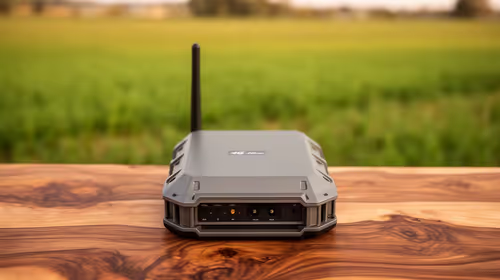
Need to extend internet coverage to outbuildings or farms? 📡 An outdoor 4G router is the ultimate solution for stable, high-speed connectivity in remote locations. Discover how to boost your range and stay connected anywhere on your property. 🌐
Read more
Wondering if a TKL wireless mechanical keyboard is worth it for everyday productivity? We break down latency, battery life, comfort, and workflow gains for real work. ⚡⌨️

Maximise battery life on a fanless 15-inch laptop using efficiency core architecture. Cut idle drain, tune power profiles, and improve thermals for longer runtime. 🔋⚙️

Learn how to reduce desk clutter with a TKL wireless keyboard using fewer cables, smart placement, and tidy essentials. Get a faster, calmer workspace with better ergonomics. ✅🧼

RGB keyboard lighting too distracting? Learn how to manage backlight modes, set brightness, and reduce distraction for focus and productivity 😌🖱️

Are themed gaming keyboards worth the extra cost? Compare build quality, switch options, features, and resale value to find the best fit for your setup 🎮⌨️

Full-Size vs Tenkeyless mechanical keyboards for gaming: find out if a smaller layout truly improves aim, speed, and comfort. We break down layout, desk space, latency-feel, and keybinds 🎮⌨️

Dedicated media rollers vs function key shortcuts: learn which setup gives you better workflow control, faster media access, and fewer mistakes. 🖱️🎧

Best Mechanical Switch Type for Gaming: Clicky vs Linear vs Tactile. Find your feel, speed, and noise balance with practical guidance for FPS, MOBA, and productivity 😄🎮

Direct mouse answer: Mouse not keeping up with your work? Everything that matters about dual-mode 2.4GHz + BT 5.0: DPI behaviour, channel switching, battery curves and per-app button mapping. Covers when 2.4GHz USB wins (low-latency desk) and when BT 5.0 wins (laptop, d

Plain wireless mouse guide: Mouse not keeping up with your work? Everything that matters about wireless productivity mouse: DPI behaviour, channel switching, battery curves and per-app button mapping. Includes DPI tuning tips, channel switch shortcuts, and ZAR-aware fea

Real productivity numbers: Set up your wireless mouse in this order: everything that matters about wireless productivity mouse: DPI behaviour, channel switching, battery curves and per-app button mapping. Includes DPI tuning tips, channel switch shortcuts, and ZAR-aware

Pen not feeling like paper? Stylus lag and skipping usually trace to old drivers, dirty nibs, or display refresh mismatches, not the pen itself. Covers pressure curve tuning, tilt thresholds, nib swap timing, and SA pricing brackets.