Moving from phone streaming to a PC should happen in steps that solve real limits. You can improve voice and light while the phone remains the camera. Then move production into OBS on the PC. A dedicated second streaming PC belongs at the far end, after the single machine or console path has proved it cannot carry the scene.
Quick Answer
Start with microphone position and one soft light. Add a suitable USB microphone when the phone or headset voice is the weak link. Move to PC production when you need scenes, alerts, screen capture and local recording. Keep the phone as a camera if it still looks good. Add a second PC only when measured gaming and encoding load justifies the complexity.
Evetech's streaming essentials cover the audio and control rungs. The webcam range gives you a fixed-camera option when the phone needs to leave the rig.
Rung Zero: Improve the Phone Stream
Place the phone at eye level, clean the lens and use a stable mount. Face a window or add one soft light off to the side.
Move the microphone source close to your mouth. Reduce room echo with placement and existing soft furnishings.
Run a private test and listen on headphones. This costs time before it costs hardware.
Rung One: Add Better Audio
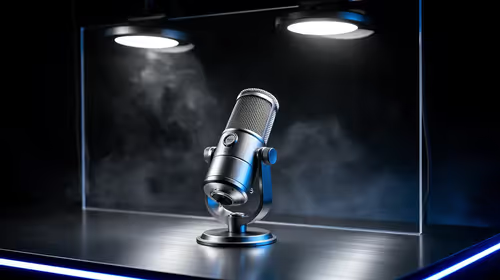
A USB microphone combines mic, preamp and converter in one simple path. A headset microphone may remain better in a noisy room because it stays close.
Choose dynamic or condenser from the room. A dynamic mic used closely can reduce background relative to voice; a condenser can capture more room.
Add a suitable stand or arm and cable. The microphone is not complete when it cannot sit in the right place.
Rung Two: Bring OBS Into the PC
OBS adds scenes, source control, encoding, recording and monitoring. You do not need a new dedicated PC to learn it.
Use the computer you own and create a simple scene with game or screen, camera, microphone and one alert source. Run the Auto-Configuration Wizard, then test under real load.
Watch render lag, encoding lag and network dropped frames separately. Each points to another fix.
Keep the Phone as a Camera
A supported USB camera app can bring the phone into OBS with less network risk than Wi-Fi. Check privacy, charging and heat.
Lock focus and exposure when possible. Disable visible notifications and keep sensitive screens out of capture.
Move to a webcam when repeatable startup and freeing the phone matter more than its image.
Add Lighting Before a Camera Upgrade
One soft key light lets the camera lower gain and produce a cleaner image. Place it above eye level and off-axis.
Match colour with room lights or switch conflicting bulbs off. Check glasses and monitor reflections.
The phone and a basic webcam both benefit. Lighting carries forward through later rungs.
Capture Console or Another Device
A capture card is needed when the video source cannot enter OBS through software capture, such as many console workflows.
Check input, passthrough resolution and refresh, HDR handling, USB bandwidth and audio. Keep the play display responsive.
Do not buy capture hardware for PC gameplay when OBS game capture already solves the job.
Rung Three: Strengthen the Single PC
Use a hardware video encoder when the GPU supports a suitable one. It can protect CPU headroom compared with a heavy x264 preset.
The PC still composes scenes, handles audio and runs the game. Reduce browser sources and record to a healthy SSD.
Upgrade the measured part: GPU encoder, CPU, memory, storage or network. A broad "streaming PC" label does not diagnose it.
When a Dedicated Streaming PC Helps
A second PC can isolate game and stream workloads, add capture and provide operational separation. It also adds another system, capture path, audio routing, display, power and maintenance.
Use it when the single PC cannot meet the game and stream target after sensible tuning, or when production reliability earns the complexity.
It is excessive for a new creator with one camera and a simple scene.
Audio Routing Becomes the Hard Part
Moving from phone to PC introduces game, microphone, voice chat, music and alert sources. Decide which goes to the stream, headphones or both.
Use OBS monitoring carefully to avoid echo. Name devices and keep sample rates consistent.
Record a local test with every source. A silent microphone is cheaper to fix before going live.
Protect Privacy During the Move
PC streaming can capture more than the phone view did. Turn off desktop notifications, hide email and file paths and use a separate browser profile for the stream.
Check every scene before going live. A forgotten display-capture source can show another window when you switch applications.
Keep stream keys private and use the platform's account security tools. Never paste a key into a scene, screenshot or support chat.
For the phone camera, disable visible message previews and remove location or family details from the background. Record a local rehearsal and watch the scene changes as a viewer would.
Create a Recovery Scene
Add a simple standby scene with no private desktop source. Give it working microphone mute and safe background audio only where rights allow.
If the game, phone camera or capture card fails, switch to that scene before troubleshooting. This small production step often helps more than buying a second camera.
Save an OBS profile and scene backup after the migration rung passes.
Match the Upload Path
Test sustained upload over Ethernet where practical. Leave headroom between your bitrate and the line's stable result.
Run tests at the time you stream. Jitter and packet loss matter beside speed.
Better camera gear cannot pass through a connection that drops frames.
Price Each Rung as a Complete Job
Attach any rand figure to a named product in the approved July 2026 pack. The upgrade ladder does not have one universal starting price.
Include the stand, light mount, cable and capture device each step requires. Keep working parts across rungs.
Buy only when the next rung solves the test result in front of you.
FAQ
What is the first upgrade from phone streaming?
Improve microphone placement and light, then add a suitable mic when voice remains the limit.
Do I need a new PC?
No. Learn OBS and test the computer you own before planning a dedicated streaming machine.
Can I keep the phone camera?
Yes. Use it while image quality and the connection remain reliable, then change for convenience or heat.
Keep the phone through the audio, lighting and OBS rungs, then add PC or camera hardware only when a full test stream proves the next limit.