Editing in CapCut leans on precise clicks and quick scrubbing, so the mouse matters more than people expect. An upgrade path from a starter mouse to a serious one lets you improve as your editing grows without overspending early.
Quick Answer
The gaming mouse upgrade path for CapCut editing runs from a starter wired mouse around R200-R450, to a mid wireless mouse with side buttons around R500-R900, to a serious multi-button mouse around R1,000-R1,800. CapCut editing rewards comfort, precise tracking and programmable buttons for split, undo and export, not high DPI. A mid mouse with mappable buttons speeds editing noticeably; even a starter mouse handles CapCut's core clicks fine.
Starter: R200-R450
A comfortable wired mouse with a reliable optical sensor covers CapCut's basics: selecting clips, dragging the timeline and clicking edit controls. You do not need 26,000 DPI for editing. This tier suits casual editors cutting the occasional video who want a comfortable, accurate mouse without spending much. It handles the work; it just lacks shortcut buttons.
Mid: R500-R900
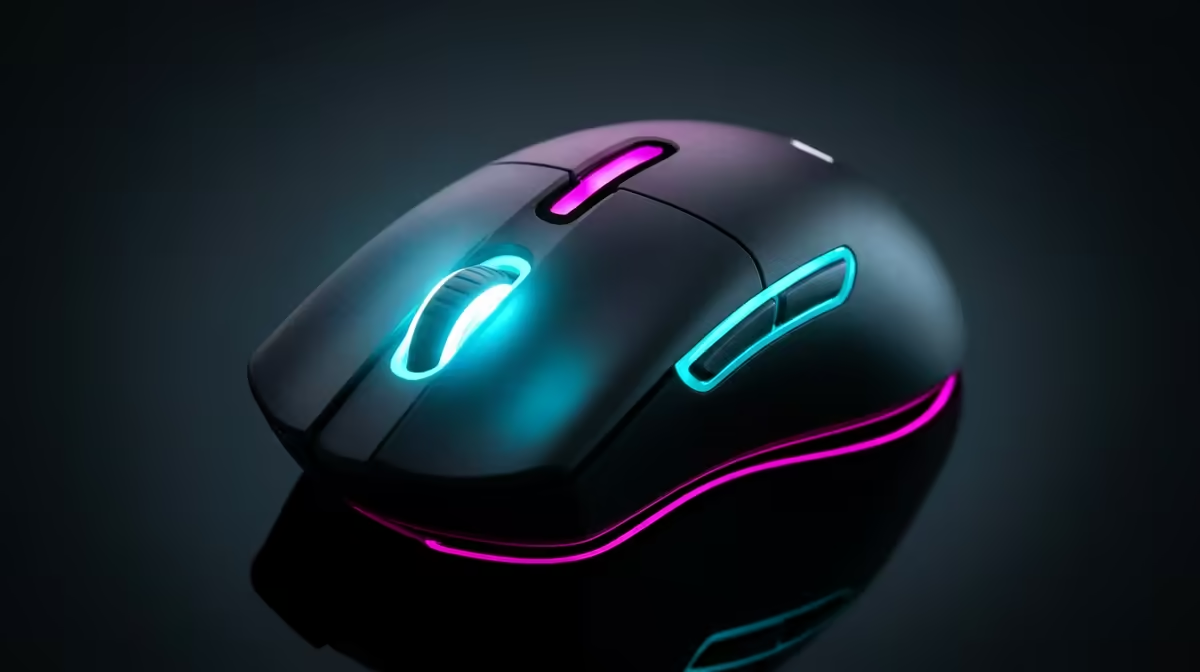
A wireless mouse with two or more side buttons is the editing sweet spot. Map split, undo and ripple delete to the side buttons and your CapCut workflow speeds up, fewer trips to the keyboard. Wireless keeps the desk clear for a tablet or notes. This tier pays back its cost in saved editing time for anyone cutting videos regularly.
three most-used CapCut actions, usually split, undo and export, to your mouse's side buttons. Keeping the cut on the mouse while the keyboard handles scrubbing speeds editing more than any single hardware upgrade.
Serious: R1,000-R1,800
A multi-button mouse with 8-12 programmable buttons lets you map a stack of CapCut functions, split, trim, effects, export, for tap-fast editing. Combined with a comfortable shape for long sessions, it suits creators editing daily where every saved second compounds. This tier is overkill for casual editing but earns its price for heavy, frequent CapCut work.
FAQ
Does CapCut editing need a gaming mouse?
Not a high-end one, but a comfortable mouse with side buttons helps. Mapping split, undo and export to buttons speeds editing. A starter mouse around R200-R450 handles CapCut's clicks fine; a mid mouse with mappable buttons is the value upgrade.
Are extra mouse buttons useful for video editing?
Yes. Mapping repetitive CapCut actions like split and ripple delete to side buttons saves real time across an edit. A mid wireless mouse around R500-R900 with side buttons is the practical sweet spot for regular editors.
Should an editor buy a high-DPI mouse?
No, high DPI is for fast-paced gaming, not editing. Editing rewards comfort, precise tracking and programmable buttons over raw DPI. A comfortable mid-range mouse with mappable buttons serves CapCut far better than chasing a huge DPI number.
Start with a comfortable starter mouse from R200 at Evetech, step up to a mid wireless mouse with side buttons when you edit regularly, and map your key CapCut actions to speed up.