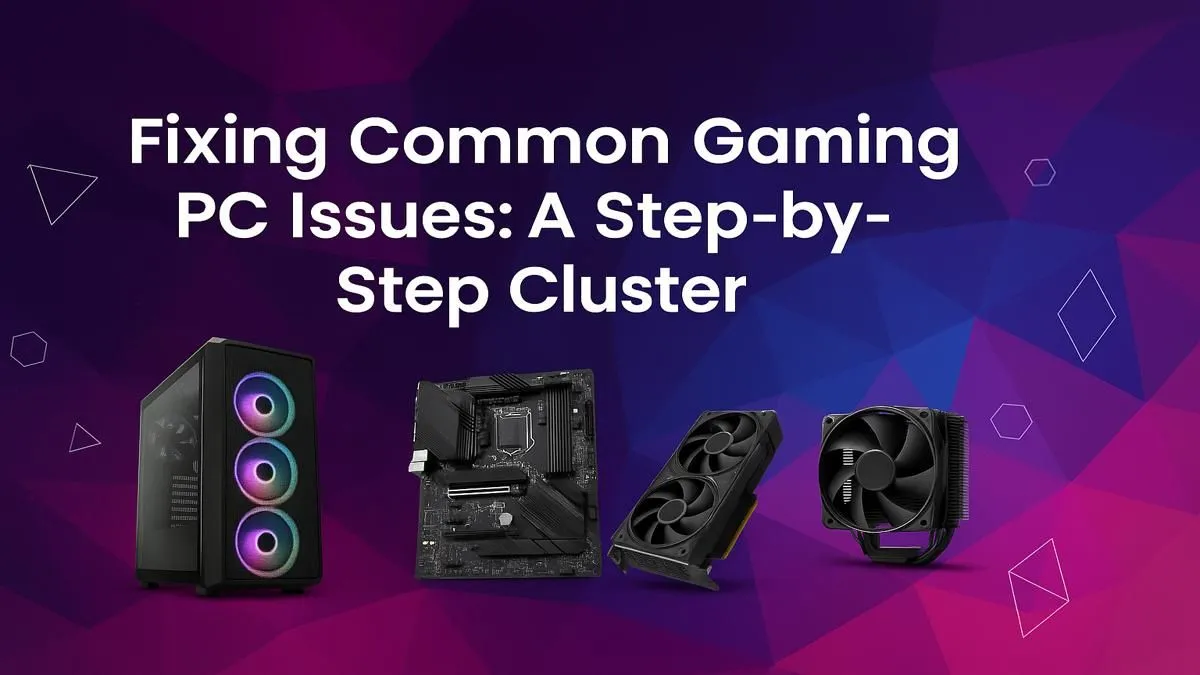
There’s nothing worse. You finally have a gap to jump into a game, but your trusty rig decides to throw a tantrum. Blue screens, stuttering frames, or a complete refusal to boot… it’s enough to make any gamer's blood boil. Before you panic-buy a new component, take a breath. This practical guide to gaming PC troubleshooting will walk you through the most common issues, helping you diagnose and fix your machine step-by-step. 🔧
First Steps in Gaming PC Troubleshooting
Before diving into complex diagnostics, let's cover the basics. You'd be surprised how often the simplest solution is the right one. This is the foundation of any good gaming PC troubleshooting process.
The Obvious Checks
Is everything plugged in securely? It sounds silly, but a loose power cable or a display cord that’s not fully seated can cause chaos. Check both ends of every cable: the part that plugs into your PC and the part that goes into the wall or your monitor. A classic fix is the full power cycle: turn off the PC, unplug it from the wall for 60 seconds, then plug it back in and restart.
Reboot and Observe
The oldest trick in the IT book works for a reason. A simple restart can clear temporary software glitches or memory leaks that cause performance issues. When your PC boots back up, don't immediately launch a game. See if the system feels sluggish or if any error messages pop up. This initial observation can give you valuable clues for diagnosing your gaming PC problems.
Tackling Software-Related PC Problems
If the basic checks don't solve it, your next stop is the software layer. From outdated drivers to resource-hungry background apps, software is a frequent culprit behind frustrating PC issues.
Update Your Graphics Drivers
Your Graphics Processing Unit (GPU) is the heart of your gaming experience, and its drivers are the instructions that tell it how to run your games. Outdated drivers can cause crashes, visual artefacts, and poor performance. Sudden frame drops in a fast-paced game like Overwatch 2 can often be a driver issue. Head directly to the NVIDIA or AMD website to download the latest version for your card.
Hunt Down Resource Hogs
Is your PC struggling to render the sprawling world of GTA V? It might not be the game's fault. Press Ctrl+Shift+Esc to open the Task Manager and look at the CPU, Memory, and Disk usage columns. A web browser with 30 tabs open or multiple game launchers running in the background can steal precious resources. A rig built to handle the chaos of Fortnite shouldn't be held back by unnecessary processes.
Pro Troubleshooting Tip ⚡
Use Windows Event Viewer to find hidden clues. Right-click the Start button, select "Event Viewer," and look under "Windows Logs" > "System" for red "Error" or yellow "Warning" entries around the time your crash occurred. The details might contain an error code you can Google, pointing you directly to the faulty driver or component.
Verify Your Game Files
Sometimes, the problem is the game itself. A recent update might have corrupted a file, leading to crashes. On platforms like Steam or the Epic Games Store, you can "verify the integrity of game files." This process scans for and redownloads any missing or broken files. Doing this for titles like Counter-Strike 2 can often fix persistent crashing without a full reinstall. Even beautifully optimised titles like Minecraft can suffer from weird glitches that a file verification can solve.
Diagnosing Hardware Headaches 🚀
If software fixes haven't worked, it's time to investigate the hardware. Troubleshooting your gaming PC's physical components requires a bit more care, but it's essential for solving stubborn stability problems.
Is Your PC Overheating?
Heat is the enemy of performance. When components like your CPU or GPU get too hot, they automatically slow down (thermal throttle) to prevent damage, causing massive frame drops. Pushing your system to its limits in Cyberpunk 2077's Night City will quickly reveal any cooling weaknesses. Use free software like HWMonitor to check your temperatures while gaming. If they're creeping above 90°C, it's time to clean the dust out of your fans and heatsinks.
Check Your RAM and Storage
Faulty RAM can cause random blue screens and system instability. Dropping into the map in PUBG only to have the game crash is a classic sign. You can use the built-in Windows Memory Diagnostic tool to check your RAM for errors. Similarly, a failing hard drive or SSD can cause slow loading times and crashes. Loading the massive, detailed world of Microsoft Flight Simulator is a great test for your SSD's health.
Power Supply Unit (PSU) Issues
A failing PSU is one of the trickiest components to diagnose. It might not fail completely but instead provide unstable power, causing your PC to shut down randomly when under heavy load. When the action heats up in Call of Duty: Warzone 2.0, a weak or failing PSU might give up. If you've ruled everything else out and experience crashes only during intense gaming sessions, your PSU could be the culprit.
When Your Best Efforts Aren't Enough ✨
Following these steps will solve the vast majority of common PC problems. However, some issues—like a corrupted BIOS, a dead motherboard, or intermittent hardware faults—are best left to the professionals. If you've tried everything and are still stuck, or if you're just not comfortable opening your PC case, it might be time to consider an upgrade.
Ready for a Hassle-Free Gaming Experience?
Tired of troubleshooting and just want to game? Sometimes the best fix is an upgrade. A modern, professionally built PC eliminates the guesswork and gets you back in the action. Explore our massive range of powerful gaming PCs and find the perfect rig to conquer your world.