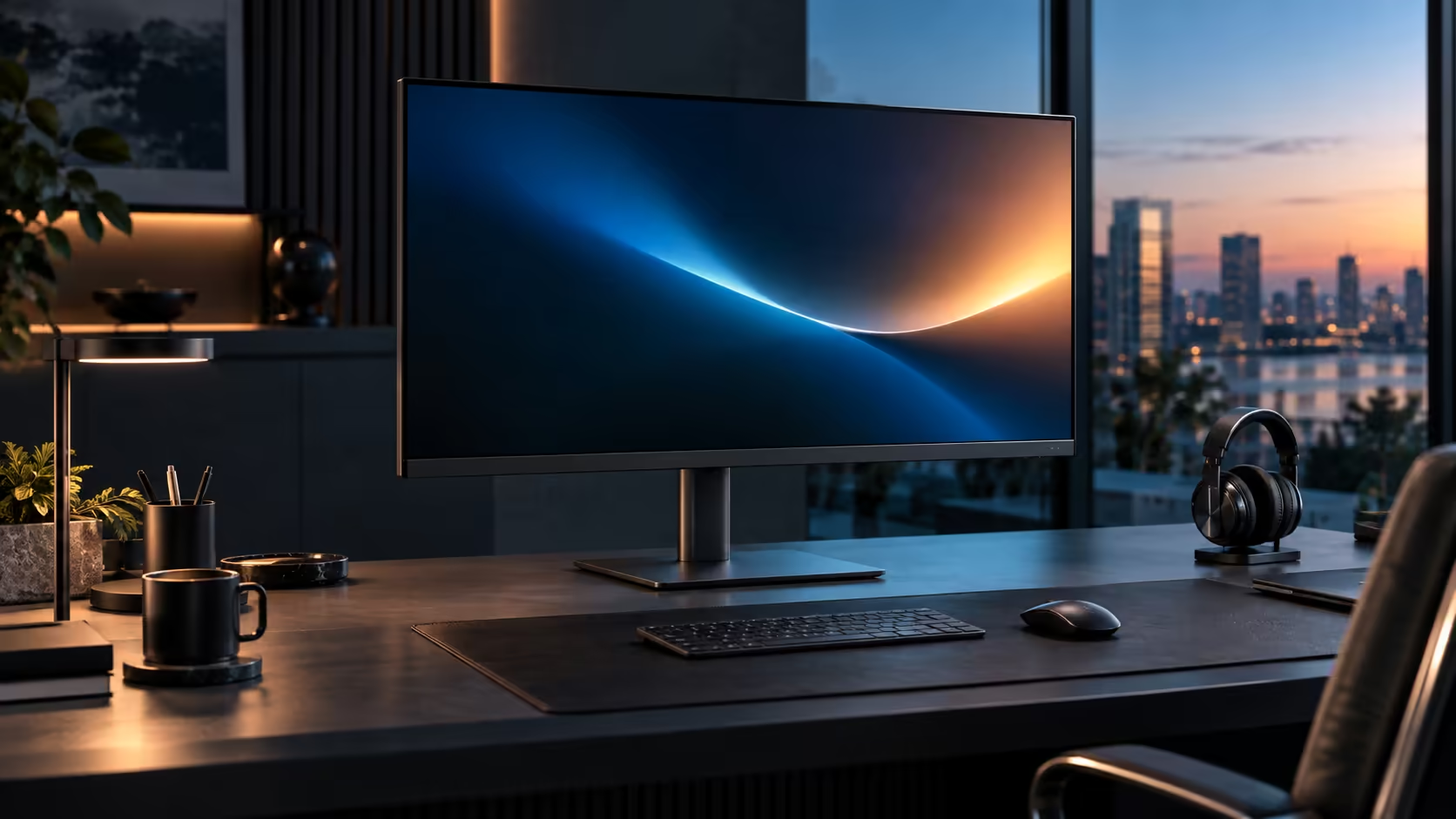
DisplayPort 1.4 is the version number that quietly decides how ambitious a two-monitor plan can actually be, and understanding its bandwidth budget before buying a second screen prevents a disappointing discovery after both panels are already on the desk. The Dell Pro 32 Plus P3225DE carrying this output is R8,799.
Quick Answer
One stream leaves the laptop and the first monitor keeps its picture, passing the rest downstream. DisplayPort 1.4 carries enough bandwidth for two 2560 x 1440 desktops with room to spare, though port versions differ between models, so check yours. R8,799.
📡 What DisplayPort 1.4 specifically enables
Each DisplayPort version raises a bandwidth ceiling, and 1.4 sits at a point that comfortably covers the most common dual-QHD setup.
DisplayPort 1.4 provides enough total bandwidth to carry two 2560 x 1440 signals at standard refresh rates through Multi-Stream Transport, with a reasonable margin left over. This is why two QHD monitors, including a Dell Pro 32 Plus P3225DE as the first screen in a chain, generally daisy chain without hitting a bandwidth ceiling at typical office refresh rates, where a more ambitious combination of higher resolutions or refresh rates might approach or exceed that same 1.4 budget.
🧮 How the bandwidth budget actually gets spent
Rather than treating bandwidth as an abstract number, it helps to see how two specific screens divide it between them.
Each 2560 x 1440 signal at 60Hz uses a defined, calculable share of DisplayPort 1.4's total bandwidth, leaving meaningful headroom for two such signals together. Pushing both screens to 100Hz simultaneously increases the demand on that same budget substantially, and whether it still fits depends on exactly how the specific laptop's video output implements DisplayPort 1.4, since not every implementation reaches the theoretical maximum in practice.
🔍 Why "DisplayPort 1.4" alone does not guarantee a specific result
The version number is necessary information but not sufficient on its own to predict exact behaviour.
Two laptops both listing DisplayPort 1.4 support can still behave differently in a two-monitor chain, since the actual number of lanes, the specific USB-C controller used, and how the manufacturer implemented Multi-Stream Transport can all vary. This is why testing your actual laptop and monitor combination, or at minimum checking both manufacturers' detailed specification pages together, is more reliable than assuming DisplayPort 1.4 on paper guarantees a specific refresh rate on both screens simultaneously.
🖥️ What to do if you hit the bandwidth ceiling
If a chain does not run both screens at their maximum settings simultaneously, this is a predictable outcome rather than a fault to panic over.
Reducing one screen's refresh rate, typically to 60Hz while the other stays higher, frees up enough bandwidth for both to display reliably. This is a common, sensible compromise rather than a sign anything is broken, and it still leaves both screens fully functional for everyday work. The office monitor range lists panels confirmed to chain this way, the wider monitor category covers a second screen to pair with the first, and comprehensive cable solutions has the properly rated DisplayPort lead the link between them needs.
Frequently Asked Questions
Does DisplayPort 1.4 support two QHD monitors at 100Hz simultaneously?
It depends on the specific laptop's implementation; the standard supports it in principle, but not every real-world DisplayPort 1.4 output reaches that combined bandwidth in practice.
Is a higher DisplayPort version always better for daisy chaining?
Generally yes, since a higher version raises the total available bandwidth, allowing more monitors or higher combined resolutions and refresh rates before hitting a ceiling.
How do I check which DisplayPort version my laptop actually uses?
Check the laptop manufacturer's official specification page, searching specifically for the DisplayPort version number rather than a general mention of external display support.
What happens if my two-monitor chain exceeds the available bandwidth?
One or both screens typically settle for a lower resolution or refresh rate on their own rather than losing the picture entirely.
Does DisplayPort 1.4 support higher resolutions than QHD in a chain?
Yes, in principle, though pairing higher resolutions like 4K with a second screen uses proportionally more of the same bandwidth budget, leaving less room for a second panel to also run at its full settings.
🔌 Setting up a chain within DisplayPort 1.4's limits
Knowing the bandwidth theory is only useful once it translates into an actual working setup, so here is the practical sequence.
Connect the laptop to the first monitor as usual, then run a rated DisplayPort cable from that monitor's DisplayPort Out socket to the second screen's DisplayPort input. Switch on MST in the first monitor's on-screen menu, since it is commonly off by default. Windows should then detect both screens under Settings, System, Display, initially defaulting to whatever refresh rate the connection can reliably sustain, which you can then adjust manually if you want to test a higher setting on one or both panels.
🧪 Testing where your specific setup's ceiling actually sits
Rather than relying on theoretical bandwidth figures alone, testing your own combination gives a definitive answer.
Start with both screens at a conservative setting, such as 60Hz, confirm both display correctly, then increase one screen's refresh rate at a time while watching for any flickering, dropped signal, or automatic reversion to a lower setting. This trial-and-error approach, while less elegant than reading a definitive spec, is often the fastest way to find your exact laptop and monitor combination's real-world ceiling, since manufacturer specifications do not always state the practical limit for a specific pairing directly. Compare the office monitor range for panels confirmed to daisy chain, and check Dell's own monitor lineup if a matched pair from the same manufacturer appeals, since matching brands often simplifies menu settings and firmware behaviour across the whole chain, saving the trial-and-error step described above almost entirely and giving both screens a consistent look, feel and menu layout on the desk as well, which many buyers only come to properly appreciate once they have already lived with an awkwardly mismatched pair of screens sitting side by side on the very same desk for a while first. Buying matched from the start avoids that adjustment period altogether, which is worth the small extra planning it takes upfront.
Ready to plan a two-monitor chain within your laptop's actual bandwidth?
Confirm your laptop's DisplayPort version before assuming both screens will run at their maximum settings together.