Is your laptop hotter than a December braai during load shedding? If your machine sounds like it’s preparing for takeoff and your game stutters at the worst moment, you’re not alone. Dust is the ultimate enemy of performance in South Africa, clogging up your laptop’s cooling system. The good news? Learning how to clean laptop fans is a simple fix that can restore your performance and prevent long-term damage. Let's get your machine running cool and quiet again. 🌬️
Why You Need to Clean Your Laptop Fans (Especially in SA)
Every laptop, from a workhorse to a high-end gaming rig, uses fans to push hot air out and pull cool air in. Over time, these fans and their vents get clogged with dust, pet hair, and other particles. This is a massive problem in our often dry and dusty climate.
When airflow is blocked, heat gets trapped. Your laptop's CPU and GPU then engage a safety feature called "thermal throttling"—they deliberately slow down to avoid overheating. Suddenly, your smooth 120 FPS drops to a choppy 30 FPS. Regular laptop fan cleaning is the most effective way to prevent this and prolong your hardware's life.
The Essential Toolkit for Laptop Fan Cleaning
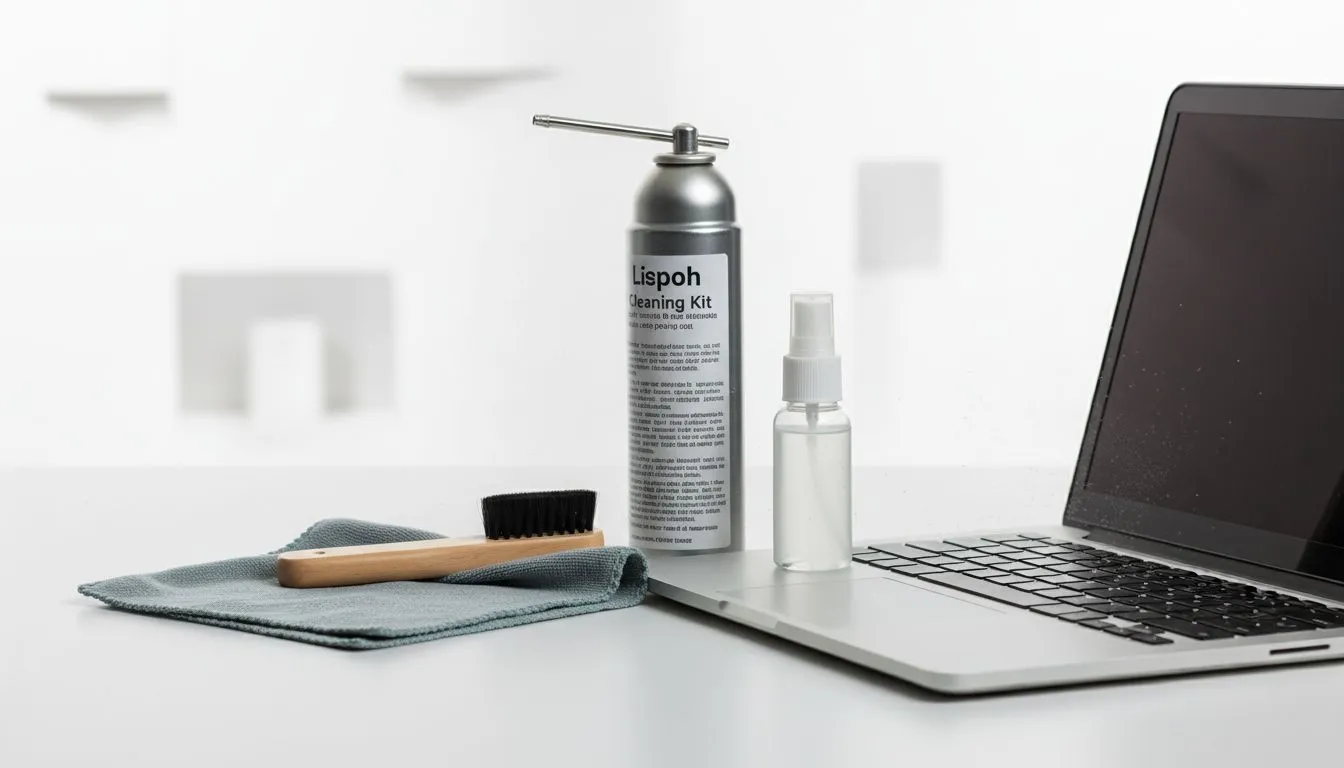
Before you start, gather a few basic tools. You don't need a full workshop, just the right gear to do the job safely.
- Can of Compressed Air: Your primary weapon against dust.
- Soft Brush: An old, clean paintbrush or makeup brush works perfectly for dislodging stubborn dust.
- Microfibre Cloth: For wiping down the exterior.
- Patience: Don't rush the process!
For a deeper clean (if you're comfortable opening your laptop), you'll also need a set of small electronics screwdrivers and an anti-static wrist strap.
Pro Tip: Use Compressed Air Correctly ⚡
Never shake the can or spray it upside down, as this can release freezing liquid propellant that can damage components. Use short, controlled bursts and hold the can upright. Crucially, use a toothpick or a paperclip to gently hold the fan blades in place while you spray—letting them spin freely can damage the fan motor.
How to Clean Laptop Fans: The Safe & Simple Method
This method requires zero disassembly and is safe for beginners. It's the perfect first step to prevent laptop overheating.
- Power Down Completely: Shut down your laptop. Don't just put it to sleep. Unplug it from the wall and disconnect any peripherals.
- Locate the Vents: Find the intake vents (usually on the bottom) and the exhaust vents (usually on the sides or back). This is where the magic happens.
- Position and Spray: Take your laptop to a well-ventilated area. Aim the compressed air nozzle at the vents from a slight angle, about 10-15 cm away.
- Short Bursts: Use short bursts of air to blow the dust out of the vents, not deeper inside. Work your way around all the vents. You should see satisfying little clouds of dust emerge.
- Final Wipe: Use your microfibre cloth to wipe away any dislodged dust from the laptop's chassis.
This simple routine, performed every few months, is often all that's needed to keep one of the best gaming laptop deals running at peak performance.
The Deep Clean: When to Open Your Laptop
If the simple clean doesn't cut it, a deep clean might be necessary. Warning: Opening your laptop may void your warranty. Proceed only if you're confident in your skills. 🔧
This process involves removing the bottom panel to get direct access to the fans. Once inside, you can use the soft brush to gently loosen caked-on dust from the fan blades and heatsink fins before blowing it away with compressed air. The powerful components inside modern GeForce RTX gaming laptops on special generate significant heat, making unobstructed airflow absolutely critical.
Whether you're running one of the latest Intel laptops on special for productivity or pushing frames on a machine from our Ryzen laptop deals, a deep clean can make it feel brand new.
What if Cleaning Doesn't Fix the Overheating?
If you've thoroughly cleaned your fans and your laptop still runs hot, the problem might be older, dried-out thermal paste on the CPU and GPU. Replacing this is a more delicate procedure.
It could also just be a sign of age. Sometimes, an older machine simply can't keep up with the demands of modern software and games, no matter how clean it is. If your laptop is struggling, it might be time for an upgrade. Thankfully, you don't need to break the bank; there are fantastic gaming laptops under R20k that offer a massive performance boost. ✨
Ready for an Upgrade That Runs Cool?
If cleaning isn't enough, it might be time for a fresh start. A new laptop offers better performance, superior cooling, and the latest technology. Explore our massive range of laptop specials and find the perfect machine to stay cool under pressure.