Quick Answer
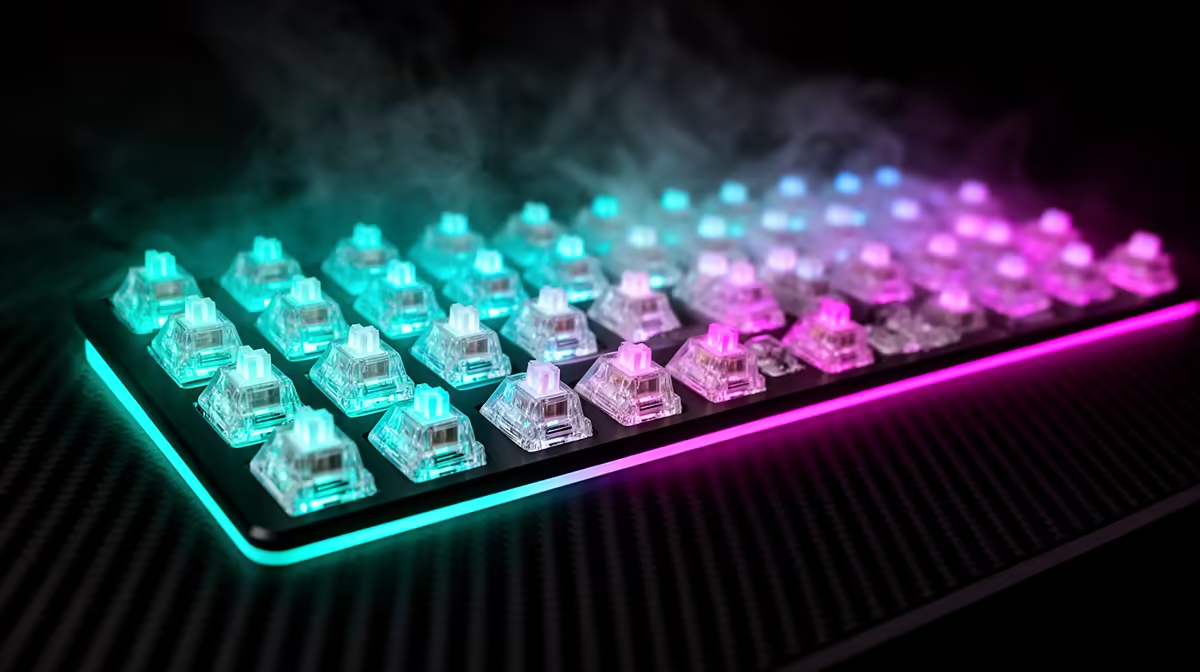
To configure adjustable actuation on analog optical switches for competitive gaming, open your keypad driver (Razer Synapse for Tartarus Pro), navigate to the key customisation panel, and set the actuation point for each key individually between 0.1 mm and 3.6 mm. Movement keys benefit from 0.8 to 1.2 mm; ability keys from 1.5 to 2.0 mm; utility keys from 2.0 to 2.5 mm.
Step-by-Step Actuation Configuration in Razer Synapse 🔧
Start with Razer Synapse installed and the Tartarus Pro connected. Navigate to the device profile section and select the active game profile. Click on any key to open its configuration panel; the actuation slider appears at the bottom of this panel. The slider represents the full 3.6 mm travel range. Drag the first actuation point marker to your target depth. For competitive FPS movement keys (forward, back, strafe), drag this to 0.8 to 1.0 mm for maximum responsiveness. For ability keys that fire on deliberate presses, set 1.5 to 2.0 mm.
Optimal Actuation Settings by Game Type 🎮
For CS2 and Valorant-style FPS: set movement equivalents on the keypad to 0.8 mm. Jump (spacebar equivalent) to 1.0 mm. Crouch and utility keys to 1.5 to 2.0 mm. This prevents accidental crouching during a firefight while keeping movement snappy. For MOBA (Dota2, League of Legends): set ability keys to 1.2 mm for fast casting. Item active keys to 1.5 mm. Recall and non-combat utility to 2.5 mm to prevent accidental use. For open-world RPG: set the movement key to a gradual analog curve at 1.0 mm first actuation (walk) and 3.0 mm second actuation (sprint), removing the need for a separate sprint modifier key.
Testing and Refining Your Actuation Settings 🔬
After configuring actuation, load into a practice mode or offline server for your target game. Spend 10 minutes focusing only on the adjusted keys rather than playing normally. Note any keys that trigger accidentally (actuation too shallow) or feel unresponsive (actuation too deep). Adjust in 0.2 mm increments rather than large jumps. The refinement process takes one to two focused sessions before settings feel dialled in. Once finalised, save to both driver cloud and onboard memory.
Use the Key Visualiser Before Competing ⚡
Razer Synapse includes a key visualiser that shows the actuation depth bar in real time as you press each key. Run this test for 2 minutes before any competitive session to confirm all actuation points are registering correctly after any recent driver update or profile change. A driver update can occasionally reset custom actuation values to default.
FAQ
Can I set different actuation points for the same key across different game profiles?
Yes. Actuation settings are stored per profile, so your FPS profile and your MMO profile can have completely different actuation depths for the same physical key. This is one of the main reasons to maintain separate named profiles per game rather than one global configuration.
Does adjusting actuation shallower increase accidental key presses?
Yes, initially. A 0.8 mm actuation point will trigger from lighter contact than you may be used to. Allow two to three sessions for your finger pressure control to adapt. If accidental presses persist after adaptation, increase to 1.0 mm, which still offers fast response while reducing incidental contact triggers.
What happens if I lose my actuation settings at a LAN event?
If your settings are saved to onboard memory, they load automatically regardless of driver installation. If only saved to driver cloud, the keypad reverts to its global default actuation (typically 1.5 mm) on a PC without the driver. This is why exporting to onboard memory after every configuration session is the recommended practice.
Want to fine-tune every key press for competitive play?
Evetech stocks the Razer Tartarus Pro and other analog optical keypads with per-key adjustable actuation. Browse the keypad range to find the right device for your competitive configuration.