Quick Answer
Eliminate display lag and flickering by using a gold-plated DisplayPort 1.4 cable with adequate shielding, ensuring the display is set to the correct refresh rate in Windows, and confirming the GPU is connected via DisplayPort rather than HDMI for gaming at 144Hz or above. These three steps address the most common causes of lag and flicker in South African gaming setups.
What Gold-Plated Connectors Actually Fix 🔌
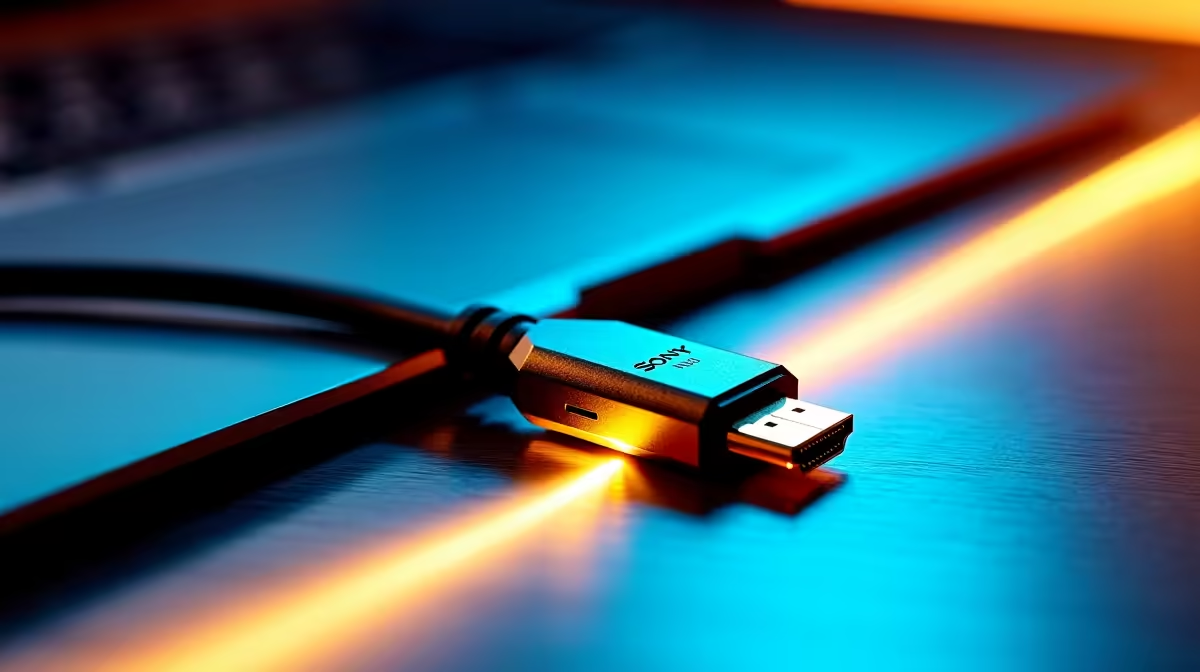
Gold plating on connector pins prevents oxidation, which is the primary cause of creeping contact resistance over months of use. In digital video, increased contact resistance does not produce a gradual quality drop; it produces intermittent bit errors at the signal boundary. These errors appear as single-frame flickers, brief black screens, or in severe cases as the display repeatedly disconnecting and reconnecting, which adds a 1 to 2 second lag each time the monitor renegotiates the link. A gold-plated DP cable costing R180 to R280 at Evetech maintains contact resistance below 10 milliohms for years, keeping the link stable. Tin or nickel-plated connectors on cheap cables start showing these symptoms within 12 to 24 months in coastal South African climates.
Eliminating Software and Settings Lag 🎮
Hardware-induced flicker is distinct from input lag caused by monitor settings. Enable the monitor's gaming mode or low-latency mode (labelled differently by each brand: MSI calls it Console Mode, ASUS calls it ELMB, LG calls it 1ms MBR). Enable G-Sync (for Nvidia RTX 40-series) or FreeSync (for AMD RX 7000-series) in the GPU control panel, which eliminates screen tearing without adding the frame-time inconsistency of V-Sync. In Windows Display Settings, confirm the refresh rate is set to the monitor's maximum (144Hz, 165Hz, or 240Hz) rather than the 60Hz default. Mismatched refresh rate is one of the most common causes of perceived lag in new gaming setups that actually have capable hardware.
Cable Quality and GPU Port Selection 🔧
Not all GPU ports deliver equal performance. On an RTX 4070 or 4080, the DisplayPort 1.4 outputs support 1440p at 165Hz or 4K at 120Hz with DSC. The HDMI 2.1 output handles 4K at 144Hz. For a gaming monitor with both inputs, DisplayPort provides lower latency in practice because the DP link training handshake is faster than HDMI's EDID negotiation, reducing recovery time after a brief signal event. A quality gold-plated DP 1.4 cable from Evetech in the R150 to R280 range, routed away from power cables, and connected to a DP port on a current-gen GPU covers all the hardware bases for a stable, low-lag gaming display.
Test Lag with UFO Test in Browser ⚡
Open testufo.com in a browser and run the 240fps UFO test on your monitor at its rated refresh rate. If the animation shows judder or tearing, the issue is refresh rate configuration rather than cable quality. Fix the refresh rate in Display Settings first before replacing cables.
FAQ
Does an HDMI cable cause more lag than a DisplayPort cable?
In practice the difference is under 1ms and not perceptible in gameplay. The more meaningful factor is whether the cable sustains the target refresh rate without signal events, which is where cable quality matters.
Can a worn-out cable cause input lag even if the image looks fine?
Yes. A degraded cable connection can cause the display to renegotiate the link silently in the background, adding 1 to 3 seconds of black screen periodically. This is perceived as lag or stuttering even though individual frames render correctly.
What should I do if flickering persists after replacing the cable?
Test with a different GPU output port, then try the monitor on a different PC. If the flicker follows the monitor to a new source, the panel's input circuit may be faulty. If it stays with the original PC, the GPU output port or driver may need attention.
Chasing a perfectly stable gaming display?
Evetech stocks gold-plated DisplayPort cables and a full range of 144Hz, 165Hz, and 240Hz gaming monitors. Visit the monitor and accessories sections to complete your setup.