Quick Answer
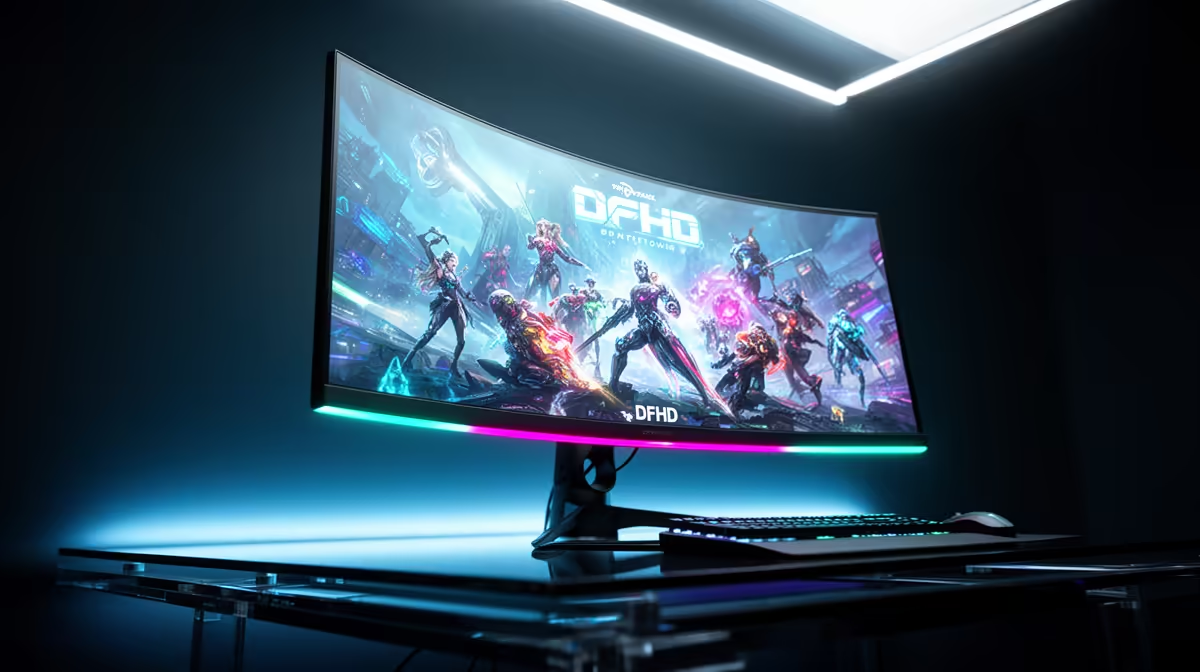
To optimise 3840x1080 DFHD for multitasking, streaming, and widescreen gaming: set Windows display scaling to 100 percent (the native pixel density is comfortable at 90cm viewing distance), use Snap Layouts in Windows 11 to divide the display into two or three virtual zones, configure OBS Studio to use a 3840x1080 canvas with a 1920x1080 stream output, and ensure your GPU (an RTX 5060 Ti or above is recommended) is connected via DisplayPort 1.4 for full refresh rate output. The 32:9 aspect ratio at this resolution delivers genuine dual-monitor functionality without the bezel gap.
Windows Configuration for DFHD Multitasking 🖥️
Windows 11 handles 3840x1080 natively with no special drivers required. After connecting your DFHD monitor via DisplayPort, set the resolution to 3840x1080 in Display Settings and confirm the refresh rate matches the monitor's rated maximum (typically 100Hz to 144Hz for 32:9 panels in this resolution class).
Windows 11 Snap Layouts recognise the wide display and offer three-window or four-window side-by-side layouts. For a streaming and multitasking setup, the optimal layout is: game window occupying the left half (1920x1080 zone), OBS Studio preview and controls in the right half (1920x1080 zone), with a smaller chat or Discord window snapped to a corner.
Streaming Setup: OBS Configuration for DFHD 📡
OBS Studio does not stream at 3840x1080 natively (no streaming platform accepts this aspect ratio as a stream output). The correct approach is to set the OBS canvas resolution to 3840x1080 to capture the full display, then set the output resolution to 1920x1080 or 1280x720 for the stream destination.
For scene capture, use the Display Capture source in OBS set to your 3840x1080 display. Scale it to fit the 1920x1080 output frame. If you want to show only the game side of the screen to viewers (not your OBS controls or chat), use a Window Capture source targeting only the game window instead.
Gaming at 3840x1080: Performance Expectations 🎮
At 3840x1080, the pixel count is equivalent to 1080p doubled horizontally. GPU load is roughly 60 to 70 percent of what 5120x1440 (DQHD) demands at equivalent settings. An RTX 5060 Ti drives demanding titles at 3840x1080 with high settings at 100 to 130 fps in most current games.
Not all games support 32:9 natively at 3840x1080. Major open-world titles, racing games, and most modern AAA releases support it. Some competitive multiplayer games cap at 16:9 or stretch incorrectly.
Cap Game FPS for Streaming Headroom ⚡
When streaming on an RTX 5060 Ti or equivalent at 3840x1080, cap your in-game frame rate to 100 fps using the in-game limiter. This leaves GPU headroom for the NVENC encoder running OBS simultaneously, preventing frame drops or stutter in both the game and stream output during heavy scenes. Capping in-game FPS at the panel refresh rate is a best practice for any streaming setup.
FAQ
Can any GPU drive 3840x1080 at full refresh rate?
DisplayPort 1.4 is required for 3840x1080 at 100Hz or above. HDMI 2.0 manages 3840x1080 only at 60Hz. RTX 5000-series and RX 9000-series GPUs all support DisplayPort 1.4 or newer.
Does 3840x1080 look as sharp as 2560x1440 on a smaller monitor?
No. At 87 PPI on a 49-inch panel versus 108 PPI on a typical 27-inch 1440p monitor, 3840x1080 has visibly lower pixel density when viewed up close. The advantage is the immersive 32:9 span, not pixel sharpness.
Is 3840x1080 good for graphic design or video editing work in SA?
For graphic design, the extra horizontal space is useful but the lower pixel density compared to DQHD or 4K can make fine detail work less precise at 90cm. For video editing at 1080p output resolution, the 1920x1080 zone on the left half of the DFHD screen serves as a perfect preview monitor while timeline controls occupy the right zone, which is a genuinely efficient workflow.
Want to run a proper DFHD streaming and gaming setup?
Browse 32:9 ultrawide monitors and streaming-capable GPUs at Evetech, stocked locally with specs to match monitor to GPU before you buy.