Quick Answer
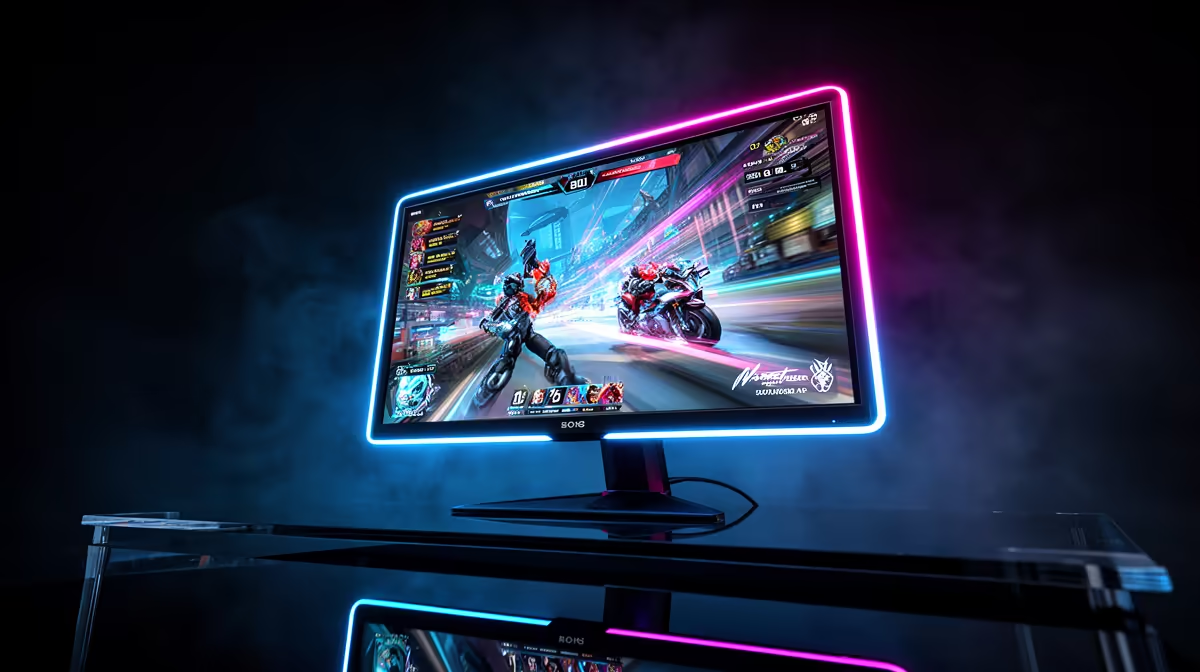
To reduce ghosting, first enable FreeSync Premium via your GPU driver and monitor OSD, then adjust overdrive to Fast or one step below maximum to eliminate inverse ghosting. ELMB Sync on select ASUS monitors allows backlight strobing and adaptive sync to run simultaneously, cutting residual blur that overdrive alone cannot address. This combination is the most effective software-configurable ghosting reduction on current IPS gaming panels.
Understanding What Causes Ghosting 🔧
Ghosting occurs when LCD pixels cannot transition from one colour value to another fast enough to keep pace with incoming frames. The result is a dark or light smear trailing behind fast-moving objects, most visible in high-contrast scenes like a white target on a dark background. The severity depends on the specific pixel transition in milliseconds GtG. Fast-IPS panels at 250Hz typically achieve 1ms GtG on the fastest pixel pairs, but slower transitions (dark grey to light grey) can take 3 to 5ms on the same panel. Overdrive circuits apply a voltage overshoot to push pixels faster, but too much causes inverse ghosting, where a bright halo appears on the trailing edge of moving objects.
FreeSync Premium and Its Role in Ghosting Reduction 🖥️
FreeSync Premium addresses a secondary form of ghosting related to frame pacing rather than pixel transitions. When frame rates fluctuate, frames display for inconsistent durations, creating a judder the eye perceives as blur or ghosting. FreeSync Premium keeps frame duration consistent by matching the display refresh rate to GPU output, eliminating this pacing-related artifact entirely. Enable FreeSync in both AMD Software: Adrenalin Edition and the monitor OSD. NVIDIA GPU owners should enable G-Sync Compatible mode in NVIDIA Control Panel; most FreeSync Premium panels are G-Sync Compatible certified.
Calibrating ELMB Sync for Maximum Clarity 🎮
ELMB Sync, exclusive to supported ASUS monitors, strobes the backlight between frames in synchronisation with the adaptive sync signal. Conventional backlight strobing requires disabling adaptive sync because the two systems conflict on timing. ELMB Sync resolves this by synchronising the strobe with the adaptive sync window. Enable ELMB Sync in the ASUS OSD when FreeSync is also active. The ELMB Sync level (1 to 5 on some models) controls strobe intensity; higher values reduce motion blur more aggressively but reduce apparent brightness. Set it to 3 as a starting point, test in a fast game at your standard frame rate, and reduce to 2 if the screen appears too dim. Reduce overdrive one step below maximum when ELMB Sync is active, as the strobing already addresses severe blur.
Overdrive and ELMB: Set in Order ⚡
Configure overdrive before enabling ELMB Sync. Set overdrive to the second-highest level and play for 10 minutes to check for inverse ghosting. Then enable ELMB Sync at level 2 to 3. Adjusting both simultaneously makes it hard to identify which variable is causing remaining artifacts. Methodical adjustment in sequence gives a clean result.
FAQ
Does FreeSync Premium eliminate all ghosting on a gaming monitor?
FreeSync Premium eliminates frame-pacing ghosting but not pixel-transition ghosting, which depends on the panel's physical response time. For pixel-transition ghosting, overdrive and ELMB Sync are the correct tools.
Can ELMB Sync cause any negative side effects?
At higher ELMB Sync levels the strobing noticeably reduces effective panel brightness. Some users also experience mild eyestrain from strobing in long sessions.
Is ghosting worse on VA panels than IPS at 250Hz?
Generally yes. Fast-VA panels at 250Hz can show residual dark-smear ghosting in transitions from dark values, particularly dark grey to mid-grey.
Want a monitor with FreeSync Premium and ELMB Sync support?
Evetech carries ASUS and other brand gaming monitors with advanced motion clarity features, all stocked locally with warranty.