Quick Answer
Move your wireless dongle closer to your mouse using the included USB extension cable, switch it to a USB 2.0 port away from USB 3.0 devices, and change your router's Wi-Fi to 5 GHz or set the 2.4 GHz channel to 1, 6, or 11. These three steps resolve the majority of wireless gaming mouse interference issues without any hardware cost.
What Causes Wireless Interference 📡
Your gaming mouse's 2.4 GHz wireless signal shares spectrum with household Wi-Fi routers, Bluetooth devices, cordless phones, and USB 3.0 peripherals. USB 3.0 controllers are a particularly overlooked interference source: they emit broadband electrical noise across the 2.4 GHz band, which can disrupt a dongle plugged into a nearby USB 3.0 port. Moving the dongle to a USB 2.0 port or using an extension cable to position it away from USB 3.0 devices typically eliminates this class of interference.
Router congestion is the second most common cause. In dense apartment buildings across Johannesburg, Pretoria, or Cape Town, dozens of neighbouring 2.4 GHz Wi-Fi networks compete on the same channels. Premium mouse protocols use frequency-hopping spread spectrum to avoid static channel conflicts, but congested environments still introduce enough noise to cause occasional packet loss.
Practical Steps to Reduce Interference 🔧
Start with dongle placement. Most wireless gaming mice include a USB extension cable for exactly this reason. Position the dongle on your desk within 30 cm of where your mouse travels. Doubling the distance quarters the received signal strength, so proximity matters enormously.
Audit the USB devices near your dongle. External hard drives, USB 3.0 hubs, and SSD enclosures are high-interference sources. Reconnect these to ports on the opposite side of your chassis. Finally, check your router admin panel and set the 2.4 GHz band to channel 1, 6, or 11, the only non-overlapping channels in the band.
When Hardware Is the Problem 🛠️
If interference persists, test by plugging the dongle into a different PC. If cursor drops disappear immediately, the original port or motherboard USB controller is the source. A dedicated PCIe USB card with an NEC or ASMedia controller costs between R250 and R600 locally and resolves this permanently.
In rare cases, a faulty dongle produces intermittent drops that no placement adjustment will fix. If your mouse is still under warranty, a dongle replacement is covered. Razer and Logitech South African warranty paths are accessible through retailers like Evetech.
5 GHz Router = Cleaner 2.4 GHz for Your Mouse ⚡
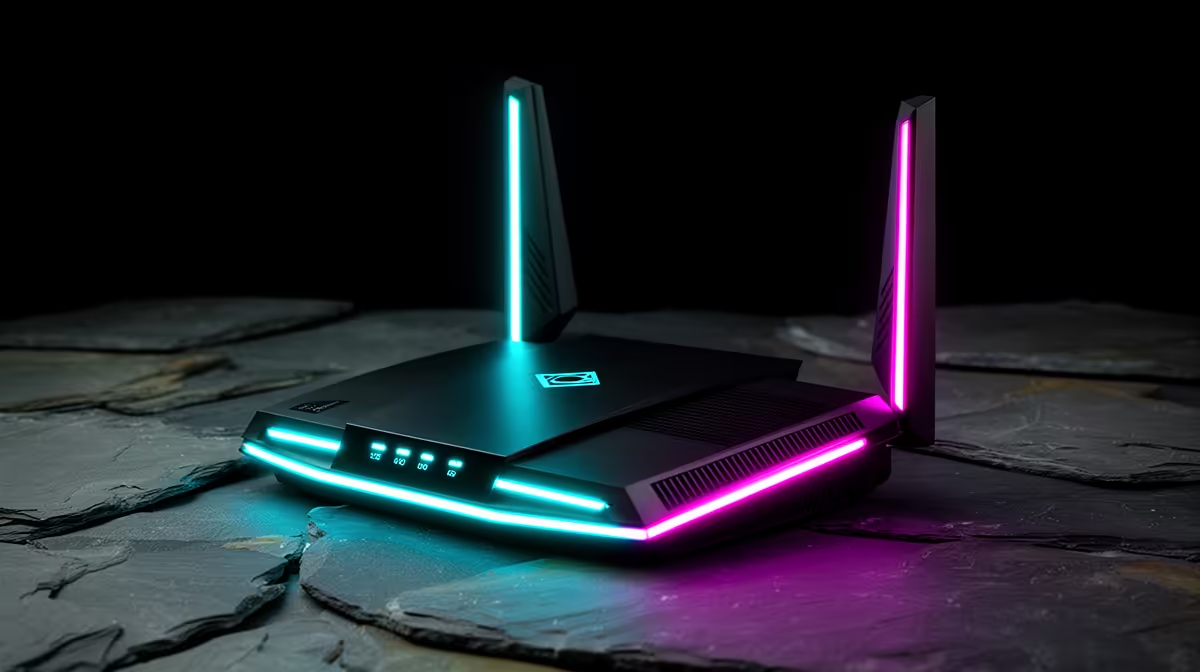
Connect your PC and all other household devices to your router's 5 GHz band. This empties the 2.4 GHz band, giving your wireless mouse a clean channel with minimal competition from neighbouring networks. Most modern routers support dual-band operation.
FAQ
Does Bluetooth from my headset interfere with my wireless mouse?
Yes, Bluetooth operates on 2.4 GHz. While modern coexistence algorithms reduce direct conflict with proprietary protocols, running both simultaneously in a noisy RF environment can increase cursor micro-stutters. Use a wired headset while gaming on a wireless mouse where possible.
Will a gaming-grade router fix my wireless mouse interference?
A gaming router helps primarily with network latency, not mouse signal quality. The key improvement is better 2.4 GHz channel management, but dongle placement and distance from USB 3.0 sources matters far more for mouse performance.
Can thick desk materials block the wireless signal?
Glass and metal desk surfaces can reflect and attenuate 2.4 GHz signals. Place the dongle above desk level rather than in a front-panel USB port hidden below the desk.
Need a more reliable wireless gaming setup?
Evetech stocks wireless gaming mice using the latest 2.4 GHz proprietary protocols, designed to minimise interference during competitive play. Browse the range at Evetech.