Quick Answer
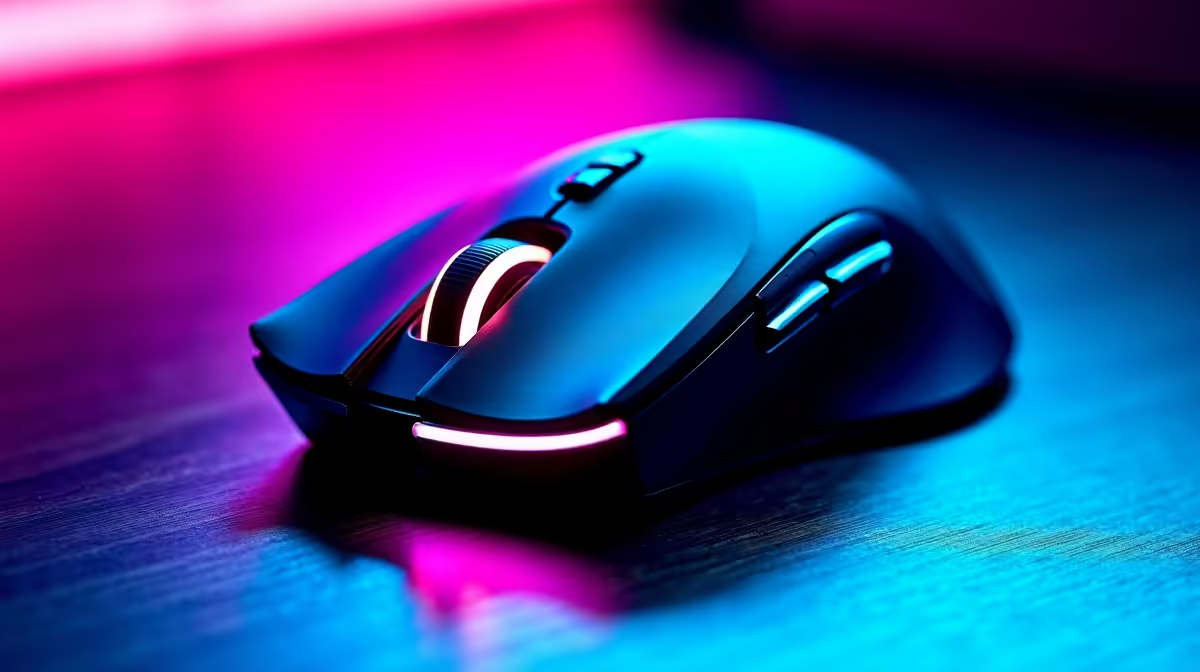
To set up a dual-mode wireless mouse, insert the USB 2.4GHz receiver into a USB port on your primary device, then pair Bluetooth 5.0 to a second device using the dedicated mode switch button on the mouse. Most dual-mode mice store each connection in a separate profile slot and switch between them with a single button press.
Setting Up the 2.4GHz Wireless Connection 📡
The 2.4GHz connection uses a small USB nano-receiver that typically stores in the mouse's battery compartment. Remove it, plug it into any USB Type-A port on your PC or laptop, and switch the mouse power button to the on position. The connection is automatic in Windows 10 and 11, requiring no additional driver installation. If you experience input lag or dropouts, move the USB receiver to a rear port on your PC, as rear ports connect directly to the motherboard's USB controller rather than through an extension hub. Avoid placing the receiver near other 2.4GHz devices.
Pairing Bluetooth 5.0 to a Second Device 🔗
With the 2.4GHz receiver handling the primary PC connection, switch the mouse to Bluetooth mode using the mode button, typically labelled with a Bluetooth icon or numbered slot indicator. Hold the pairing button (often the same button held for three seconds) until the indicator LED flashes rapidly. On the second device, go to Bluetooth settings and add a new device. On Windows 11, go to Settings, then Bluetooth and devices, then Add device, then Bluetooth. The mouse should appear by name and complete pairing within a few seconds.
Switching Between Devices and Managing Profiles 🖥️
Once both connections are established, switching between the PC on 2.4GHz and the second device on Bluetooth is a single button press or a slide of the mode switch. Some dual-mode mice support up to three device slots: one 2.4GHz and two Bluetooth profiles. Each slot remembers its paired device, so no re-pairing is needed after initial setup. Store the USB nano-receiver in the battery compartment when transporting the mouse. If you add the mouse to a third device's Bluetooth and it displaces one of the existing profiles, re-pair the displaced device by repeating the pairing mode process for that slot.
Use 2.4GHz for Gaming, Bluetooth for Everything Else ⚡
The 2.4GHz wireless connection typically offers lower latency (1ms polling on quality mice) than Bluetooth 5.0, which polls at 7.5ms to 15ms intervals by default. For gaming or precision tasks, connect via 2.4GHz. For a secondary laptop or tablet used for browsing and productivity, Bluetooth is perfectly adequate and frees up the USB port on that device.
FAQ
Do I need to install software to use both connections on a dual-mode mouse?
No driver installation is needed for basic use. Both 2.4GHz and Bluetooth connections work natively in Windows. Manufacturer software like Logitech Options+ or Razer Synapse is optional and only required for customising DPI steps, button assignments, or lighting effects.
Will the Bluetooth connection interfere with my 2.4GHz Wi-Fi at home?
Bluetooth 5.0 and Wi-Fi 5 or Wi-Fi 6 coexist on the 2.4GHz band using frequency hopping and adaptive channel management. Interference between a Bluetooth mouse and a home Wi-Fi network is rare on modern hardware. If issues occur, moving the USB receiver to the rear USB port typically resolves them.
How long does the battery last on a dual-mode wireless mouse?
Battery life varies by model and usage mode. On 2.4GHz, most mice using a single AA battery last 3 to 6 months at typical office use levels. Bluetooth mode extends this by 20 to 40% due to lower polling frequency. Rechargeable dual-mode mice average 30 to 70 hours per charge depending on polling rate and lighting settings.
Looking for a dual-mode wireless mouse for your SA multi-device setup?
Evetech stocks a wide range of 2.4GHz and Bluetooth wireless mice from leading brands. Browse the mouse range and find the right dual-mode option for your desk.