Quick Answer
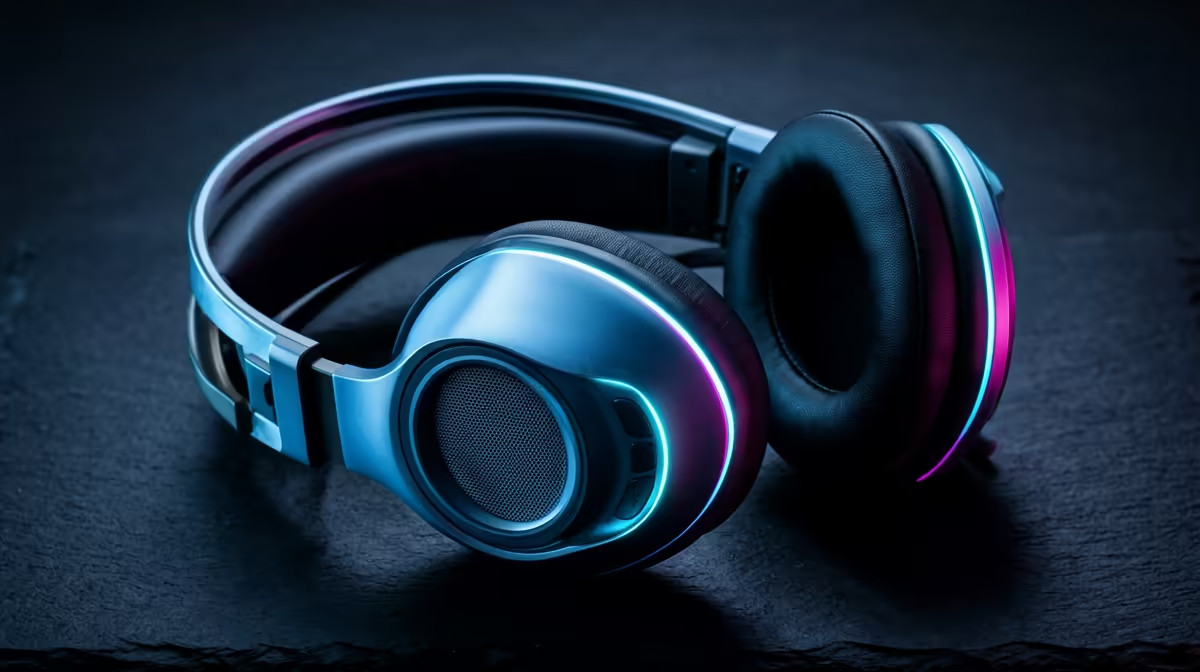
To set up a dual-wireless gaming headset across PC, console, and mobile: connect the USB dongle to your PC or console for 2.4 GHz audio, pair the headset to your phone via Bluetooth, then use the headset's source-select button to receive game audio from 2.4 GHz and call notifications from Bluetooth simultaneously.
Step-by-Step Setup for PC via 2.4 GHz 🖥️
Plug the nano-receiver into a USB-A port on the back of your PC or laptop hub. Power on the headset: on most models a long-press of the power button enters dongle pairing mode automatically. Within 30 seconds, Windows 11 recognises the device as an audio output without requiring driver installation beyond the optional companion app. Set the headset as the default output in Windows Sound settings (right-click the speaker tray icon, select Sound settings, choose the headset under output). The 2.4 GHz connection typically delivers under 5 ms audio latency, imperceptible during gaming.
Setting Up Bluetooth for Mobile and Console 📱
With 2.4 GHz paired to your PC, activate Bluetooth pairing on the headset using the dedicated Bluetooth button. On your phone, open Bluetooth settings and scan: the headset should appear by model name within 60 seconds. Complete pairing. For console setup on PS5 or Xbox Series X, use the USB dongle in the console USB port. Note that Xbox consoles do not support third-party USB audio dongles for all headsets, so verify compatibility before purchasing for Xbox. Once both channels are active, many dual-wireless headsets mix both audio streams simultaneously, letting you hear game audio and answer a WhatsApp call without removing the headset.
Troubleshooting Common Setup Issues 🔧
If the headset is not recognised by PC, try the dongle in a different USB port (avoid hubs sharing bandwidth with high-speed devices). If Bluetooth pairing fails, ensure the headset is not already connected to another device. On older Windows laptops with Bluetooth 4.0, updating the Bluetooth driver via Device Manager often resolves connection instability with newer Bluetooth 5.0 headsets. Headsets currently stocked at Evetech in the dual-wireless category range from around R1,200 to R3,500.
Assign Chat Audio to Bluetooth Only ⚡
In your PC's sound settings or the headset companion app, route Discord or Teams microphone audio exclusively through the Bluetooth channel if your headset supports separate stream mixing. This keeps game audio on the low-latency 2.4 GHz channel while voice chat runs over Bluetooth. SA remote workers who game after hours benefit especially from this split-stream configuration.
FAQ
Can I use a dual-wireless headset for a PS5 and PC at the same time?
Yes, if the headset supports simultaneous 2.4 GHz and Bluetooth. Connect the dongle to the PS5 USB port for game audio and pair via Bluetooth to your laptop for Discord calls, running both streams in parallel.
Does using both wireless modes simultaneously drain the battery faster?
Yes, running 2.4 GHz and Bluetooth concurrently increases power consumption by roughly 20 to 40 percent compared to single-mode use. Expect advertised battery life to drop proportionally in dual-mode operation.
Do I need to install software to use a dual-wireless headset on PC?
No additional software is required for basic audio playback. Manufacturer companion apps add equaliser customisation, surround sound configuration, and firmware updates but are not mandatory for the headset to function.
Looking for a headset that switches seamlessly between your PC, console, and phone?
Evetech stocks dual-wireless gaming headsets across a range of budgets, with warranty coverage for South African buyers.