Quick Answer
To use a front USB-C 20Gbps port effectively, connect it to your motherboard's internal USB 3.2 Gen 2x2 header, ensure your external drive is rated for 20Gbps, and verify in Device Manager that the port is recognised as SuperSpeed USB 20Gbps rather than the slower 10Gbps or 5Gbps variants.
Verifying Your Motherboard and Case Support the Full 20Gbps 🔌
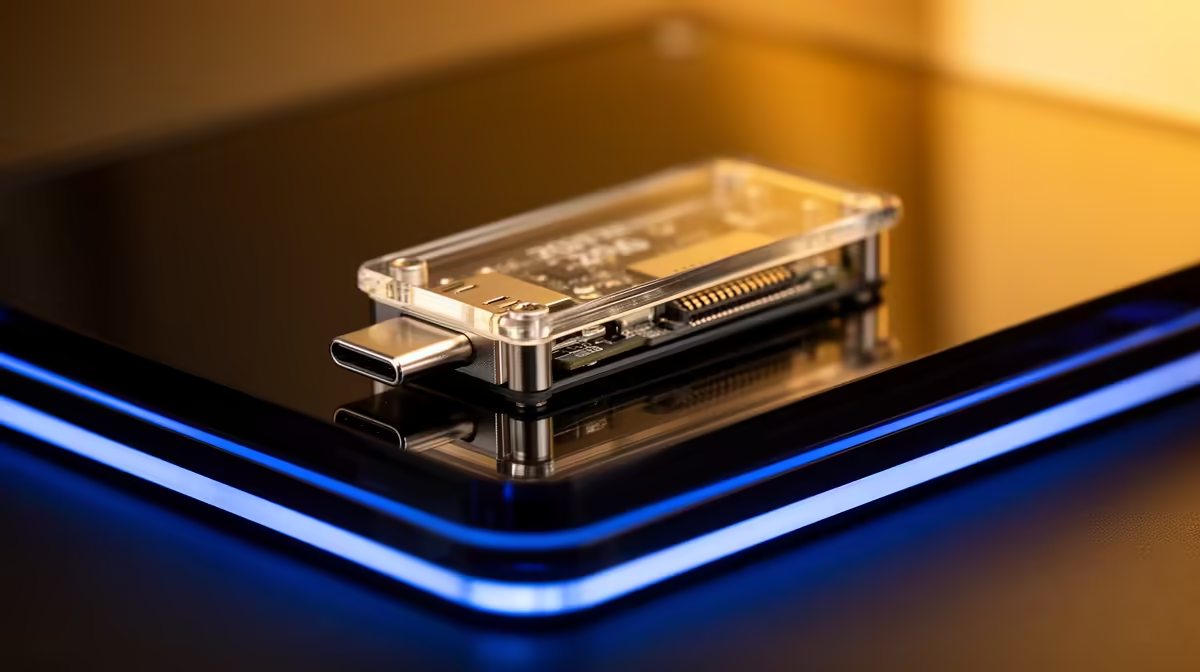
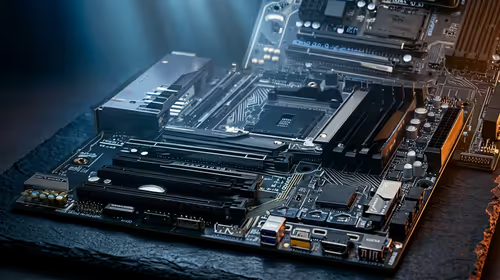
The front USB-C 20Gbps chain has three links and all three must be rated correctly. First, the case front panel must use a USB 3.2 Gen 2x2 Type-C connector, not a standard Gen 2 or Gen 1 connector. These look physically similar on the front panel but use different internal headers. Second, the internal cable must connect to a 20-pin USB 3.2 Gen 2x2 internal header on the motherboard, not the older 20-pin USB 3.2 Gen 2 header. Third, your motherboard must actually have the Gen 2x2 header populated with the appropriate controller. Check your motherboard spec sheet and look specifically for USB 3.2 Gen 2x2 or USB-C 20Gbps rather than just Gen 2. Mid-range motherboards from the Z790 and X670E lines often include one Gen 2x2 header.
Best Devices to Pair With a 20Gbps Front Port 💼
The front 20Gbps port shows its value most with NVMe SSD enclosures, high-speed card readers, and docking stations. An NVMe SSD in a USB 3.2 Gen 2x2 enclosure can sustain 1,800 to 2,000 MB/s sequential reads, making importing 100GB of RAW photography files a one-minute task rather than five minutes at USB 3.0 speeds. For video editors in South Africa working on 4K and 6K footage with Resolve or Premiere, the 20Gbps port enables direct editing from an external NVMe without proxy generation, saving hours per project.
Workflow Integration for SA Creators 🎬
The practical advantage of a 20Gbps front port is reduced turnaround time on file-heavy projects. A standard practice for SA video creators is to ingest footage from an external NVMe to the internal NVMe in parallel with beginning the edit. At 20Gbps with a fast NVMe enclosure, a 200GB multi-camera project completes ingestion in under three minutes, compared to 12 to 15 minutes via a USB 3.0 front port. Confirm your external enclosure is connected directly to the front Type-C port rather than through a hub, as any additional device in the chain will share the 20Gbps bus bandwidth.
Check Device Manager First ⚡
Before assuming your 20Gbps port is working, open Device Manager on Windows and expand Universal Serial Bus Controllers. The port should list as USB 3.2 Gen 2x2 or SuperSpeed 20Gbps. If it shows as USB 3.1 Gen 1 or USB 3.0, your cable or motherboard header is the bottleneck, not the front panel port itself.
FAQ
Can I use the front USB-C 20Gbps port for dual-role charging and data?
Data and power can run simultaneously on a USB-C port, but 20Gbps USB ports are typically limited to 15W of power delivery, not the 60W or 100W of USB-PD. For charging a laptop while transferring data, the charging speed will be slow.
Does a 20Gbps front port work with older USB-C devices?
Yes. USB-C and USB 3.2 are backwards compatible. An older device rated for 5Gbps connected to a 20Gbps front port will simply operate at 5Gbps. You only unlock 20Gbps when the connected device is also rated for USB 3.2 Gen 2x2.
What kind of cable should I use with a 20Gbps front USB-C port?
Use the cable supplied with your Gen 2x2 enclosure or a cable certified for USB 3.2 Gen 2x2. Generic USB-C cables are often only rated for USB 2.0 speeds despite having the same physical connector. The cable should be ideally under 1 metre for best signal integrity at this speed.
Speed up your creative workflow today.
Evetech stocks NVMe SSDs, external enclosures, and PC cases with front USB-C 20Gbps support to give creators the transfer speeds their projects demand. Browse the full range.