Quick Answer
Microsoft Swift Pair is a Windows 10 and 11 feature that shows a notification banner when a compatible Bluetooth device is placed nearby in pairing mode, allowing one-click connection without navigating to Bluetooth settings. To use it, ensure Swift Pair is enabled in Windows Bluetooth settings, put your mouse in pairing mode, and click Connect in the notification that appears.
Enabling Swift Pair in Windows Settings 🔧
Swift Pair must be enabled before it can detect nearby devices. Open Settings, navigate to Bluetooth and devices, and click the Devices option. Scroll down to find the Swift Pair section and ensure the toggle reading Show notifications to connect using Swift Pair is turned on. If Bluetooth is disabled, enable it first using the main toggle at the top of the Bluetooth and devices page. Once enabled, the PC listens passively for nearby Bluetooth devices broadcasting a Swift Pair advertisement packet.
Putting Your Mouse Into Swift Pair Mode and Connecting 🖥️
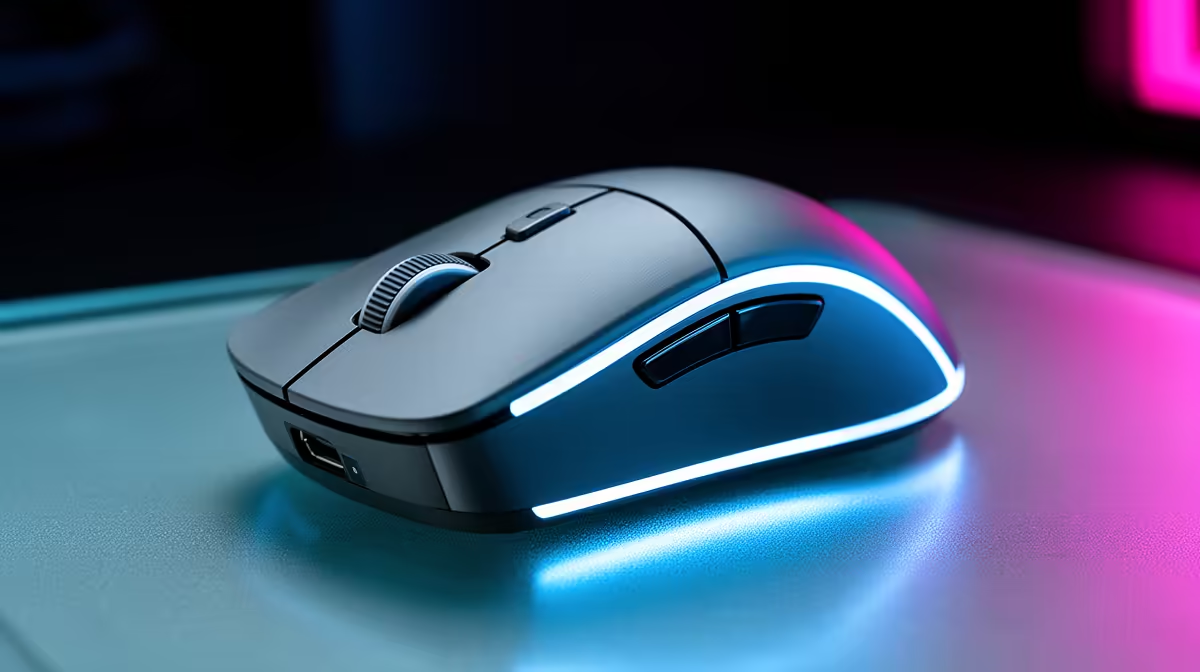
With Swift Pair enabled, put the mouse into Bluetooth pairing mode by pressing and holding the pairing button until the LED flashes rapidly (the pairing pattern varies by brand: consult the mouse manual for the exact indicator). Within a few seconds, a Windows notification appears in the bottom-right corner showing the mouse name and a Connect button. Click Connect. Windows completes the pairing in two to four seconds and the mouse is immediately usable. If the notification does not appear, verify that Focus Assist (Windows 10) or Do Not Disturb (Windows 11) is not suppressing notifications, as these modes block Swift Pair banners.
Troubleshooting Swift Pair When It Does Not Appear 🔍
The most common reasons Swift Pair notifications do not appear: notifications are suppressed by Do Not Disturb mode (turn it off in quick settings), the mouse does not support Swift Pair (check manufacturer specifications), the Bluetooth adapter driver is outdated (update via Device Manager under Bluetooth adapters), or the Windows notification service has a temporary fault (restart via Services.msc for the Bluetooth Support Service). If Swift Pair still fails after these checks, standard Bluetooth pairing through Settings, Bluetooth and devices, Add device, Bluetooth works as a reliable fallback.
Disable Swift Pair Notifications If They Become Intrusive ⚡
In a busy office or shared SA university lab where many Bluetooth devices are cycling in and out of pairing mode, Swift Pair notifications can appear frequently and disruptively. Disable the notifications in Bluetooth settings and use the manual Add device flow for pairing instead. The underlying Bluetooth performance is identical either way.
FAQ
Does Swift Pair work with all Bluetooth mice?
No. The mouse must support the Microsoft Swift Pair protocol, which requires a specific Bluetooth advertisement packet format in the device firmware. Most mice designed for Windows productivity in the past three to four years include this support. Gaming mice and older Bluetooth peripherals often do not.
Will Swift Pair reconnect my mouse automatically every time I turn it on?
Yes. After initial pairing, a Swift Pair-compatible mouse reconnects automatically when powered on within Bluetooth range of the paired PC. The fast reconnection takes two to four seconds, typically faster than a traditional Bluetooth reconnect negotiation.
Can I use Swift Pair on Windows 10 as well as Windows 11?
Yes. Swift Pair was introduced in Windows 10 version 1803 (April 2018 Update) and is available on all Windows 10 builds from that point forward. In Windows 10 it is under Settings, Devices, Bluetooth and other devices, then the Swift Pair notification toggle at the bottom of the page.
Need a Bluetooth mouse that works seamlessly with Windows Swift Pair?
Evetech stocks a range of Bluetooth and dual-mode wireless mice compatible with Windows 10 and 11 for SA home, office, and student setups. Browse the mouse collection and streamline your pairing experience.