Quick Answer
To use Shadow Boost without washing out dark areas, keep the setting at 50 to 60 out of 100 rather than the maximum, pair it with a black level setting at 50 (default), and test it in a game scene with both dark and bright areas open simultaneously. At maximum, Shadow Boost lifts shadow detail but crushes contrast and makes the whole image look grey.
What Shadow Boost Actually Does to Your Image 🖥️
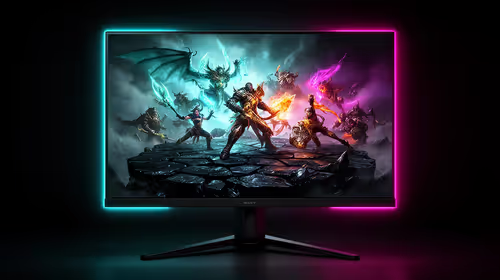
Shadow Boost (found in monitors from ASUS, BenQ, and MSI under various names including Black eQualizer, Shadow Control, and Dark Boost) is a selective gamma correction that raises the luminance of dark areas without affecting bright areas as strongly. The technology works by applying a non-linear curve to the lower end of the luminance range, lifting shadow detail so you can see enemies in dark corners or identify hazards in unlit areas of a game map. At low settings (40 to 60), the effect raises dark shadow detail by roughly 20% to 30% luminance while leaving bright areas largely untouched. At high settings (80 to 100), the curve flattens the shadow region so aggressively that all dark areas approach a single grey level, destroying depth and making the image look washed out and artificial.
Calibrating the Sweet Spot for Competitive and Cinematic Play 🎮
For competitive FPS play, a setting between 50 and 65 provides usable shadow lift without destroying the image. Test in a scene with both a dark indoor area and a bright outdoor area visible simultaneously. The indoor shadow should lighten while the outdoor sky stays naturally bright. If both look similar in brightness, reduce the setting by 10 and test again. For cinematic games where atmosphere matters, leave Shadow Boost off and use the game's in-engine gamma settings instead.
Interactions With Brightness, Contrast, and HDR 🔧
Shadow Boost works alongside brightness and contrast settings. A common mistake is setting Shadow Boost high and raising brightness to compensate, producing an image that is both too bright and too flat. Set brightness first (60% to 75% for a lit SA gaming room), set contrast to default, then introduce Shadow Boost incrementally. In HDR mode, most monitors disable Shadow Boost automatically since HDR handles shadow detail natively.
Use In-Game Gamma First Before Shadow Boost ⚡
Many games have their own gamma or brightness slider in the video settings menu. Set the in-game slider correctly first using the game's built-in calibration screen, then add Shadow Boost on top if shadow detail is still insufficient. Using Shadow Boost to compensate for a poorly set in-game gamma creates double-correction that washes out the image more than either setting alone.
FAQ
Does Shadow Boost increase input lag?
Shadow Boost is processed in the monitor's image signal processor, which adds a very small amount of processing delay. On most current monitors, the added latency is under 0.5 ms, which is imperceptible. If you are ultra-sensitive to input lag, test with Shadow Boost on and off in a game and trust your perception.
Will Shadow Boost affect my streaming or recording output?
No. Shadow Boost processes the signal after it reaches the monitor and does not alter the signal sent to a capture card. Your stream or recording reflects exactly what the GPU renders, not what the monitor displays. Viewers on different screens will see the original image.
Is Shadow Boost the same as increasing in-game brightness?
No. In-game brightness typically raises the entire luminance range including highlights, which can clip bright areas. Shadow Boost raises only the lower end of the luminance range, leaving highlights largely unchanged. The two adjustments serve different purposes.
Looking for a gaming monitor with effective shadow visibility controls?
Evetech stocks gaming monitors from brands with built-in shadow enhancement features. Browse the monitor section to find a panel with the display controls your game style needs.