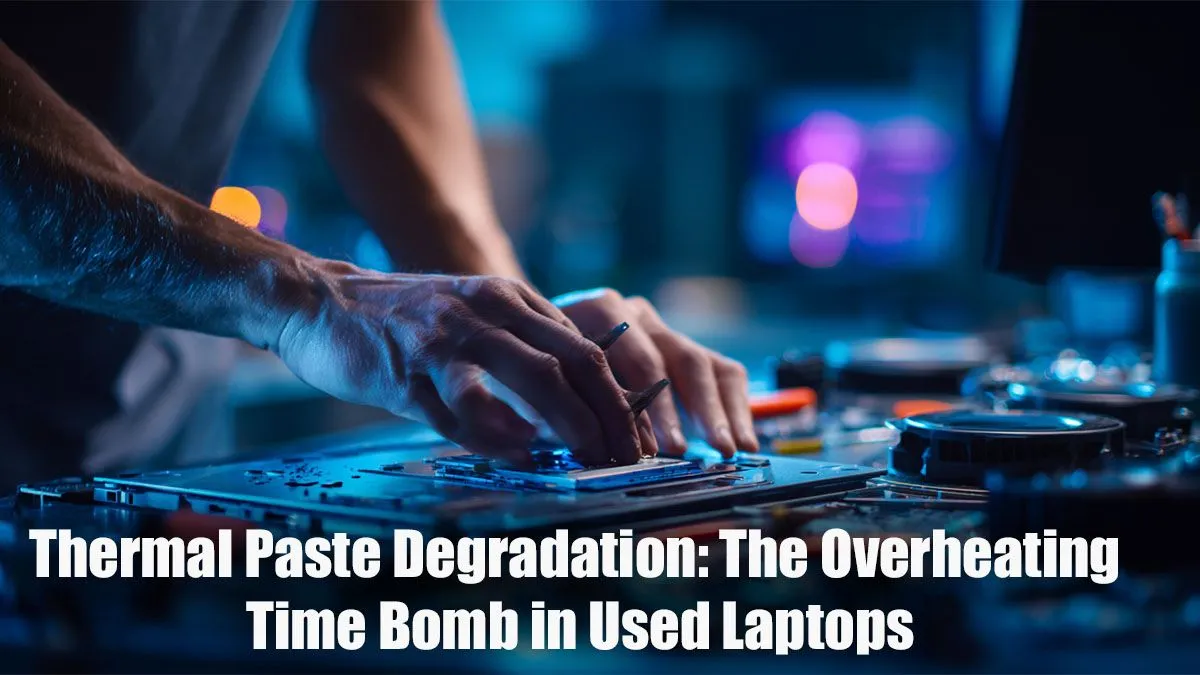
Is your gaming laptop screaming louder than your teammates in a tense firefight? That moment in a heated Warzone finale... your fan roars, your frames drop, and you're staring at the kill-cam. That frustrating lag is a classic sign of overheating, often caused by old thermal paste. This guide isn’t just about a simple fix; it’s about how a proper thermal paste replacement can prevent laptop overheating for good, giving you the cool, stable performance needed to win. 🔥
Why Laptop Overheating is Your Biggest FPS Enemy
Before we get our hands dirty, let's talk about why this matters. When your laptop’s processor (CPU) or graphics card (GPU) gets too hot, it hits a safety limit and automatically slows down to protect itself. This process is called thermal throttling.
Think of it as your laptop’s self-defence mechanism... it deliberately reduces performance to cool down, right when you need that speed the most. Consistently high temperatures don't just kill your kill-streaks; they can shorten the lifespan of your components. Whether you're rocking one of the best gaming laptop deals or an older machine, heat is the universal performance killer. Learning how to prevent laptop overheating is a crucial skill for any serious PC gamer.
Your Thermal Paste Replacement Toolkit 🔧
A successful thermal paste replacement requires the right tools. Don't worry, you don't need a full workshop. Here’s a basic checklist:
- High-Quality Thermal Paste: Don't cheap out here. A good paste (like those from Noctua, Thermal Grizzly, or Arctic) offers better thermal conductivity.
- Isopropyl Alcohol (90%+): For cleaning off the old, crusty paste.
- Lint-Free Cloths or Cotton Swabs: To apply the alcohol without leaving fluff behind.
- Screwdriver Kit: A small Phillips head is usually all you need, but a kit with multiple heads is a lifesaver.
- Plastic Prying Tool (Spudger): To safely open the laptop's plastic casing without causing damage.
- Patience: Seriously. Rushing this job is how mistakes happen.
A Step-by-Step Guide to Replacing Laptop Thermal Paste
Ready to give your laptop a new lease on life? Follow these steps carefully. This process is the most effective way to solve many laptop overheating issues.
Step 1: Prep and Power Down
Safety first! Completely shut down your laptop. Unplug the power adapter and all peripherals. If your laptop has a removable battery, take it out. Press and hold the power button for 15 seconds to discharge any residual electricity. Work in a clean, well-lit area.
Step 2: Open Her Up
Flip your laptop over and remove the screws holding the bottom panel. Keep them organised! Some screws might be different lengths. Gently use your plastic prying tool to unclip the bottom panel and expose the motherboard. The cooling system—a combination of fans and copper heat pipes—is what you’re looking for. The layout for powerful AMD laptops can differ slightly from their Intel counterparts, so finding a teardown video for your specific model on YouTube is always a pro move.
Step 3: The Big Clean
Carefully unscrew the heatsink assembly. It will lift off to reveal the CPU and GPU dies covered in that old, crusty paste. Apply a small amount of isopropyl alcohol to a lint-free cloth and gently wipe away all the old thermal compound from both the heatsink and the chips themselves. You want both surfaces to be perfectly clean and shiny.
The 'Pea Dot' Method Is King 👑
For laptop CPUs and GPUs, the best application method is a single, pea-sized dot of thermal paste right in the centre of the chip. When you re-mount the heatsink, the pressure will spread the paste evenly across the surface. Avoid the temptation to spread it yourself with a card—this can create air bubbles, which are terrible for heat transfer.
Step 4: Apply the New Paste
With the surfaces clean, it's time for the magic. Apply that small, pea-sized dot of new thermal paste to the centre of the CPU and GPU. Remember: less is more. A thick layer is actually less effective than a thin, perfect layer. This is the core of your thermal paste replacement.
Step 5: Reassembly and Testing 🚀
Carefully place the heatsink back onto the chips and screw it down in a crisscross pattern to ensure even pressure. Reconnect any fan cables you unplugged. Put the bottom panel back on, screw it in, and power up your machine. Even many of the latest Intel-powered gaming laptops benefit from a premium paste application after a year or two of heavy use. Run a game or a stress test and monitor your temperatures. You should see a significant drop!
When an Upgrade is a Better Fix
So, you've completed the thermal paste replacement, but your rig still sounds like a jet engine on takeoff... what now? Sometimes, an older machine is just outmatched by modern games. If your hardware is several years old, no amount of maintenance will make it run Cyberpunk 2077 at max settings.
The good news? You don't need to break the bank. There are some seriously great gaming laptops under R20k that offer incredible value. These newer machines, especially current-gen Intel laptops on special, are built from the ground up with far more efficient cooling systems, making overheating a thing of the past.
Ready for a Cooler, Faster Gaming Experience? ❄️
If your laptop has seen better days, a thermal paste replacement is a fantastic performance boost. But if you're ready to stop tweaking and start dominating, explore a machine with cutting-edge cooling built-in. Shop the best gaming laptop deals at Evetech for performance that leaves lag in the dust.