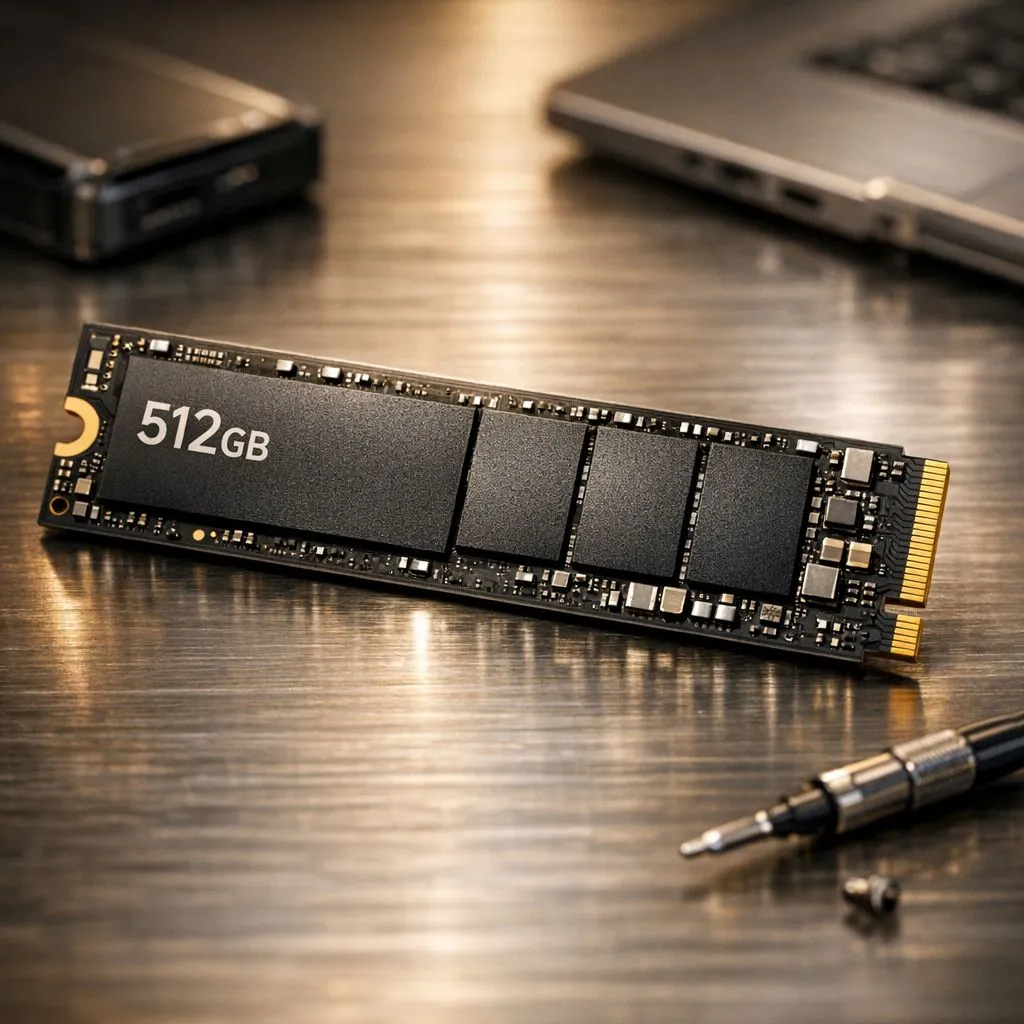
So, you’ve got a shiny new rig with a zippy 512GB NVMe SSD. The boot times are insane, and games load in a flash. Life is good… until that dreaded “Low Disk Space” notification pops up. How did that happen so fast? Between chunky Windows updates and games like Call of Duty demanding over 200GB, it’s surprisingly easy to fill up.
This guide provides pro tips to help you effectively manage storage on your 512GB NVMe SSD and keep your system running lean.
First Steps: How to Manage Your 512GB SSD Storage
Before you start deleting precious files, let’s tackle the easiest wins. Windows has built-in tools that are perfect for clearing out digital clutter. Think of this as your essential first aid for a full drive. These quick optimisations can often free up several gigabytes in just a few minutes, making a noticeable difference without any drastic measures.
First, enable Storage Sense. Go to Settings > System > Storage and toggle it on. This awesome feature automatically cleans up temporary files and empties your Recycle Bin. Next, run the classic Disk Cleanup tool. It’s an oldie but a goodie for getting rid of system files left over from updates. For many users with a new machine, especially a great gaming laptop under R20k, mastering these basics is crucial for long-term performance.
Optimising Your 512GB NVMe for Gaming 🎮
Your game library is likely the biggest culprit. Modern AAA titles are massive, and if you’re not careful, two or three of them can devour your entire drive. Smartly managing your 512GB SSD space is key to keeping your favourite games installed and ready to play.
The most straightforward tip? Be ruthless. If you haven’t played a game in months, uninstall it. You can always reinstall it later. Most game launchers like Steam also allow you to move game installations to a secondary, larger (but slower) hard drive if you have one. This keeps your super-fast NVMe space reserved for the games you play daily. This strategy is especially important on high-performance machines like GeForce RTX gaming laptops, where you want your most demanding titles on the fastest possible storage.
Visualise Your Storage ⚡
Download a free tool like WizTree or TreeSize Free. These apps scan your drive and show you a visual map of what’s eating up your space. You’ll often be shocked to find a massive old download folder or a forgotten video project taking up 50GB. It’s the quickest way to identify and delete large, unnecessary files.
Advanced Strategies for Managing 512GB of Space
Once you’ve cleaned up the basics and organised your games, it’s time to dig a little deeper. Windows itself has a few space hogs you can tame. For instance, you can reduce the size of or disable the hibernation file (hiberfil.sys) if you never use the hibernate feature. This can instantly free up several gigabytes.
Moving your personal files to the cloud is another excellent strategy. Services like OneDrive or Google Drive are perfect for storing documents, photos, and videos, keeping them off your primary SSD. This approach ensures that both powerful Intel laptops and the latest systems from Team Red stay responsive. Ultimately, keeping your OS drive lean is a universal rule for a snappy PC, and you'll find that many of the current Ryzen laptop deals pair fast processors with these 512GB SSDs, making storage management a day-one priority.
Is 512GB Enough? When to Consider an Upgrade
Let’s be honest: while you can absolutely manage storage on a 512GB NVMe SSD, it requires discipline. For hardcore gamers who juggle multiple massive titles, or content creators working with large video files, it can feel restrictive. A 512GB drive is a fantastic, high-speed starting point, perfect for your operating system and a handful of favourite applications and games. ✨
However, if you constantly find yourself fighting for every last gigabyte, it might be a sign that you’ve outgrown your current setup. The peace of mind that comes with a 1TB or 2TB drive is significant. You spend less time managing files and more time gaming or creating. When you're ready to make that leap, browsing the best gaming laptop deals for models with larger storage options is a smart next step.
Ready for a Storage Upgrade?
While a 512GB NVMe is lightning-fast, sometimes you just need more space. If you're tired of juggling files and uninstalling games, it might be time for a laptop with a bigger drive. Explore our massive range of laptop specials and find a machine with all the space you need to conquer your world.