Ever unboxed a brand-new monitor for your office, plugged it in, and felt… underwhelmed? You chose a matte screen to fight that relentless office glare, but now the colours seem a bit flat, the blacks a little grey. You're not imagining it. This is a classic trade-off, and understanding how matte overlays cause contrast loss is the first step to choosing the perfect display for your setup. Let's dive in. ⚡
Why Matte Screens Can Reduce Contrast and Vibrancy
At its core, a matte screen finish is an anti-glare (AG) layer designed to tackle reflections. Think of it as a microscopically rough surface. When light from a window or an overhead office light hits it, this textured layer scatters the light in countless directions instead of reflecting it straight into your eyes like a mirror would. Problem solved, right?
Mostly. The catch is that this same scattering effect also applies to the light coming from your monitor's pixels. The light from your display is diffused as it passes through the matte overlay. This can make deep blacks appear slightly lifted or greyish and brilliant whites a touch less intense. This phenomenon is the primary reason matte overlays cause contrast loss, effectively narrowing the dynamic range between the darkest and brightest parts of an image. For a general overview of options, you can browse a wide variety of PC monitors to see the difference in specs.
The Trade-Off: Glare Reduction vs. Image Fidelity
So, is a matte monitor a bad choice? Absolutely not. It’s all about your environment and priorities.
In a brightly lit South African office, a matte display is often a necessity. The reduction in eye strain and headaches from constant glare far outweighs the subtle drop in image pop. For productivity tasks like spreadsheets, documents, and coding, clarity and comfort are king.
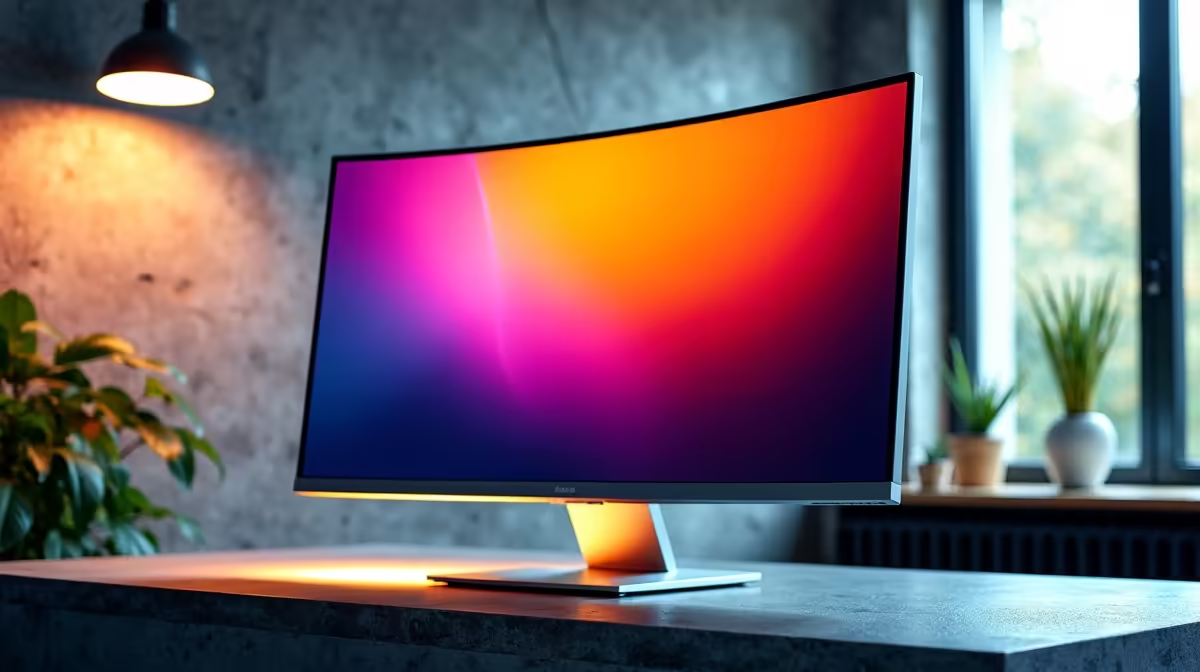
However, for a dedicated gaming den or a colour-critical design studio where you control the lighting, the story changes. Here, you want every bit of vibrancy and depth your panel can produce. This is where glossy or semi-gloss screens shine, delivering that punchy, immersive experience found in the best all gaming monitors. The incredible detail in modern 5K and 4K monitors is often best appreciated without the light-scattering effect of a heavy matte coating. Even an immersive curved monitor benefits from the right finish for its intended space.
Quick Calibration Boost 🔧
Don't just rely on factory settings! Use your graphics card's control panel (NVIDIA Control Panel or AMD Software) to slightly increase Digital Vibrance or Saturation. It’s a simple software tweak that can help counteract the perceived flatness from a matte overlay, making colours pop a bit more without needing hardware calibrators.
How to Mitigate Contrast Loss on Your Matte Display
If you're committed to a matte screen but want to reclaim some of that lost vibrancy, you have a few options.
First, control your environment as much as possible. Even with an anti-glare screen, positioning your desk to avoid direct light sources will improve perceived contrast. Using proper monitor accessories like a flexible arm can make finding that perfect spot a breeze.
Second, dive into your monitor's on-screen display (OSD) settings. Look for modes like "Cinema" or "Game" which often boost contrast and saturation. Adjusting the gamma setting can also make a significant difference to mid-tones. For those constantly on the move, a good portable monitor with a matte finish is a lifesaver in unpredictable lighting, making these on-the-fly adjustments even more crucial. ✨
Ultimately, understanding the science behind why matte screens can cause a loss in contrast empowers you to make the smartest choice. It's not about "good" vs "bad," but about matching the technology to your specific space and needs.
Find Your Perfect Pixel Partner
Whether you need a glare-busting workhorse or a vibrant gaming beast, we’ve got the screen for you. Check out the best PC monitor deals at Evetech and find a display that perfectly matches your setup and budget.