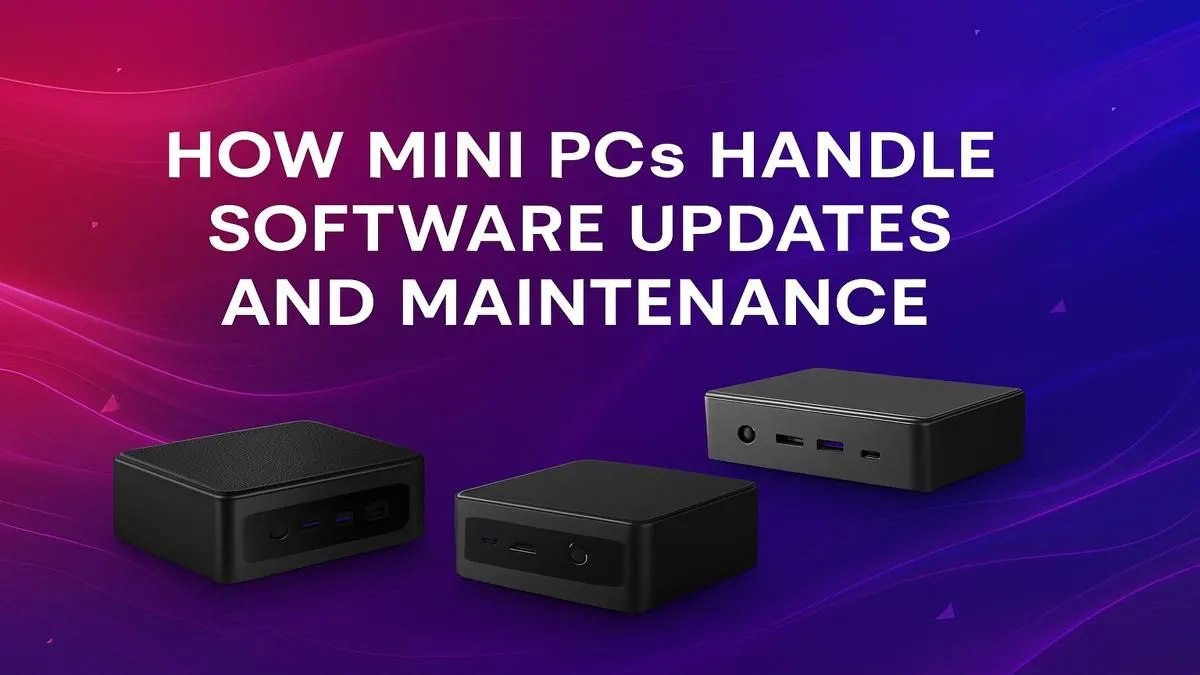
So, you’ve grabbed one of these tiny powerhouses and it’s running like a dream. But to keep it that way, you can't just set it and forget it. Neglecting your mini PC software updates can slow it down and leave it vulnerable to security risks. Don’t worry, it’s not a mission. This guide will walk you through the simple steps for easy maintenance, ensuring your compact rig stays fast, secure, and ready for action. 🚀
Why Mini PC Software Updates are Crucial
Think of software updates as a tune-up for your machine. It’s not just about getting flashy new features... it's essential maintenance. Regularly updating your mini PC ensures you get the latest security patches to protect you from malware, performance improvements to keep things running smoothly, and bug fixes that squash annoying glitches. A few minutes of maintenance can save you hours of frustration down the line.
Your Easy Maintenance Checklist 🔧
Keeping your system in top shape is straightforward. Just follow these core steps every month or so. This simple routine is the key to long-term performance and is vital for all of today's mini PCs, from entry-level media hubs to high-performance workstations.
1. Windows Updates: The Non-Negotiable
This is your first and most important stop. Microsoft constantly releases updates that patch security holes and improve the stability of your operating system.
- Go to Settings > Update & Security > Windows Update.
- Click Check for updates.
- Install everything it finds. Sometimes a restart is needed, so save your work first!
It’s that simple. You can even set "Active Hours" to ensure it doesn't restart while you're in the middle of a game or important work.
Pro Tip: Create a Restore Point ✨
any major update (like a big Windows feature release or a BIOS flash), it’s smart to create a System Restore Point. Just search for "Create a restore point" in the Start Menu, select your C: drive, and click "Create". If anything goes wrong, you can easily roll back to a working state.
2. Driver Updates: Unleash Full Performance
Drivers are the specific pieces of software that let Windows talk to your hardware—like your graphics card, Wi-Fi, and sound. Outdated drivers can cause crashes, poor performance, and weird bugs.
- Graphics Drivers: For Intel, AMD, or NVIDIA graphics, it's best to get the latest drivers directly from their official websites. This is especially important for gaming and video editing.
- Manufacturer Support: Check the support page for your mini PC's brand (e.g., Intel NUC, ASUS, Minisforum). They often provide a package with all the latest tested drivers for your specific model.
3. BIOS/UEFI Updates: The Deep-Level Fix
This one sounds a bit technical, but it’s crucial for security and stability. The BIOS (or UEFI) is the firmware that boots up your PC before Windows even starts. Updates can fix critical vulnerabilities and improve hardware compatibility. You'll download this from your mini PC manufacturer’s support page. Always follow their instructions carefully, as a failed BIOS update can be problematic. This is just as important for affordable models under R22,000 as it is for high-end rigs.
A consistent approach to mini PC software updates is the secret to a happy, healthy machine. By making this checklist a regular habit, you ensure your compact PC delivers the performance you paid for, day in and day out.
Ready for a Pint-Sized Powerhouse?
Keeping your machine updated is key, but sometimes you just need a fresh start. For maximum power, choice, and value in a compact form factor, a modern mini PC is hard to beat. Explore our massive range of Mini PCs and find the perfect tiny titan for your setup.