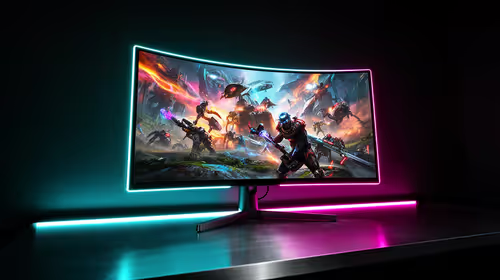
You’ve just unboxed your glorious new OLED monitor. The infinite contrast and vibrant colours are breathtaking, making every game world feel intensely real. But as you admire that static health bar or mini-map, a small worry creeps in… burn-in. You’ve heard about the OLED brightness limiter (ABL) as a defence mechanism, but does it truly prevent permanent UI burn-in, or is it just a temporary fix? Let's dive deep and find out.
Understanding the OLED Brightness Limiter
So, what exactly is this feature? An OLED brightness limiter, often called Automatic Brightness Limiter (ABL), is a built-in safety technology in OLED displays. Its primary job is to automatically reduce the screen's overall brightness when a large portion of the display is showing a bright, static image—like a white webpage or a snowy landscape in a game.
This serves two main purposes:
- Power Management: Pushing millions of self-emissive pixels to maximum brightness consumes a lot of power. ABL helps keep power draw within a safe, efficient range.
- Pixel Protection: Constant, high-intensity light is the biggest enemy of OLED pixels. By dimming bright scenes, the limiter reduces the thermal load and stress on the organic compounds, which helps prevent temporary image retention and, by extension, contributes to preventing permanent burn-in.
It’s a standard feature across almost all modern PC monitors with OLED panels.
Does the Limiter Really Stop UI Burn-In?
Here’s the honest answer: An OLED brightness limiter is a crucial part of the solution, but it’s not a magic shield. It is highly effective at mitigating the risk associated with large, bright, static images. However, it’s less effective against smaller, persistent UI elements like a game's HUD, a Windows taskbar, or a channel logo.
Why? Because these elements often don't cover enough of the screen to trigger a dramatic ABL response. The limiter is designed for big changes, not small, stubborn icons. So while it definitely helps prolong your panel's life, it doesn't make the monitor immune to burn-in. Think of it as one of several tools working together. Modern 4K and 5K monitors also pack other features like pixel shifting and logo luminance detection to specifically target these smaller UI elements.
The Downsides for Gamers and Creators
While the OLED brightness limiter is a necessary safety feature, it can sometimes be… noticeable. 😅 In gaming, you might see the screen subtly dim when you look up at a bright sky or when a flashbang goes off, which can be distracting. For content creators working with large white windows in editing software, the shifting brightness can affect colour perception.
This is the trade-off for those perfect blacks and instantaneous response times that make all gaming monitors with OLED technology so desirable. Manufacturers are constantly refining their ABL algorithms to be less aggressive and intrusive, but it remains a characteristic of the tech.
Pixel Health Pro Tip 🔧
Most modern OLEDs have built-in 'Pixel Refresher' or 'Screen Clean' functions. While short cycles often run automatically, manually running the longer, more intensive cycle every few months (or when prompted) is a great way to help clear temporary image retention and maintain panel health. Check your monitor’s manual for the specific steps!
Smart Habits: Your Best Defence Against Burn-In
Since the OLED brightness limiter isn't the only answer, adopting a few smart habits is the best way to keep your screen pristine for years to come.
- Hide Static Elements: Set your Windows Taskbar to auto-hide. In your browser, use full-screen mode (F11) when possible.
- Use Screen Savers: A simple black or dynamic screen saver is perfect. It gives your pixels a much-needed rest.
- Vary Your Content: Avoid leaving a static image on-screen for many hours straight. If you walk away from your PC, turn the monitor off.
- Embrace Dark Mode: Using dark mode in your OS and apps reduces the overall brightness and stress on the pixels.
- Consider Your Setup: Using versatile monitor accessories like an adjustable arm can make it easier to switch between landscape and portrait, varying pixel usage patterns.
Ultimately, choosing the right monitor for your needs—whether it's one of the immersive curved monitors for gaming or even compact portable monitors for productivity—means understanding its features and how to care for it. ✨
Ready for the Ultimate Visual Upgrade?
The fear of burn-in is real, but modern OLEDs are tougher and smarter than ever before. The key is choosing a quality screen with the right protective features for your setup. Explore our incredible PC monitor deals and find the perfect display to light up your world.