Getting Your Wireless Headset Ready for Action
There is nothing worse than being ready for a late-night session of Call of Duty or Apex Legends only to be held back by cables tangling up your desk. If you have finally decided to cut the cord, you are likely looking for a straightforward PS4 wireless gaming headset setup guide to get you back in the lobby. Whether you are upgrading your audio or replacing a worn-out pair, getting that crisp, immersive sound is easier than you might think. 🎧
Connecting Your Wireless Headset to PS4
Most modern wireless headsets use a USB dongle to establish a lag-free connection. First, plug the wireless transmitter into one of the USB ports on the front of your console. Once plugged in, turn on your headset. The console should automatically detect the device. If it does not, navigate to Settings > Devices > Audio Devices and ensure your headset is selected as both the Input and Output device.
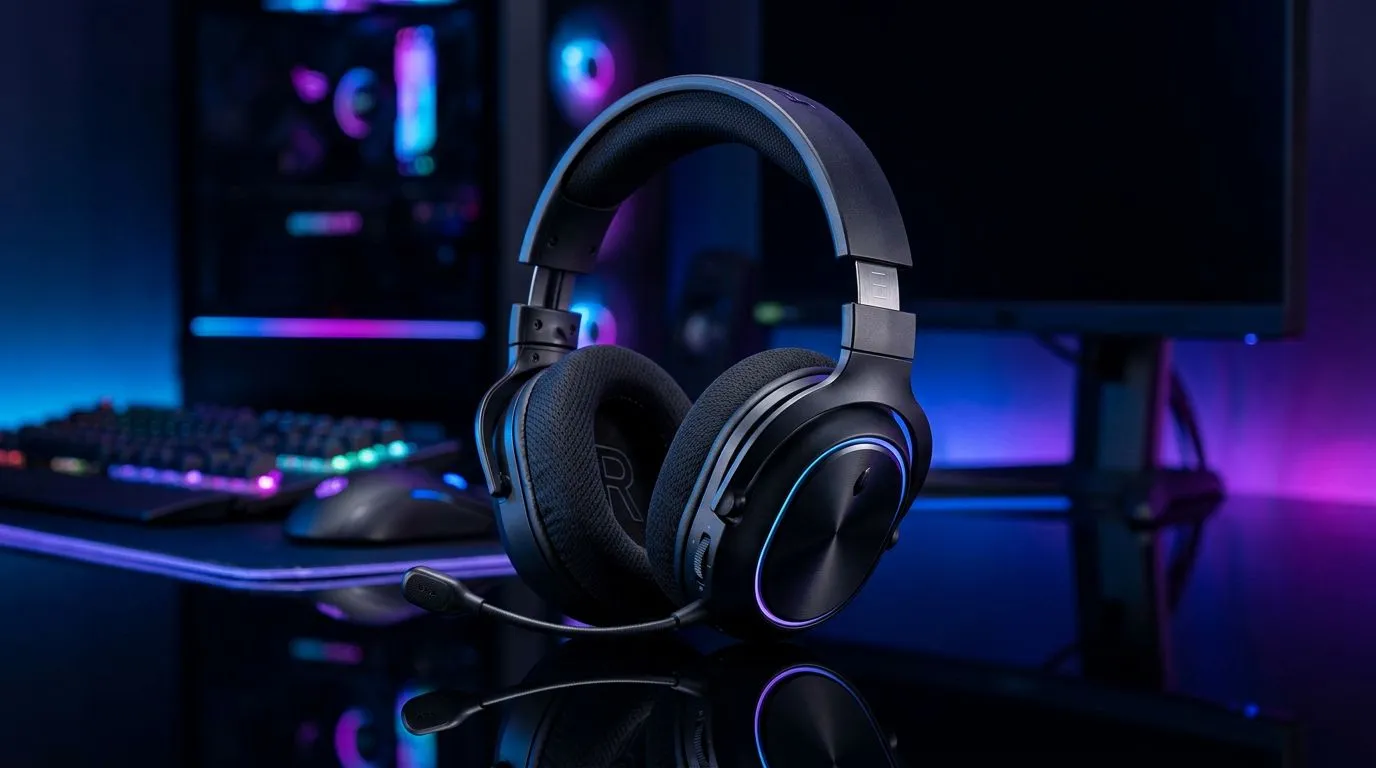
If you are looking for versatility that works across your console and your PC setup, the Razer Barracuda X Chroma Wireless Headset is a fantastic choice for South African gamers who value comfort and crystal-clear microphone quality.
Audio Settings Pro Tip ⚡
Always set your 'Output to Headphones' to 'All Audio' within the PS4 sound settings. If you leave it on 'Chat Audio Only', you will miss out on the incredible game soundtracks and ambient effects that make your favourite titles truly come alive.
Optimising Your Audio Experience
Once connected, take a moment to tweak your levels. Balancing your game audio against your party chat is essential for competitive play. You want to hear those footsteps clearly without your friends' voices drowning out the action. Many enthusiasts choose to explore high-performance Razer headphones to gain that extra edge in precision audio. 🚀
If you find that your current setup is lacking depth or if the battery life is no longer meeting your needs, it might be time to browse our latest headphone and headset collection to see what is currently available at competitive local prices. ✨
Troubleshooting Common Connection Issues
If your headset isn't pairing, try moving the USB dongle to a different port or checking if the headset needs a firmware update via a PC. Most connection issues are simple fixes involving a quick restart or a re-sync of the wireless transmitter. Don't let a minor tech hiccup ruin your weekend grind. 🔧