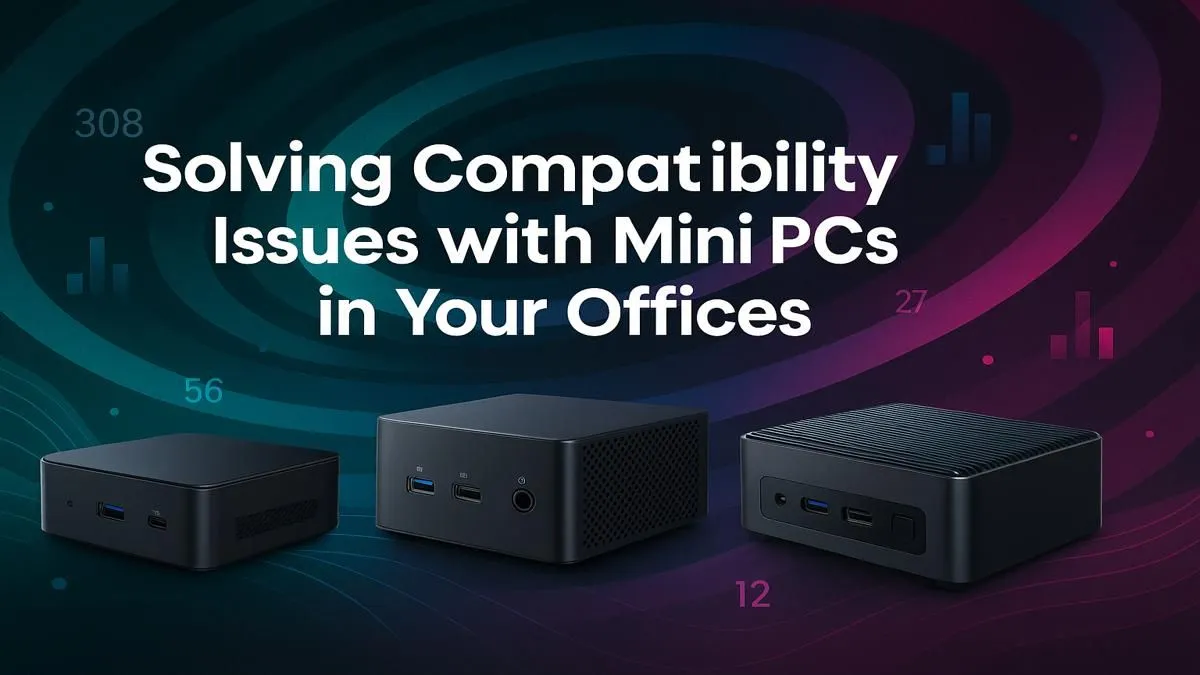
So, you’ve just unboxed your sleek, new Mini PC. It’s tiny, powerful, and ready to declutter your desk. You plug in your trusty monitor, your favourite keyboard… and nothing. Sound familiar? These small-form-factor machines are brilliant for the modern South African office, but overlooking potential Mini PC compatibility issues can turn a dream upgrade into a massive headache. Don’t stress. This guide will help you diagnose and fix common problems for good.
Unpacking Common Mini PC Compatibility Issues
Before you can find a fix, you need to know what you're looking for. Most compatibility problems with Mini PCs stem from their compact nature. Less space means fewer ports and more integrated components, which can sometimes lead to frustrating conflicts with your existing gear.
The Port Predicament: USB & Display Outputs
The most frequent issue users face is a simple mismatch of ports.
- USB-C vs. Thunderbolt: They use the same connector, but they're not the same! A standard USB-C port might only handle data, while a Thunderbolt port can manage data, power, and multiple high-resolution displays all through a single cable. Plugging a Thunderbolt dock into a basic USB-C port will lead to disappointment.
- Display Outputs: Many Mini PCs come with one HDMI and one DisplayPort output. If both your monitors are HDMI-only, you'll need an adapter. Always check the specific video outputs on the device before you buy.
RAM and Storage: Not Always Upgradeable
One of the biggest selling points of a traditional desktop is easy upgrades. With Mini PCs, it's a mixed bag. To save space, some models have their RAM and storage drives soldered directly onto the motherboard. This means what you buy is what you get… forever. If you plan to upgrade later, you must confirm that the model has accessible SODIMM (for RAM) and M.2 (for storage) slots. Always double-check the specs on various Mini PC models to ensure they offer the flexibility you need down the line.
Your Pre-Purchase Compatibility Checklist ✨
The best way to fix a problem is to avoid it entirely. Running through this quick checklist before you click "buy" can save you a world of trouble and ensure your new machine works perfectly out of the box.
- Audit Your Peripherals: Make a list of everything you need to connect: monitor(s), keyboard, mouse, webcam, printer, external hard drive. Note the connection type for each (e.g., USB-A, USB-C, HDMI).
- Count the Ports: Compare your list to the ports available on the Mini PC you’re considering. Do you have enough? Are they the right type?
- Check Your Software Needs: Does your essential office software have specific hardware requirements? Ensure the Mini PC’s processor, graphics, and RAM meet the recommended specs.
- Plan for Wi-Fi: Is your office far from the router? A Mini PC with Wi-Fi 6 or 6E will provide a more stable, faster connection than older standards.
Thinking ahead is key. If you know you'll need to connect five USB-A devices but the Mini PC only has two, you can plan to buy a USB hub at the same time and avoid any day-one frustration.
Firmware Fix 🔧
Before you blame your new hardware, check the manufacturer's website for BIOS or UEFI updates. These low-level software updates often include crucial fixes for hardware recognition and can solve mysterious compatibility problems that Windows updates won't touch. It's a five-minute check that can save you hours of frustration.
Solving Post-Purchase Problems Like a Pro
If you're already facing a compatibility issue, don't despair. Most problems have a simple solution.
Driver Updates are Your Best Friend
Often, a peripheral isn't working because Windows is using a generic driver. Go directly to the Mini PC manufacturer's website and download the latest official drivers, especially for chipset and graphics. This simple step resolves a surprising number of conflicts.
The Magic of Docks and Hubs 🚀
Ran out of ports? A high-quality USB-C dock or hub is the ultimate solution. A single cable can connect your Mini PC to multiple monitors, an entire suite of USB devices, and even a wired internet connection. It’s the easiest way to turn any compact Mini PC into a full-fledged desktop workstation.
Finding the Right Fit for Your Budget
You don't need to spend a fortune to get a capable office machine. The key is matching the hardware to your tasks. For general admin, email, and browsing, an Intel N-series or Core i3 model is perfect. If you're diving into spreadsheets or light photo editing, a Core i5 or Ryzen 5 with at least 16GB of RAM is a better bet. You can find plenty of excellent Mini PCs under R22,000 that deliver incredible performance for their size and price.
Tackling Mini PC compatibility issues is mostly about preparation. By understanding the common pitfalls and checking your gear beforehand, you can enjoy all the space-saving, power-efficient benefits without any of the setup stress.
Ready to Declutter Your Desk?
Solving compatibility issues is all about planning. With the right knowledge, you can build a powerful, space-saving setup without the headaches. From compact powerhouses to versatile media centres, the perfect Mini PC is waiting for you. Explore our incredible range of Mini PCs and find the perfect fit for your office.