A HDMI or DisplayPort choice looks like a small decision on an ultrawide, but the two standards carry data differently, and the difference shows up at 3440 x 1440 and 120Hz. Bandwidth, bit depth and the link's ability to hold the refresh rate all depend on which standard you run and which version your card supports. This breakdown goes through the numbers so you can read the link instead of guessing.
Quick Answer
DisplayPort usually gives the most headroom for 3440 x 1440 at 120Hz, which is why it is the first choice on a PC monitor. HDMI suits TVs and consoles well, and it can carry the signal to a PC monitor too, but older HDMI versions run out of bandwidth sooner at this resolution. Confirm the mode in Windows afterwards under Advanced display, and if the rate or colour depth drops, check the version of the link you are using before changing anything else.
🧵 How the two standards carry data
DisplayPort sends data over one to four lanes, and each lane carries a set amount of bandwidth. DisplayPort 1.4 gives four lanes of up to 8.1 Gbps each, for a raw total of 32.4 Gbps, before the protocol overhead is taken off. That is far more than a 3440 x 1440 signal at 120Hz needs for an ordinary colour depth.
HDMI works differently and offers fewer lanes for a PC monitor. HDMI 2.0 tops out at 18 Gbps raw, and HDMI 2.1 reaches 48 Gbps. The version on the cable and on both ends of the link sets the ceiling, and a link that negotiates down to an older version carries less than the box suggests.
The gap between the two is why the same monitor can behave differently on each input. The screen shows what the link delivers, so a link with less bandwidth may fall back to a lower refresh rate or a lower colour depth.
🧮 What 120Hz at 3440 x 1440 asks of the link
A 3440 x 1440 picture has 4.95 million pixels, and at 120 frames per second that is close to 594 million pixels every second before blanking intervals are counted. Blanking adds the time the signal spends between lines and frames, and it pushes the real bandwidth higher than the picture alone suggests.
At an 8-bit colour depth the signal carries 24 bits per pixel, which fits comfortably on a DisplayPort 1.4 link. At 10-bit it carries 30 bits per pixel, and the total rises. HDMI 2.0 can struggle to carry 10-bit at this resolution and 120Hz once blanking is counted, so the link may step down to 8-bit or to a lower refresh rate.
The practical rule is simple. Check the mode in Windows after you connect, and if 120Hz is missing, confirm the version of the cable and the output before blaming the screen. A cable or port that is an older version can hide the mode entirely.
🔌 Versions, cables and the card's outputs
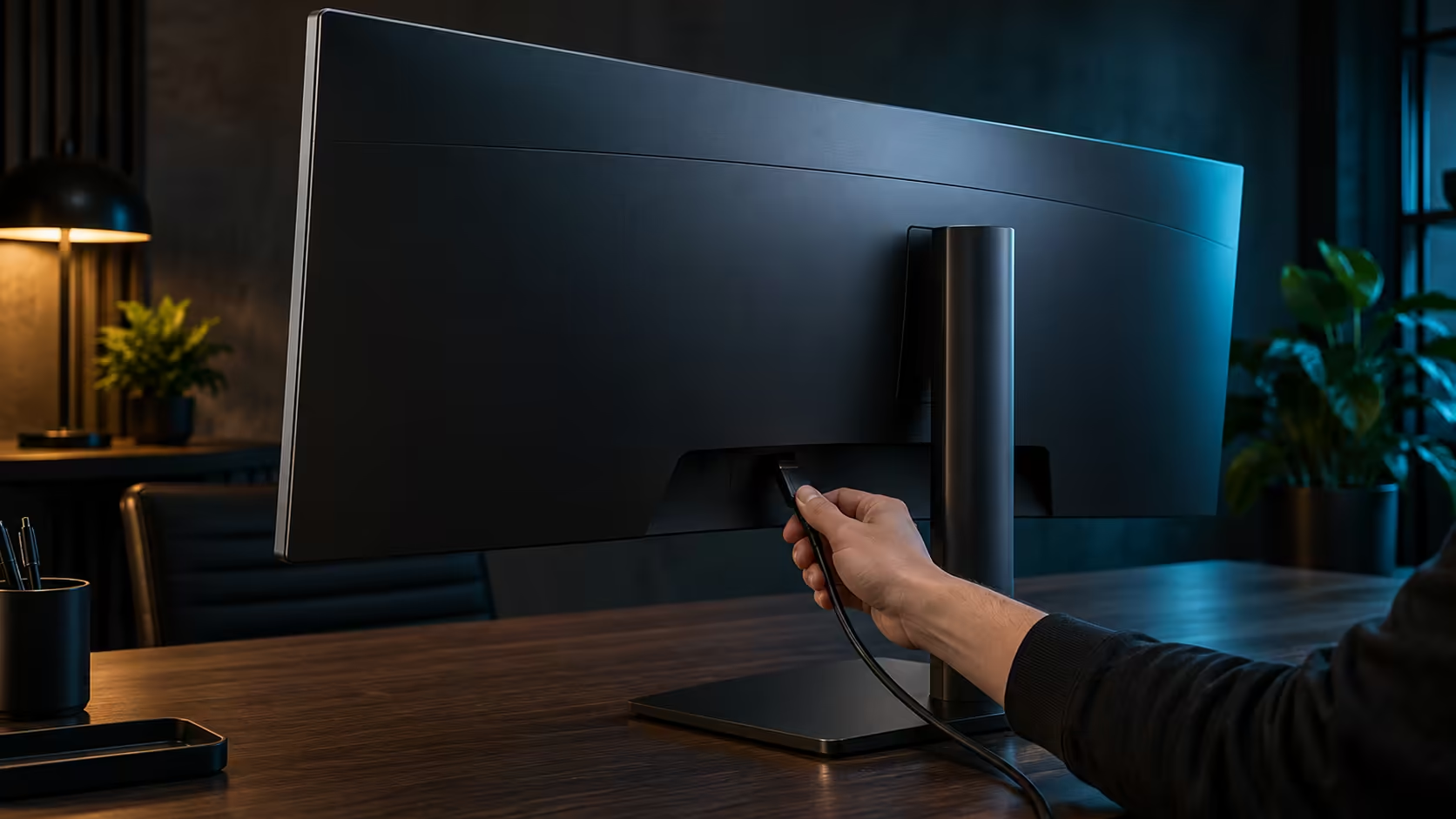
The version printed on the cable or the packaging matters more than the plug shape. A DisplayPort lead rated for version 1.4 suits this resolution on most cards, and an HDMI lead should carry the version that matches the mode you need. A cable marked with no version is a gamble on a long run.
Check the card's own outputs as well. A card may carry DisplayPort 1.4 on some sockets and an older standard on others, and the link only runs as fast as the weakest end. Check the DisplayPort revision the card lists, and choose a lead to match. Write the revision on the lead's label with a marker, so the next swap does not start from scratch.
Keep adapters out of the chain where you can. An adapter that converts one standard to another can limit the rate, and some cheap versions quietly step the screen down to 60Hz. When the rate remains low behind an adapter, plug straight into the card and retest. Most DisplayPort leads are sold in lengths of about 1 m, 1.5 m and 2 m, so measure the run first and buy the shortest lead that clears the desk and the bend. After you connect, confirm 120Hz in Windows, then play a 10-minute game at the settings you normally use. A link that holds the mode through a warm session has the margin you need.
🧭 Choosing the link for your setup
On a computer, DisplayPort tends to be the initial choice for 120Hz at this resolution. It has the bandwidth, it carries the adaptive sync signal cleanly, and it avoids the version questions that HDMI sometimes raises on older hardware. Flat screens for the same desk are in the office monitors range. Use HDMI as the backup, and expect to confirm the refresh rate afterwards.
For a console or a TV-style setup, HDMI is the normal choice, and the question shifts to whether the console and the screen both support the higher modes. A console may limit the refresh rate or the resolution on some inputs, so check the console's own display settings as well as the monitor's.
Decide once the link is settled, then leave it alone. Leads and adapters are grouped under cable solutions, and desk-side accessories sit under monitor accessories. Changing cables and ports every few weeks makes it hard to tell which setting is causing a problem.
Need a lead for a 120Hz link?
Browse cable solutions on Evetech and match the version to your graphics card before you order.
Frequently Asked Questions
Why does DisplayPort suit 120Hz better than HDMI?
It carries more bandwidth on a typical PC link, and it leaves room for 3440 x 1440 at 120Hz with a higher colour depth. Older HDMI versions can run out of room sooner.
Can HDMI do 120Hz at this resolution?
Yes, on a version with enough bandwidth, but older HDMI links may step down to a lower refresh rate or colour depth. Confirm the mode in Windows afterwards.
What does blanking have to do with bandwidth?
Blanking is the time the signal spends between lines and frames. It adds to the real bandwidth needed, so a link can look sufficient on paper and still fall short once blanking is counted.
Does a card's DisplayPort version matter?
Yes. The link runs only as fast as the weakest end, so a cable and a card should both support the version you need for 120Hz.