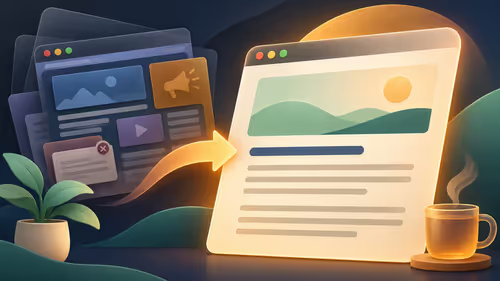
Borrowing a family PC for a quick account check does not mean you want a new login left behind. Firefox private browsing can help separate that visit from the normal browser session. It has a clear boundary, though: temporary browser storage and complete online anonymity are different things.
Quick Answer
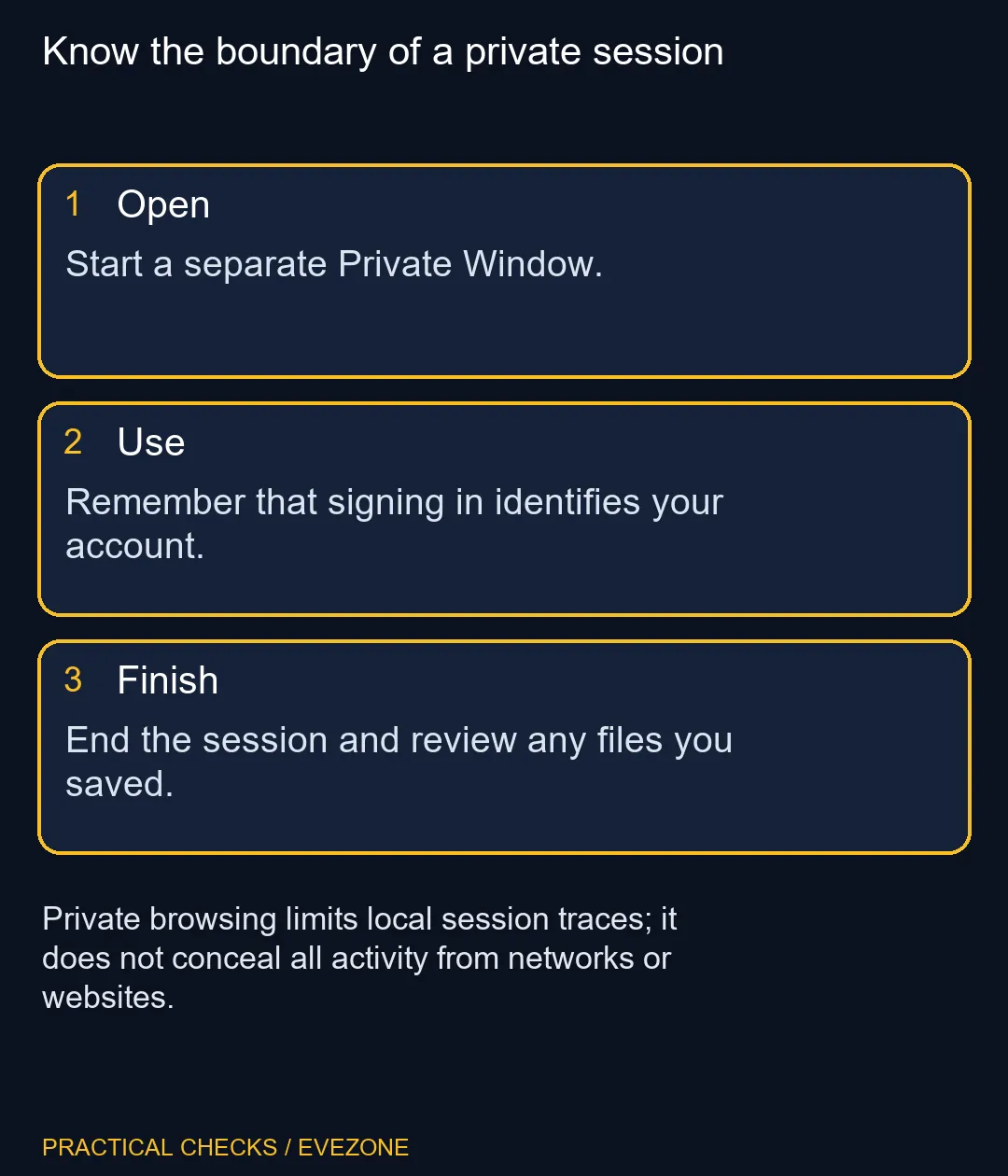
Open a New Private Window from the Firefox menu and finish by closing all Private Windows. The feature costs R0 and removes the private session's browsing history and cookies when it ends. It does not erase saved downloads or bookmarks, and it does not hide your identity from a site where you sign in.
🪟 Start in the correct window
Use the private-window command before visiting the account or page you want to keep separate. Check the private indicator rather than assuming a new ordinary tab has the same effect. Keep the number of open private windows manageable so it is clear when the session has actually ended.
On a shared computer, this can prevent a short visit from becoming part of the usual browsing history. It is still sensible to avoid saving files you do not need. A private window does not change who can open a document left in the computer's Downloads folder.
🧭 Understand who can still recognise you
Signing into a website tells that service which account is using it. Private Browsing does not cancel the login or make the service forget actions taken inside the account. Use it as a local-session tool rather than a promise that the visit leaves no records anywhere.
Your internet provider and an employer's managed network can also have visibility beyond the browser's history list. If you need to use a work device, follow the organisation's rules. Changing the window mode is not permission to bypass them or evidence that network monitoring has stopped.
📁 Inspect what you deliberately keep
Files downloaded during the session remain on disk. Bookmarks saved from a private page remain too. Before handing the machine back, review any deliberate saves and decide where they belong. Do not rely on closing a window as a file-management operation.
The reverse is also useful to remember: closing the private session does not remove the family member's existing ordinary browsing history. Keep cleanup limited to your own material rather than trying to tidy the entire profile after a short visit.
👥 Choose a lasting setup for repeated sharing
For regular use, discuss how each person will keep accounts and files separate instead of relying on memory at the end of every visit. Private Browsing can serve a temporary purpose, but it is not a complete shared-computer arrangement.
If a household needs another machine for wider reasons, look at mini pcs for a desk or all laptops on special for portability. Buying hardware does not automatically create privacy, and private-window mode does not require new hardware. Choose the device for the actual work, then set up accounts and storage deliberately.
Finish the visit calmly: close all private windows, check the saved files you created, and confirm that the next person is using their normal session. Those simple observations are more useful than assuming the word private covers every trace of activity.
Frequently Asked Questions
Does Private Browsing hide me from websites?
No. It does not make you anonymous, and a website can identify an account you sign into.
Do downloads disappear when I close it?
Downloaded files remain on the computer. Do not confuse the browser download list with the actual saved files.
Are new bookmarks temporary?
No. Bookmarks you save in a Private Window remain in your bookmark collection.
Does it erase my ordinary history?
Private-session cleanup does not delete the existing history from normal browsing windows.
Can my network still see activity?
Private Browsing does not hide all activity from an internet provider or a managed work network.
How do I finish the session?
Close every Private Window. Current Firefox versions may also provide a control to clear the current private session.
Planning a shared home setup?
Choose a suitable Evetech computer for the household workload and agree how each person will keep their accounts and files organised.