A loud fan or a hesitant tab does not tell you which browser page is busy. Firefox task manager gives you a more specific starting point by showing the processes using memory and CPU. Read the numbers before reaching for a hardware upgrade or ending an item whose unsaved work you still need.
Quick Answer
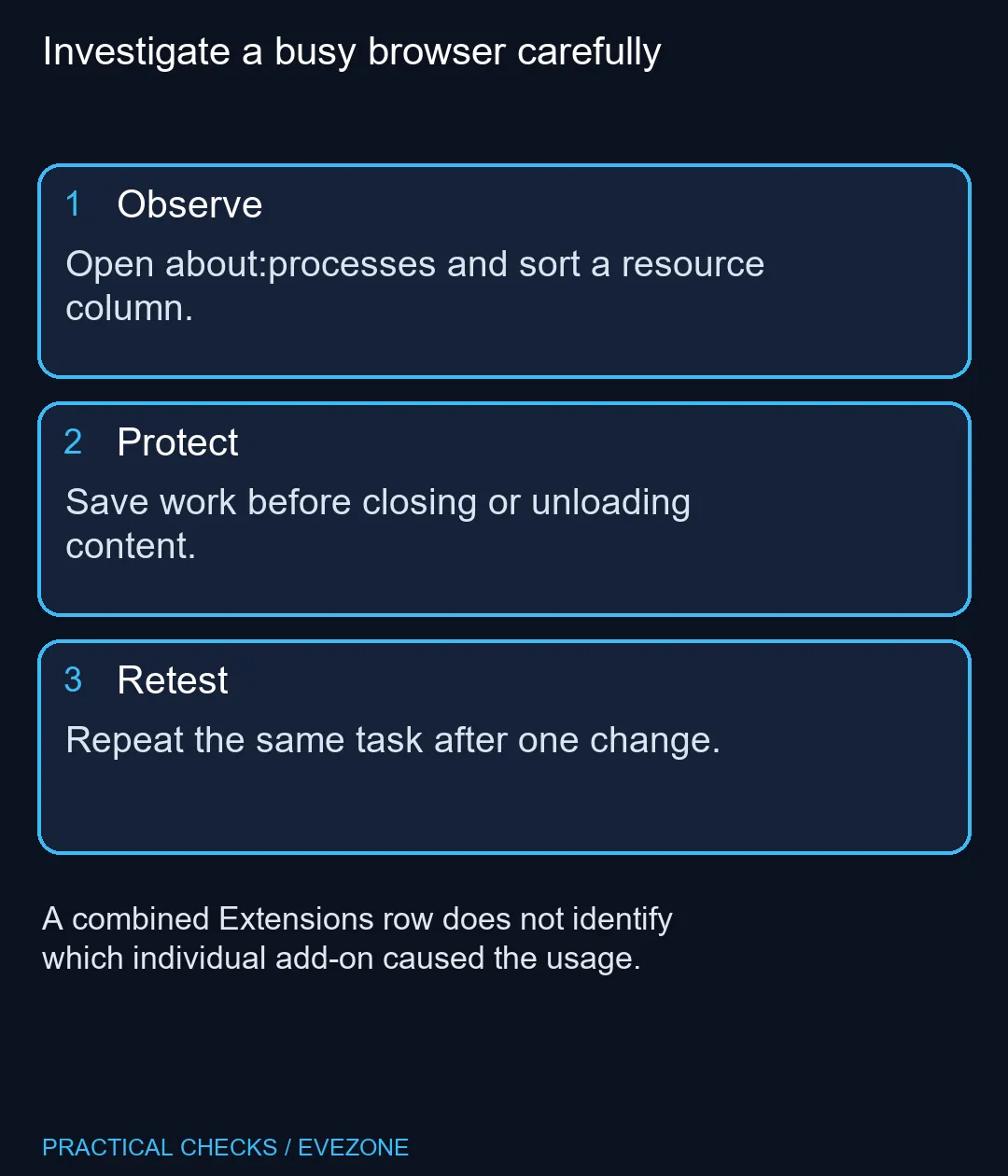
Type about:processes in Firefox's address bar to open the Process Manager. Sort by Memory or CPU and watch the item during the task that feels slow. This R0 check uses estimates, not a benchmark. Save work before closing or unloading anything, and remember that the Extensions entry combines enabled add-ons.
🔎 Observe the same task more than once
Open the page that reproduces the slowdown and inspect the process list while it is happening. Then watch again when the activity settles. A short burst during a deliberate action is a different observation from a process that stays busy while you leave the browser idle.
Keep a brief note of the page, action and symptom. That is more useful than a screenshot of a number with no context. If you later change one setting or close one tab, you can repeat the same task and compare what actually changed.
🧮 Sort the resource that matches the complaint
The Memory and CPU headings let you reorder the list. Use the column relevant to the behaviour you are investigating rather than assuming the largest number must be the culprit. A process can hold memory without continuously consuming the most CPU time.
The numbers are estimates and the list represents browser processes. It is not a full inventory of everything the operating system is doing. If the whole PC struggles while another application is working, inspect that wider workload too instead of blaming the first Firefox row you recognise.
🧩 Treat the extensions entry as a group
Mozilla explains that enabled extensions share a process entry. A busy Extensions row does not isolate a particular add-on. Avoid removing several tools at once and then guessing which one mattered.
Save your work and make a controlled comparison. If an extension is the suspected cause, test changes deliberately and revisit the same page. Keep track of what you disabled so useful functionality can be restored after the diagnosis.
💻 Decide about hardware after the investigation
Reduce tabs you no longer need and close unrelated applications for a comparison run. If the computer improves, you have learned something about the workload. If it remains slow, record that result rather than declaring a memory upgrade successful before making one.
When a replacement system is already justified, compare RAM and the rest of the configuration across mini pcs and all laptops on special. Browser resource observations can help describe your needs, but they do not alone establish which machine will be faster for every task.
Be careful with process actions. Closing a tab and unloading its contents can interrupt work, even if the tab's title remains visible. The useful result is a repeatable explanation of the slowdown, not simply a smaller number obtained by ending everything.
Frequently Asked Questions
How do I open Firefox Task Manager?
Enter about:processes in the address bar, or use More Tools then Task Manager from the Firefox menu.
What do its resource numbers mean?
They are estimates of memory and CPU used by Firefox processes. Treat them as observations, not a complete hardware diagnosis.
Can I sort the list?
Yes. Click Memory or CPU to sort by that resource, then click again to reverse the order.
Does Extensions name one faulty add-on?
No. Mozilla says enabled extensions share a process entry. A high combined row needs further investigation.
Is it safe to kill any busy process?
Save work and identify the item first. Closing or unloading content can interrupt the page you are using.
Does high memory prove I need more RAM?
No. Compare your normal workload, unnecessary tabs and other applications before deciding whether capacity is the constraint.
Sizing a PC for your real workload?
Use a repeatable browser check to understand the demand, then compare complete Evetech configurations with suitable memory and processing headroom.