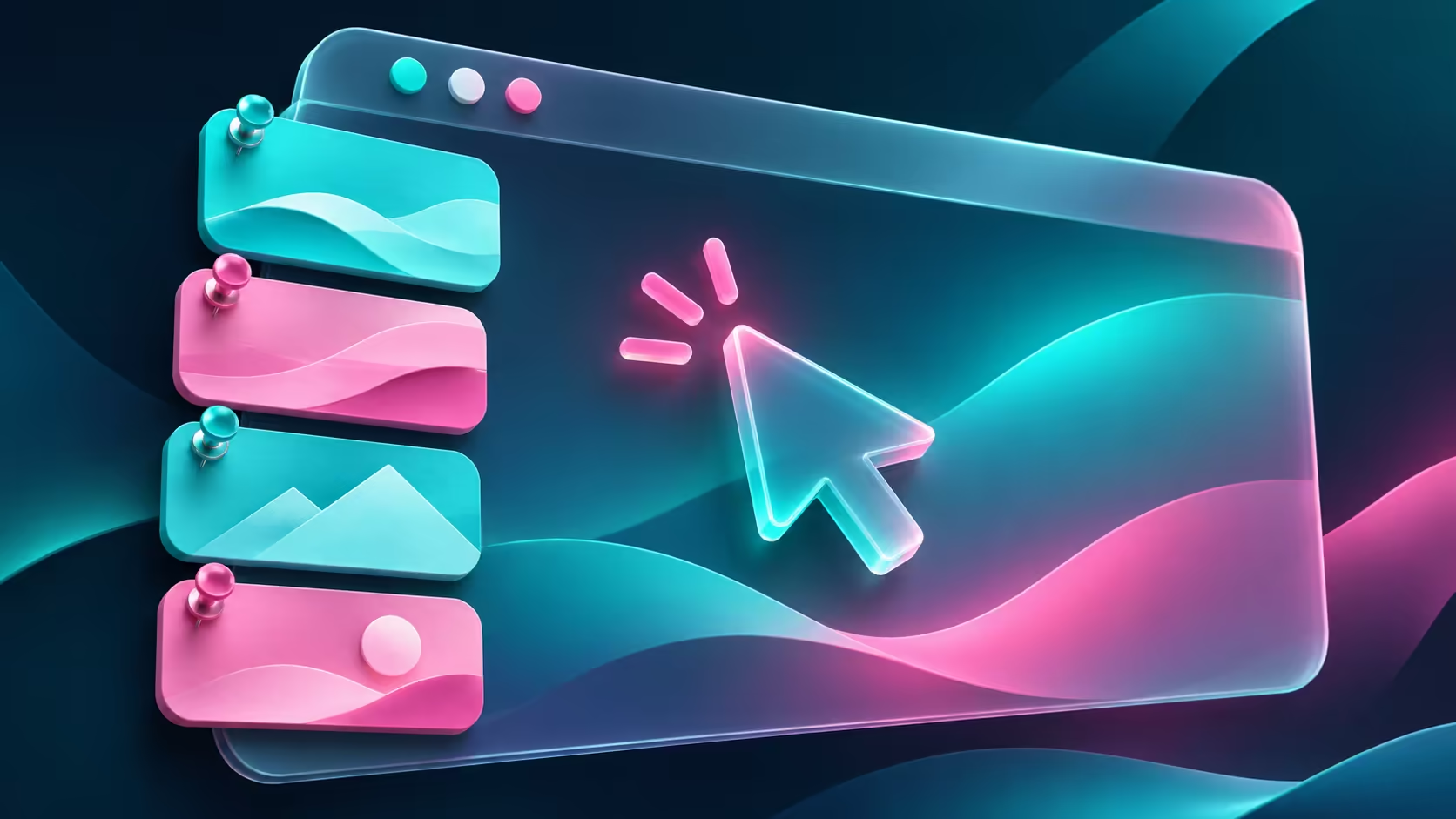
The page you open every morning can disappear among dozens of temporary tabs. Firefox pin tabs gives that page a small, stable place near the start of the tab strip. The feature works best when it is reserved for a few regular destinations rather than used as another way to accumulate unfinished browsing.
Quick Answer
Right-click an open tab and choose Pin Tab. It becomes a small site icon at the left of the strip; right-click it and choose Unpin Tab to reverse the change. Pinning costs R0. Use a bookmark for a saved address and the website's own save command for work inside the page.
📌 Start with one genuinely frequent destination
Pick a page you return to throughout the day, such as a calendar or a reference site. Pin it and practise finding it by its icon. Because the full title is hidden, a familiar site is a better starting point than several unfamiliar pages with similar icons.
Keep short-lived research tabs ordinary while you learn the arrangement. You can then tell the persistent daily page from the temporary material around it. A tidy starting area is useful only if its contents have a clear purpose.
🗂 Use bookmarks for a different kind of memory
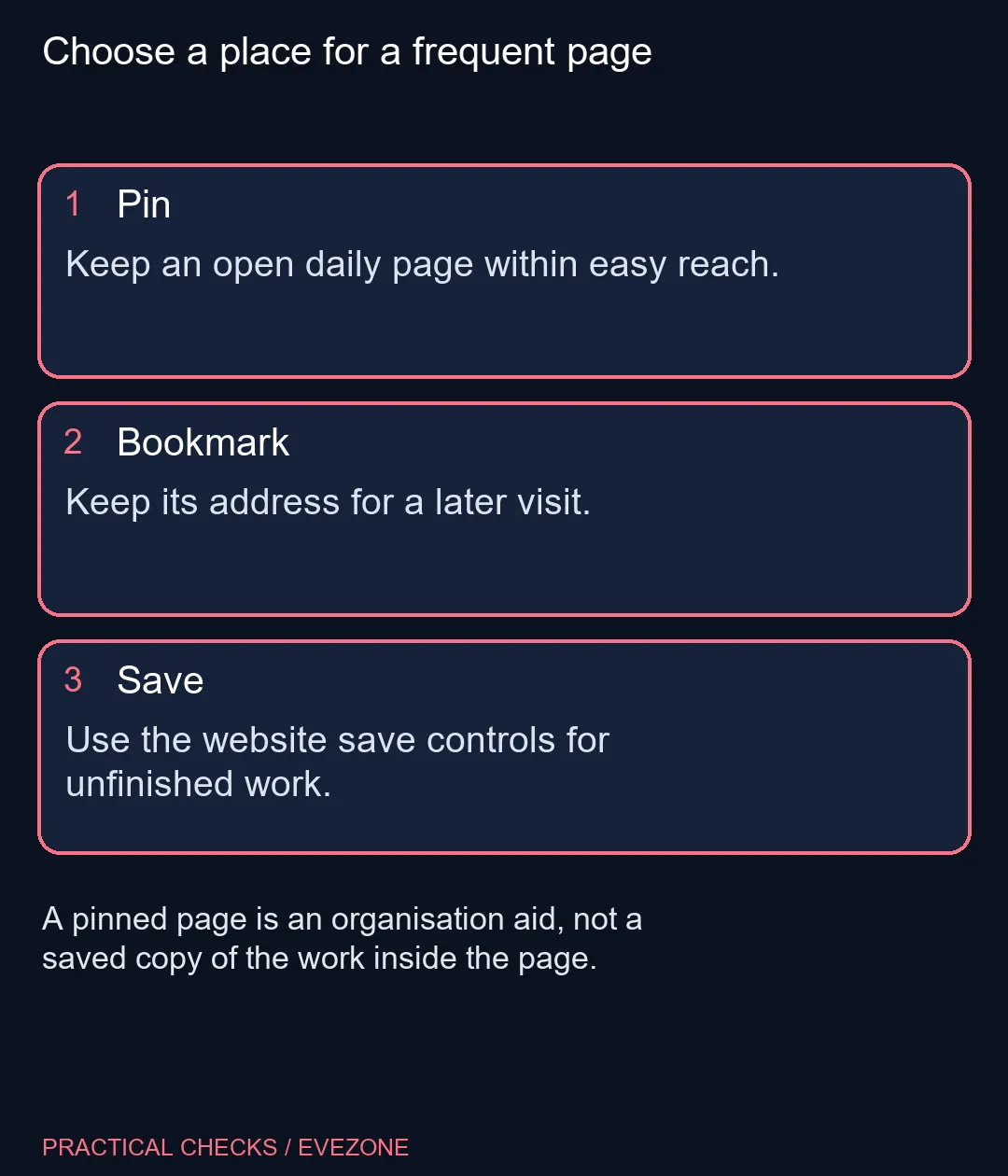
A bookmark is useful when you want to revisit an address later without keeping the page part of today's open workspace. A pin is useful when you expect to return to an already open destination repeatedly. Choose between them based on the next visit, not on which command is easiest to find.
Neither action should be your only protection for an unfinished web form. Save or submit the work using the site's supported controls. A familiar icon is not evidence that a draft was stored on the service or copied into a local document.
🧭 Unpin when the page stops being a daily tool
Right-click the compact tab and use Unpin Tab when you need the normal title and width again. Reversing the organisation choice is simple, so there is little reason to keep an irrelevant pin merely because you set it up last week.
Review similar-looking site icons carefully. Two pages from the same service may be hard to distinguish in compact form. If the reduced label makes you hesitate every time, an ordinary tab or a clear bookmark folder can be the more practical choice.
🖥 Organise before buying more screen space
A larger display can help with a broad workspace, but it does not decide which pages deserve attention. Try the small group of pins first, then close or bookmark material that no longer belongs in the current task.
If you already plan a desk upgrade, compare monitors on special for usable display space and mini pcs for the computer behind it. Keep that purchase tied to the whole setup. An overcrowded tab strip by itself is not proof that the PC or monitor needs replacing.
At the end of a session, check that important work has been saved and that your pinned set still makes sense. The aim is quick recognition on the next visit, not a permanent promise that every page will always reopen exactly as you left it.
Frequently Asked Questions
How do I pin a tab?
Right-click the tab and choose Pin Tab. Firefox reduces it to a compact site icon.
Where does a pinned tab appear?
Pinned tabs sit at the left of the tab strip. The compact view shows the site icon instead of a full title.
Can I make the tab ordinary again?
Yes. Right-click the pinned tab and choose Unpin Tab.
Is pinning the same as bookmarking?
No. A pin organises an open tab; a bookmark stores an address for a later visit.
Does a pin save a website draft?
Do not rely on it for that. Save the draft through the website or application that owns the work.
Should I pin every page I visit?
Pin a small set you use repeatedly. Bookmark occasional references so the compact area remains easy to recognise.
Making room for daily work?
Try a small set of useful pins, then compare Evetech desk hardware only where the wider workspace still needs an upgrade.