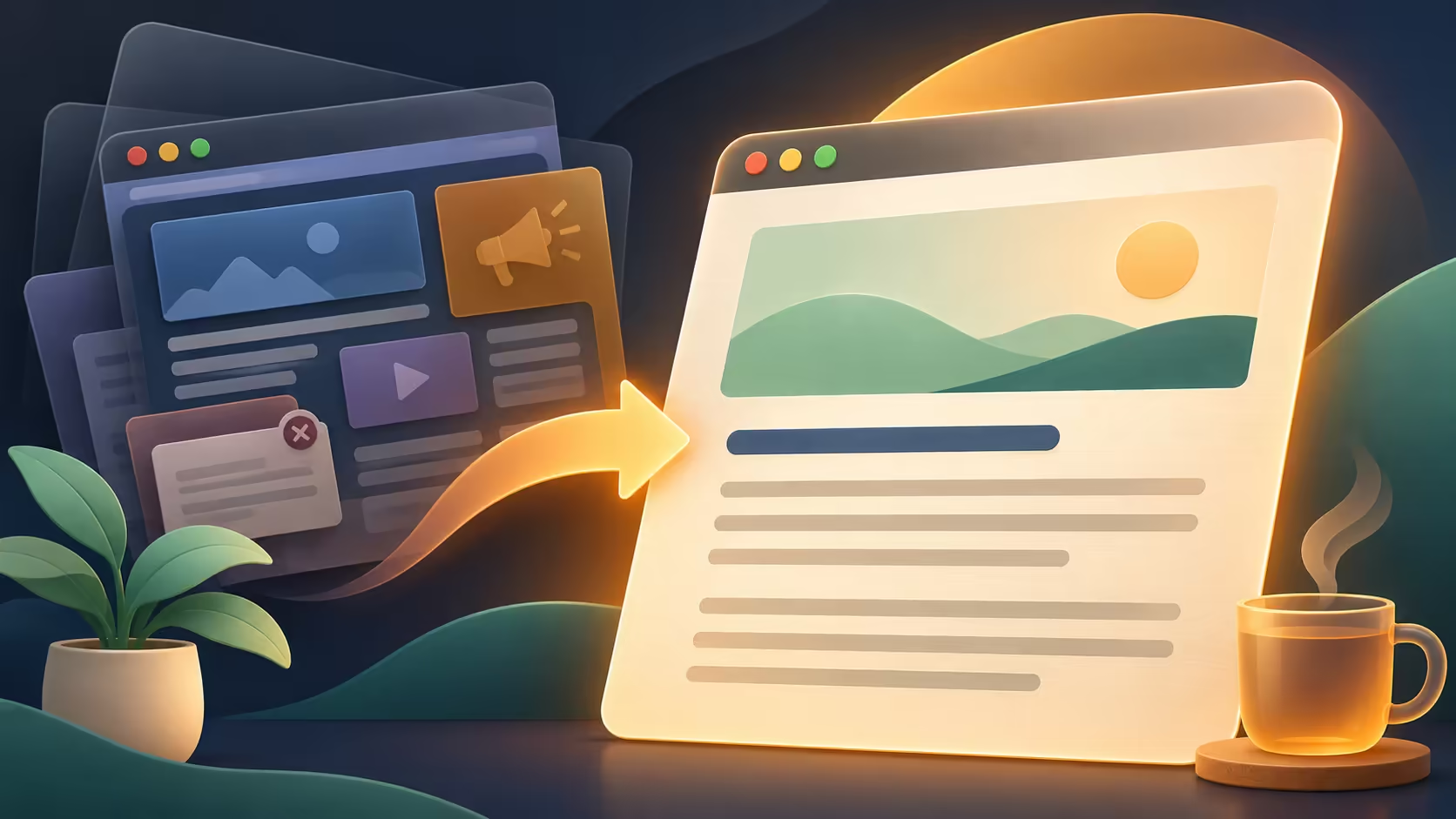
A long article can be hard to follow when menus, video panels and sidebars compete with the text. Firefox Reader View offers a calmer presentation on suitable pages. If its icon is absent, begin by checking the page type rather than hunting through display settings or assuming an extension has broken the browser.
Quick Answer
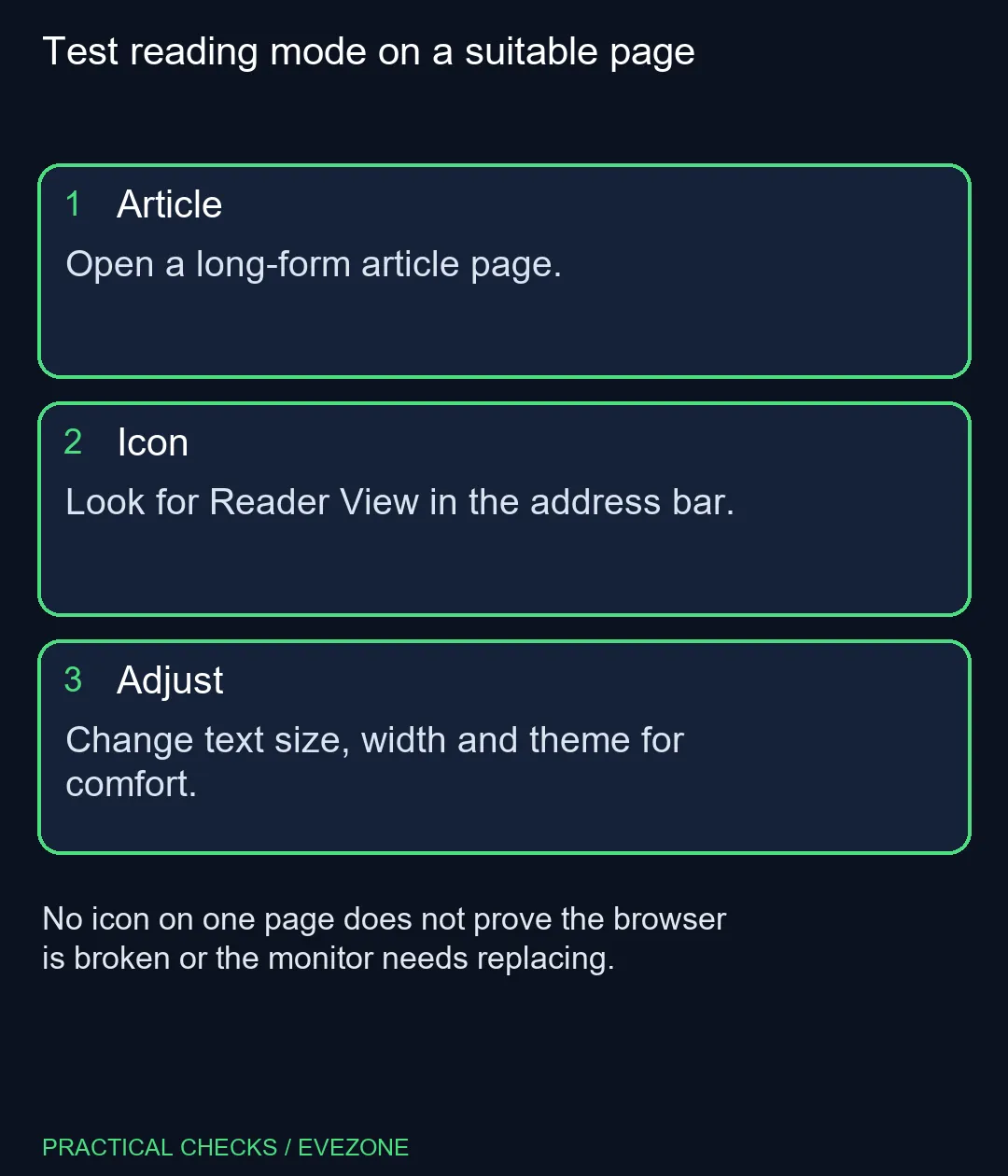
Open an article and look for the Reader View icon in Firefox's address bar. Click it when available, then adjust text size, content width and theme. The feature costs R0. It is page-dependent, so a missing icon on a dashboard or another unsuitable page is not proof of a browser fault.
📖 Test with an article, not an application
Choose a page whose main purpose is a continuous piece of reading. A shopping basket, an interactive dashboard and a long-form article have different structures. Expecting the same simplified mode everywhere makes a normal eligibility limit look like an intermittent failure.
If one article offers the icon and another does not, you have a useful comparison. Keep the original page available for controls or information the reading layout does not show. The simplified presentation is a way to read the article, not a replacement for every function on the website.
🔠 Adjust the reading layout deliberately
Once the mode opens, change one control and read a paragraph before adjusting the next. A larger font can help, but content width and line spacing also affect how easily your eyes follow the text. Choose the combination that suits your screen and sitting distance.
Reader View has its own theme options. A darker background may be comfortable in one room, while a light or sepia presentation may suit another. You can make that choice without changing the entire website or the operating system appearance.
🔊 Keep read aloud separate from page eligibility
Firefox can expose a read-aloud control in Reader View when the operating system has the relevant text-to-speech support. If that option is unavailable, do not assume the article itself failed to enter reading mode. The visual layout and the speech capability are separate checks.
Confirm the article language and the available voice support before installing unrelated browser tools. If you only want visual reading, continue with the font and spacing controls. There is no need to solve a speech setup problem that does not affect the task you are doing.
🖥 Assess the display after trying the free controls
Try the same reading arrangement for several paragraphs. If you still struggle, consider the physical setup: screen position, comfortable text size and viewing distance. A missing icon on one site does not establish that any of those hardware choices are wrong.
For a broader screen upgrade, compare monitors on special; for a portable reading and work setup, examine all laptops on special. Match the purchase to the complete workload and the space where it will be used. Reading mode itself does not require a new monitor or a new laptop.
When you need the original page again, use the exit control or toggle the address-bar icon. Check that any site interaction is performed in the appropriate view. Moving between a clear reading surface and the full page is often more useful than trying to force a single layout to serve every purpose.
Frequently Asked Questions
Why is the Reader View icon missing?
Reader View is offered for eligible pages. A page that is not recognised as suitable may not show the icon.
How do I enter the mode?
Click the Reader View icon in the address bar when it appears. The active icon changes appearance.
Can I adjust the text?
Yes. Reader View provides controls for font, text size, content width and spacing.
Does it have a dark appearance?
Reader View offers theme choices, including a dark option. Choose the presentation that is comfortable in your room.
Is read aloud always available?
The option depends on text-to-speech support for the article language on the operating system.
How do I leave Reader View?
Use its exit control, click the Reader View icon again or use the browser back button.
Building a comfortable reading setup?
Test Firefox text and layout controls first, then compare Evetech screens or laptops for the wider size and portability needs.