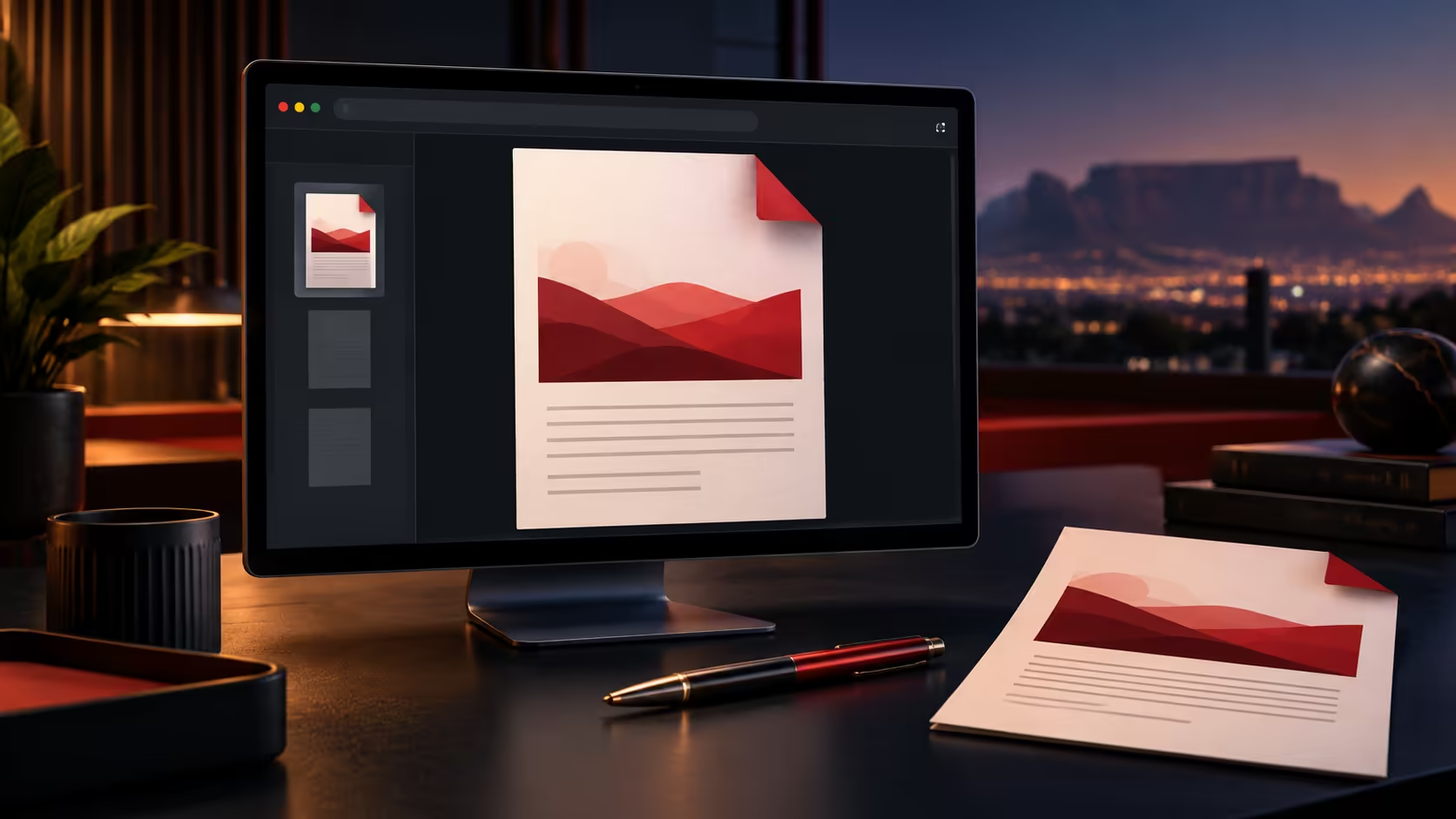
A form can look complete in a browser tab and still be the wrong file to submit. The Firefox PDF viewer is useful for reading and document work, but the essential habit is to save the intended copy and reopen it. That final check matters more than the confidence that comes from seeing filled fields on screen.
Quick Answer
Open the PDF in Firefox's built-in viewer, complete only the supported fields or annotations you need, and save a clearly named copy. Reopen that saved file before submitting it. The built-in viewer needs R0 in new hardware, but a document's special requirements may call for another compatible application.
📄 Check which viewer actually opened
A PDF link can lead to an in-browser document, a downloaded file or an external application, depending on the chosen file action. Confirm where you are working before looking for a particular button. The browser's file-handling preference and the document viewer are related but separate parts of the task.
If the document downloads unexpectedly, find the Portable Document Format action in Firefox settings and inspect the selected behaviour. Do not confuse a file saved to a folder with a form that has already been completed. Start with a known original and check the organisation's instructions for acceptable submissions.
✍ Keep edits easy to check
Use the viewer's available form or annotation tools for the document in front of you. Not every PDF has identical features, and a scanned page is different from an interactive form. If a required operation does not work, stop and choose a compatible method rather than improvising an unreadable result.
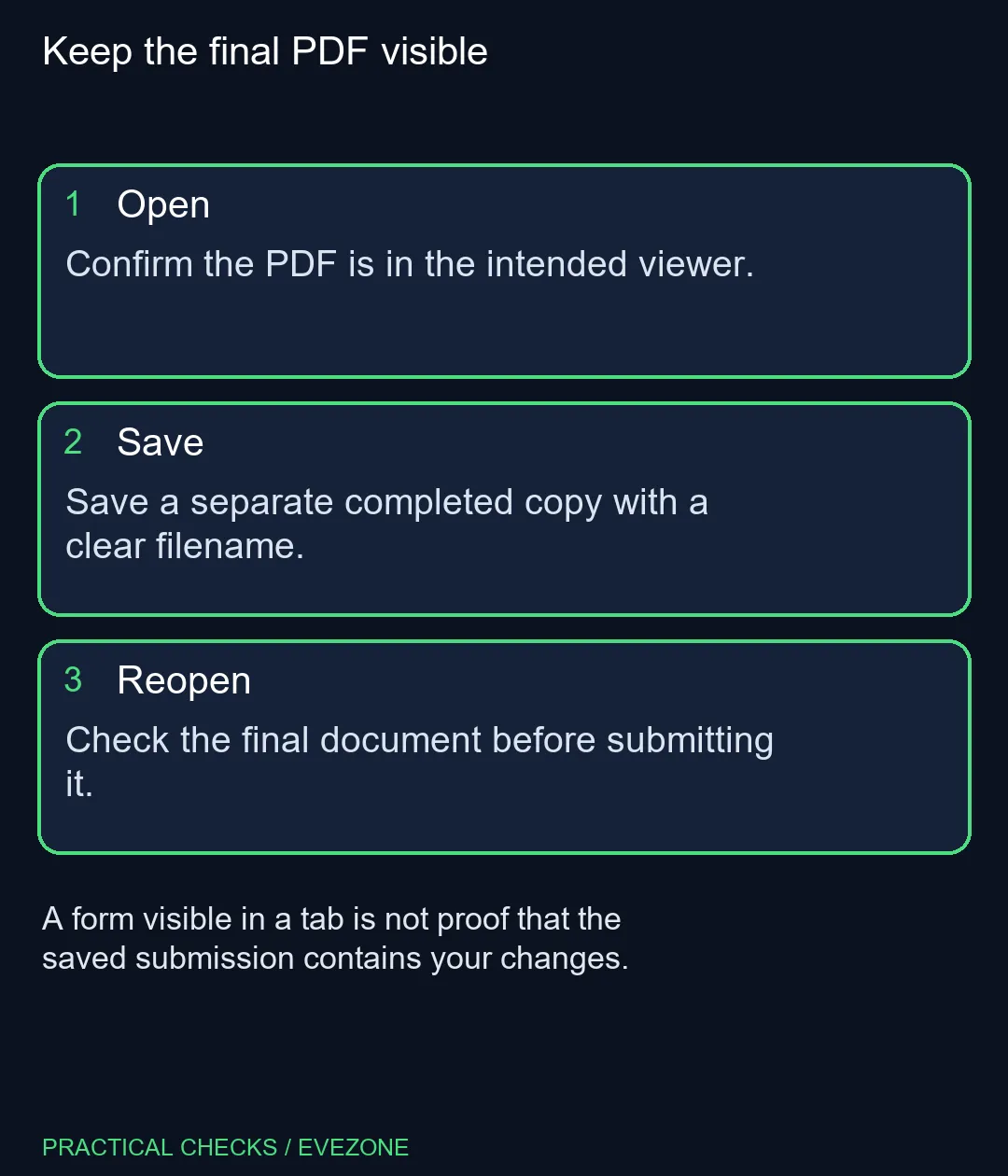
Keep the original file and save a completed version under a distinct name. Include enough detail in the filename to distinguish a blank form from the copy you intend to send. This is particularly helpful when applications or study tasks produce several nearly identical downloads on a shared laptop.
✅ Reopen before attaching
Close the editing view and open the file you are actually about to attach. Check the important fields, page order and any required marks. If something is missing, resolve it before submission rather than assuming the recipient will see what remained in your old tab.
Browse all laptops on special for a machine that suits your document workload and office monitors for a more readable desk display. Those can improve the working environment, but they do not replace a saved-file check. A careful review of the final PDF costs less time than resubmitting the wrong version later.
Frequently Asked Questions
Does Firefox include a PDF reader?
Yes. Its built-in viewer can display PDFs inside the browser and provides document tools.
Why might a PDF open in another app?
The file-type action can be set to save the file or use another application. Check PDF handling in Firefox settings.
Can I assume every PDF form behaves identically?
No. Check the actual document and the organisation's instructions. Test the saved result rather than assuming every form feature is supported.
How do I verify an edited PDF?
Save the completed version, reopen that file and inspect the fields or marks that matter before submitting it.
Should I overwrite the original immediately?
Keep the original and save a clearly named completed copy. That makes it easier to recover if an edit or form entry goes wrong.
Is another reader always necessary?
No. Try the built-in viewer first for the task. Its use requires R0 in new hardware, though some documents may need another compatible app.
Working through forms and assignments?
Choose a readable document setup and make reopening the final saved file part of the task.