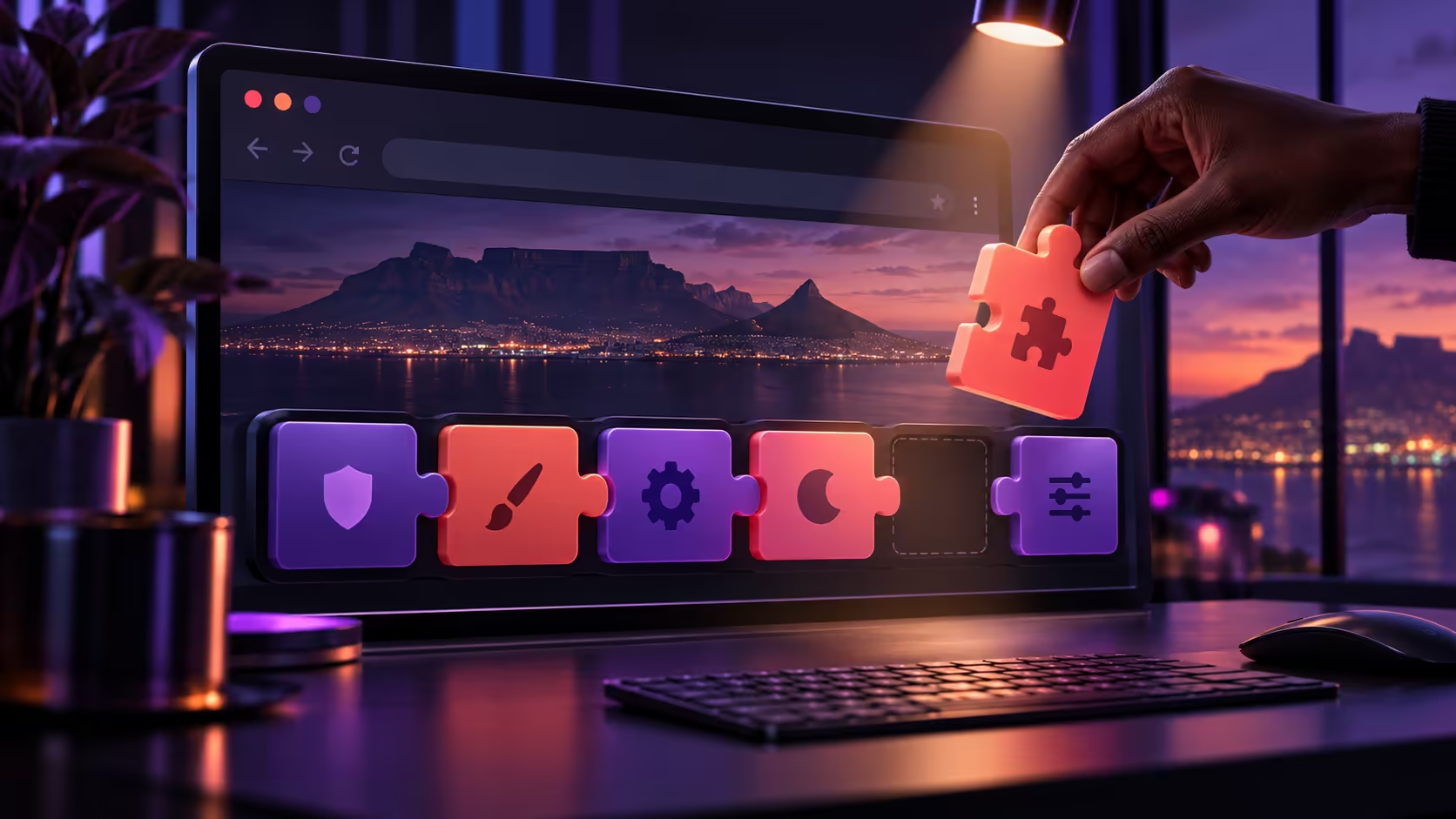
A browser that behaves well only after every add-on is removed has lost useful tools along with the problem. Firefox Troubleshoot Mode offers a temporary comparison first. The important choice is Open, because the nearby Refresh option performs a different operation and should not be clicked casually during a quick diagnostic.
Quick Answer
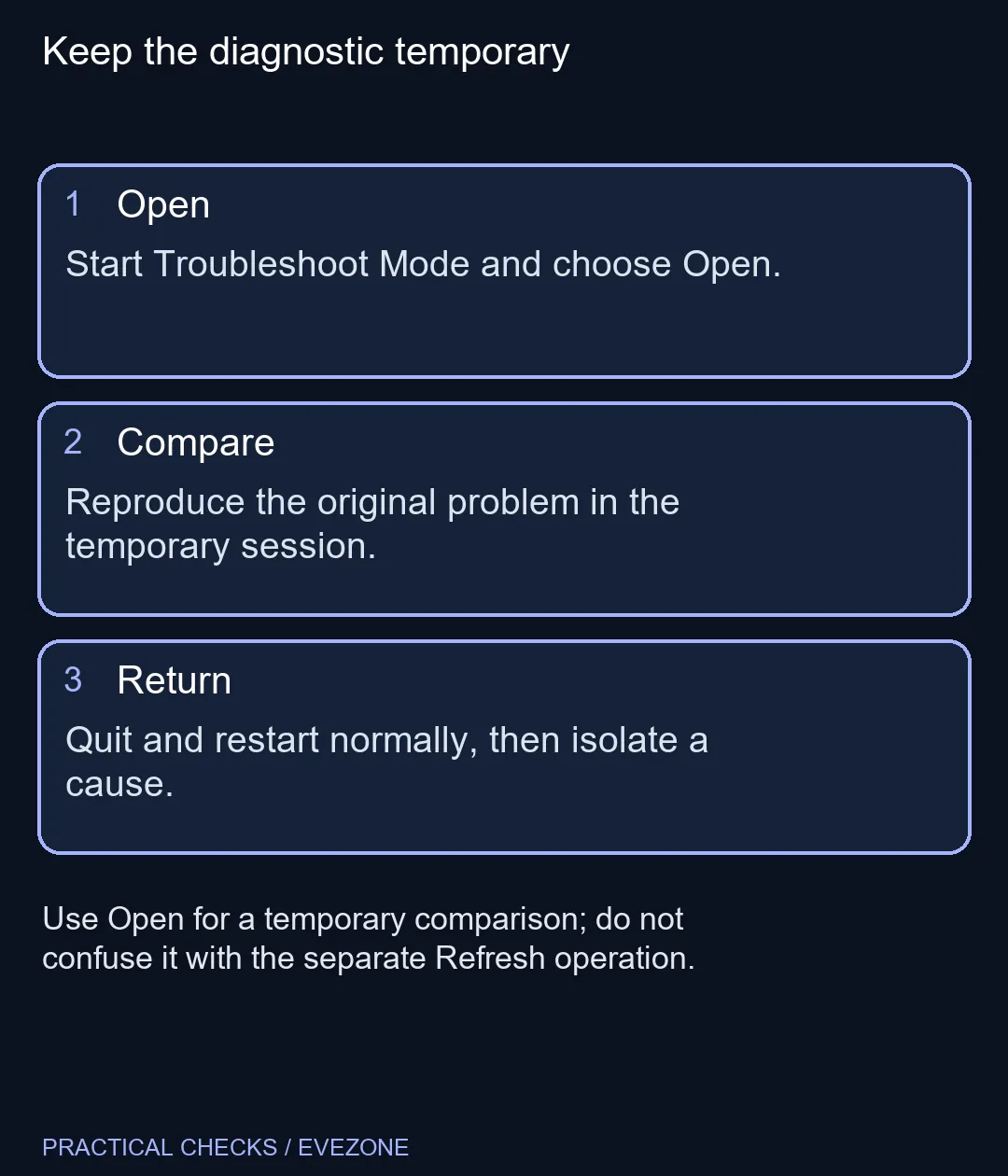
Use the Help menu to restart Firefox in Troubleshoot Mode, then choose Open. Repeat the action that was failing and quit before restarting normally. The test needs R0 in new equipment. A successful temporary session narrows the cause, but does not identify a particular extension by itself.
🧪 Give the temporary session one job
Save any unfinished work and note the page or action that causes the failure. After entering the mode, go straight to that task. Do not use a different site as the only comparison, since the original page may have its own behaviour or requirement.
Choose Open when asked how to proceed. Refresh is a separate operation that restores settings with lasting effects. Keeping that distinction clear is especially useful on a shared study or family computer, where someone else's carefully arranged browser should not be changed during a short test.
🧩 Interpret improvement carefully
This mode changes several features together. Extensions are disabled, the default theme is used and hardware acceleration is turned off. If the fault disappears, one of those changes may explain it. The result does not prove that the last extension installed was responsible.
Restart normally and investigate one likely cause at a time. Keep a note of what is disabled and test the same action again. That takes more care than deleting everything, but it preserves useful tools and makes the conclusion easier to trust. If the fault remains in the temporary session, report that too; it is a meaningful result.
🔎 Leave with a clearer support question
Describe the failure, whether it occurred in the temporary session and what happened after a normal restart. Those three details help distinguish a browser configuration problem from a site or wider system issue. Avoid claiming the entire computer has been repaired from a single successful page load.
Browse all laptops on special when a laptop replacement is justified by actual needs, and all keyboards when choosing input hardware. A browser add-on diagnostic should come before either purchase is blamed for the symptom. The goal here is to keep a working setup intact while finding a specific cause.
Frequently Asked Questions
How do I start the temporary diagnostic?
Open the Firefox Help menu, choose Troubleshoot Mode and restart. Choose Open in the diagnostic window.
Is Refresh the same as opening Troubleshoot Mode?
No. Refresh restores settings with lasting effects. Open starts the temporary diagnostic session.
Does a successful test prove one extension is faulty?
No. The mode disables several things together, including extensions, the theme and hardware acceleration.
How do I leave the mode?
Quit Firefox and start it normally. The temporary disabled items return to their previous state.
What if the failure continues?
The cause may be outside the items disabled by this mode. Record the result and investigate the remaining settings or site problem.
Does this test cost anything in equipment?
No. It needs R0 in new hardware. Save work before restarting and use the result to choose a sensible next check.
Need a more dependable study setup?
Use the diagnostic result to resolve the browser first, then compare laptop and input choices for your daily tasks.