A site that stops opening after a privacy change does not automatically mean the router has failed. Firefox DNS over HTTPS changes how the browser looks up a website's address. Understanding the selected protection level makes the setting easier to use without turning a small browser adjustment into a household network overhaul.
Quick Answer
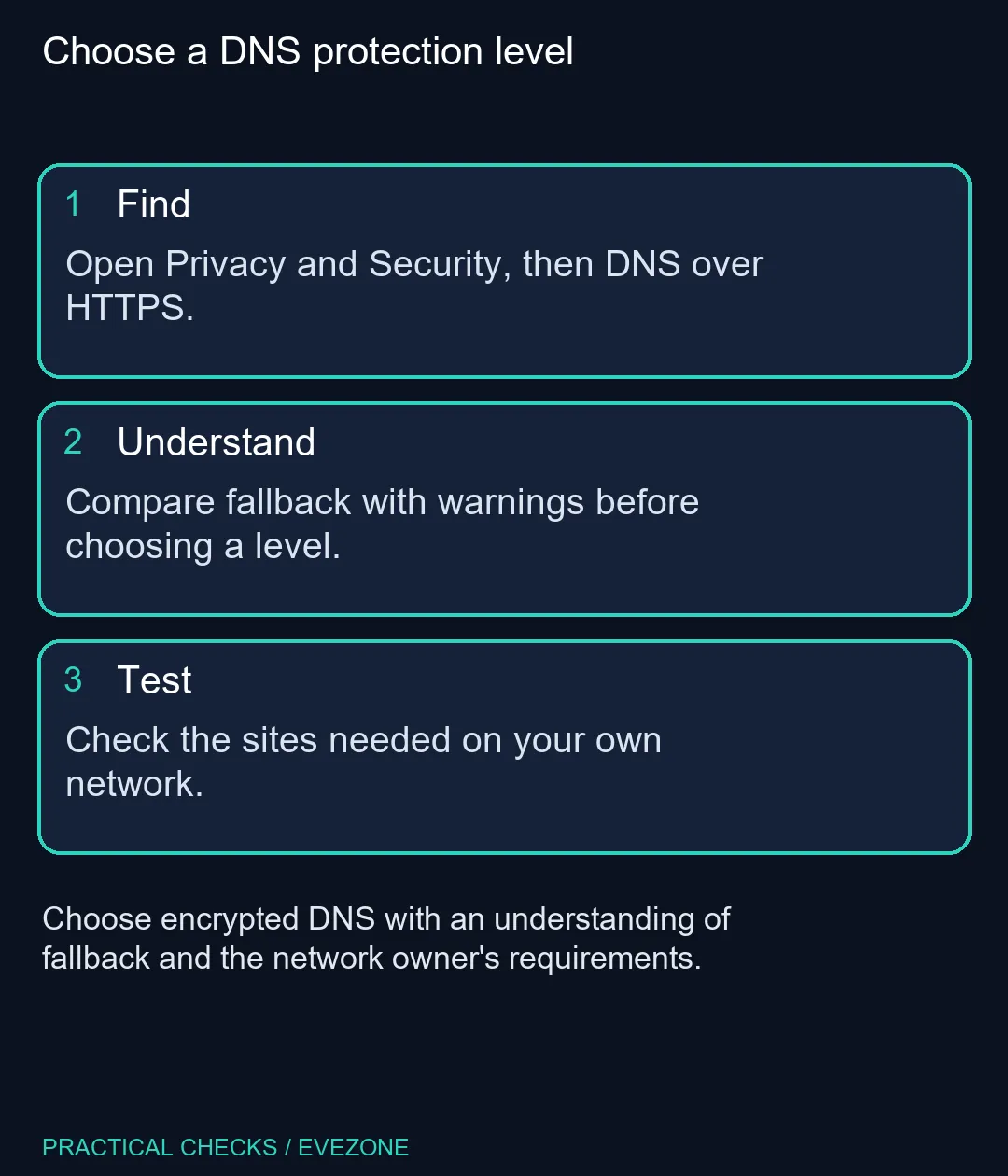
Open Settings, then Privacy and Security, and find DNS over HTTPS. Compare the protection level and its fallback behaviour before changing it. Checking this browser control costs R0 in new equipment; your normal internet charges remain, and a new router is not the first troubleshooting step.
🔐 Understand the lookup being protected
DNS translates a website name into the address needed to reach it. DoH sends that lookup through an encrypted HTTPS connection to a compatible resolver. It changes one part of the connection process, so do not interpret the setting as a promise of complete anonymity or a substitute for careful account use.
The selected provider and the surrounding network both matter. In a shared South African home, res connection or workplace, the person managing the network may rely on its DNS configuration. Understand that arrangement before selecting a different resolver. Do not change a router used by other people merely to experiment with one browser.
⚙ Choose the behaviour you can explain
Default Protection can fall back when secure DNS encounters a problem and can respond to network conditions or policy. Stronger selections handle failures differently; Max Protection can present a warning if the secure resolver cannot supply the address. Read the displayed explanation rather than assuming that the highest label is always the simplest choice.
Note the existing selection before testing another level. Try the same affected website and keep any warning text. If a change helps, record what changed instead of declaring the whole network repaired. If it does not, restore the earlier choice before investigating another cause.
📶 Keep equipment purchases separate
When every device struggles with the connection, the problem is broader than Firefox's DNS setting. When just this browser fails, start with its configuration and the site's behaviour. That distinction prevents an unnecessary replacement of otherwise working wireless routers.
The wider wireless networking range is relevant when there is an actual coverage or connection requirement, not simply because a privacy option is unfamiliar. Test the laptop on its usual network and ask the administrator about managed settings before making a hardware shopping list.
Frequently Asked Questions
Where is the encrypted DNS control?
Open Firefox Settings, choose Privacy and Security and find DNS over HTTPS. The current interface includes advanced protection settings.
Does DoH make every part of browsing anonymous?
No. It protects the DNS lookup connection. It is not a promise that websites, accounts or all traffic become anonymous.
What is different about Max Protection?
It uses secure DNS and can show a warning when that resolver cannot supply an answer, rather than silently treating every failure alike.
Can a managed network affect the setting?
Yes. Network policies, VPNs and local filtering can affect secure DNS behaviour. Ask the network administrator about required settings.
Do I need to buy a new router?
No hardware purchase is needed to inspect the Firefox setting. R0 refers to that setting check, not your connectivity bill.
What should I test after changing it?
Open the specific sites you need on the same network and note any warning. Avoid changing router settings at the same time.
Reviewing your network setup?
Check the browser and network settings first, then compare routers for a clearly identified coverage need.