One browser can fail while the rest of the computer remains online. Firefox proxy settings are worth checking in that situation because the browser may be using a different connection route. That does not mean a proxy is always the cause, but it gives you a focused place to look before resetting shared networking equipment.
Quick Answer
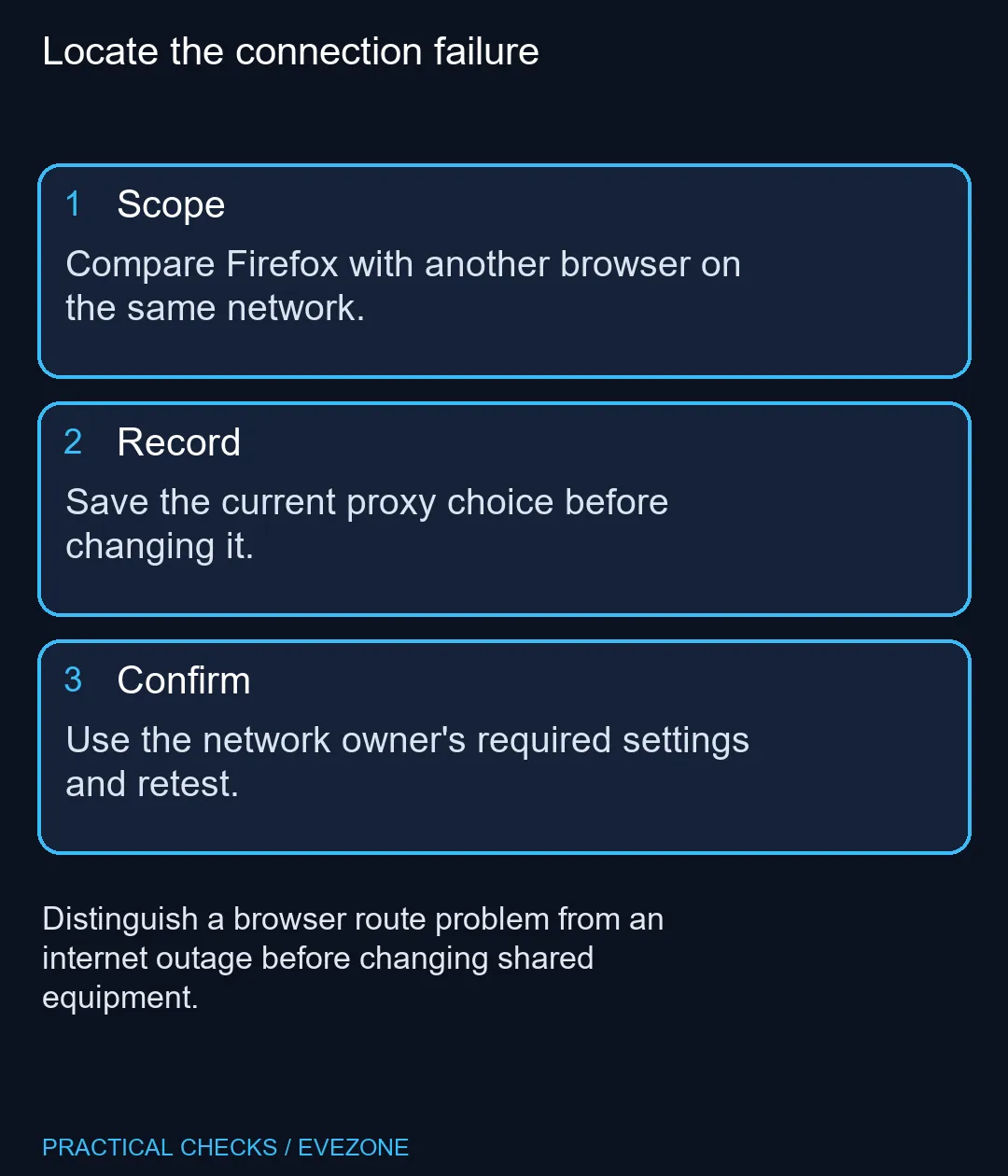
In Firefox Settings, find Proxy settings under Privacy and Security, Connection and software security, then Advanced settings. Older versions use Network Settings. Record the current proxy choice and compare it with the route required by your network. This inspection needs R0 in new hardware. If other browsers also fail, investigate the wider connection rather than assuming one Firefox option explains everything.
🌐 Establish the scope first
Try the same ordinary website in another browser on the same machine. Then note whether the failure affects one site or several. A browser-specific error, a site-specific problem and an offline household are three different starting points. Keeping those cases separate prevents a drastic change being used for a narrow fault.
Save the exact error message if possible. A description such as nothing works is difficult to act on, whereas one site showing a connection error only in Firefox provides a useful comparison. Avoid changing DNS, the router and the proxy together, because that removes the value of the original observation.
⚙ Inspect rather than overwrite
The connection dialog offers several ways to choose a proxy route. It can also show an extension that controls the connection. Record what is selected before testing a change so you can return to a known state. Do not copy an unfamiliar server address from a suggested fix without understanding it.
On a workplace, campus or managed res network, ask whoever operates the network about required settings. A proxy may be intentional. Replacing that configuration with a home-network assumption can remove access rather than restore it. If an extension controls the route, include its name when asking for help instead of merely reporting the selected radio button.
📶 Keep the household connection stable
Use wireless networking when comparing networking capabilities, but keep a browser routing fault separate from a coverage problem. A new access device cannot be assumed to repair a Firefox configuration that follows the laptop from one network to another.
If several devices are affected, the wireless routers category may become relevant to a properly diagnosed equipment need. First confirm the scope, preserve the existing configuration and repeat the same website test after any authorised change. A clear before-and-after result is more valuable than a sequence of resets nobody can reconstruct.
Frequently Asked Questions
Where are the Firefox proxy options?
In current Firefox, open Privacy and Security, Connection and software security, Advanced settings, then Proxy settings. Older versions use Network Settings.
Should I choose a random public proxy?
No. Use the route required by your own network and understand who manages it. Do not paste unknown proxy addresses as a general fix.
Does Firefox failing prove the internet is down?
No. Compare another browser on the same computer and network. A Firefox-only failure has a different scope from a complete outage.
Can an extension control the route?
Yes. The Connection Settings dialog can identify extensions controlling how Firefox connects. Include that in the diagnosis.
May I clear a workplace proxy without asking?
Check with the network administrator first. A configured proxy can be required for access, and changing it may break expected services.
Is buying a new router necessary for this check?
No. Inspecting the browser route requires R0 in new equipment. Replace hardware only after a separate hardware need is established.
Improving a shared connection?
Identify whether the fault is in Firefox or the wider network, then compare equipment for the actual need.