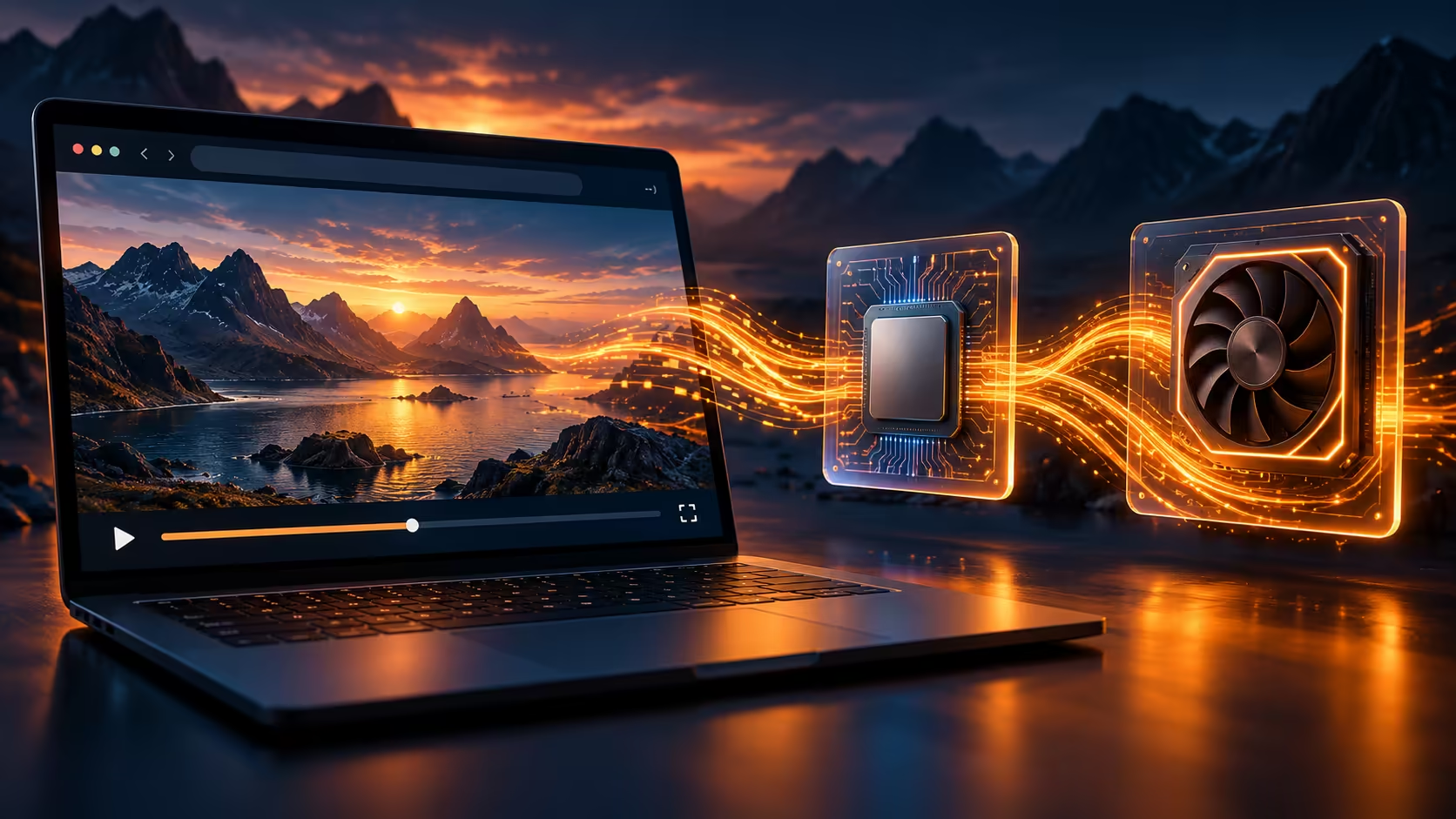
Flickering video can tempt you to change half a dozen settings at once. A Firefox hardware acceleration test works better when it answers one question: does the same page behave differently after the browser stops using that graphics path? The result can guide the next step without immediately blaming the monitor or buying another card.
Quick Answer
Find Performance in Firefox settings, clear Use recommended performance settings and test the hardware-acceleration option. Restart Firefox before opening the same troublesome page again. This is a R0 hardware test, not a guarantee of faster browsing; keep the setting that behaves reliably on your machine.
🎬 Pick a repeatable symptom
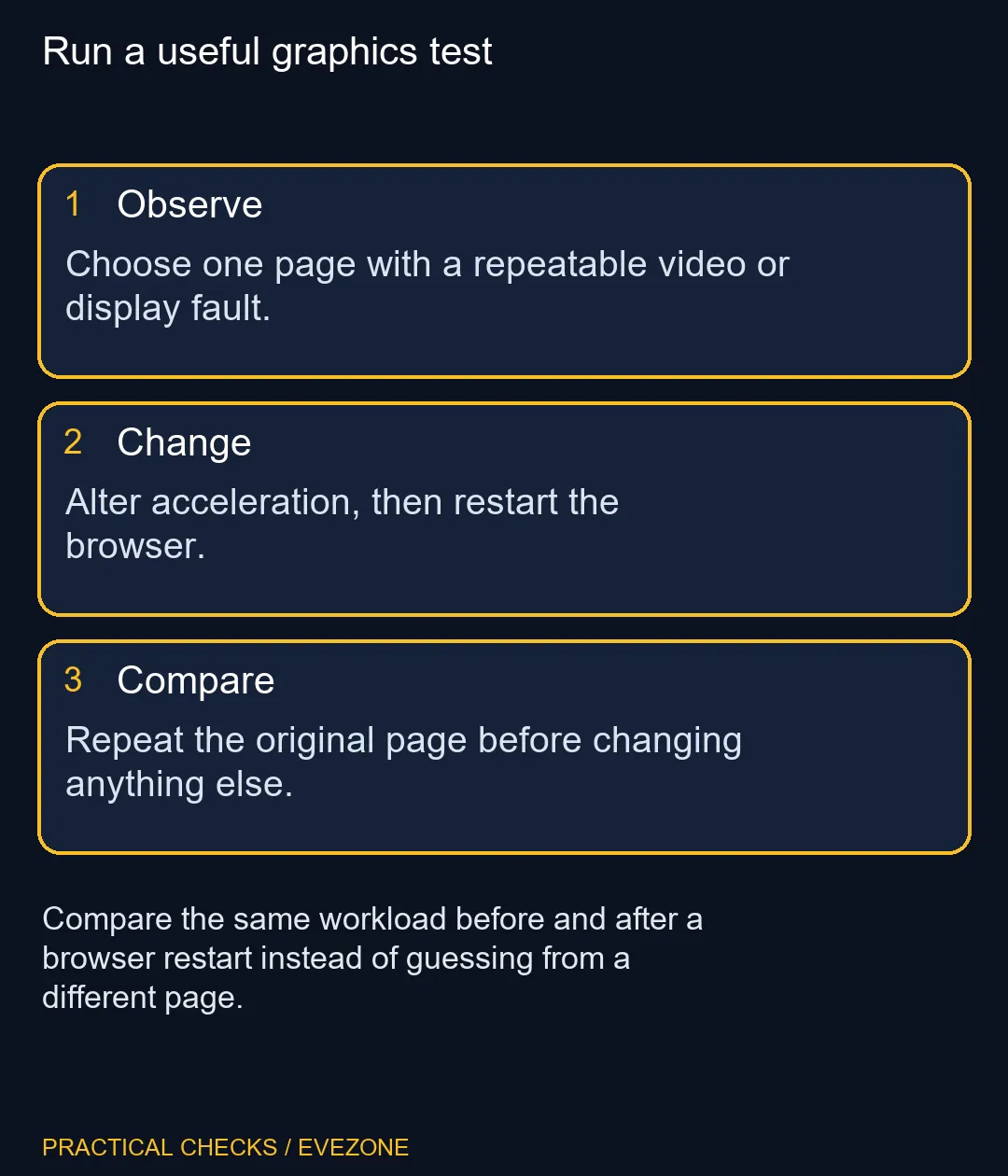
Use a video or page where you can describe the fault clearly. Note whether it flickers, shows missing shapes or causes a crash. Keep the window size, display and playback conditions consistent. A completely different video playing correctly after a change tells you much less about the original problem.
Close or save important work before restarting. If the fault happens only occasionally, allow the test enough time to reach the usual trigger. Record the result in a short note rather than relying on the general impression that the browser feels smoother.
🧠 Know what work is moving
Acceleration lets the graphics processor help render content, easing some load on the CPU. Turning it off changes how work is handled; it does not remove that work from the computer. A setting that avoids a driver-related display problem may have other performance consequences in your normal use.
If disabling it helps, check the graphics-driver support route for your computer. Avoid treating a random driver download as a requirement. A laptop's support information and the graphics maker's guidance should inform the next decision. Do not alter several unrelated graphics options before you have understood the first result.
🖥 Separate the browser from the screen
Compare the symptom with another application only to establish its scope. A problem confined to one browser page is different from corruption visible across the desktop. Neither result alone proves a failing graphics card. The aim is to give support a more precise description.
The all graphics cards range is useful if a real hardware requirement later emerges, while gaming monitors helps when selecting a new display. Neither purchase should be the automatic response to one faulty video. Start with the controlled setting test, retain the outcome and change the next variable only when the evidence points there.
Frequently Asked Questions
What does acceleration do in Firefox?
It lets the graphics processor help display content such as video and animation, reducing some work for the main processor.
How do I expose the acceleration setting?
Find Performance in Firefox settings and clear Use recommended performance settings. The acceleration option can then be shown.
Must Firefox be restarted after a change?
Yes. Restart the browser before judging the result, then return to the same page and repeat the problem action.
Why might the option be absent?
An incompatible graphics driver can hide it. Mobile Firefox does not offer these desktop controls, and interfaces can differ by version.
Should acceleration always be off?
No. Disabling it is a diagnostic test for a particular problem, not a universal speed recommendation for every computer.
Does testing require a graphics-card purchase?
No. The browser setting test requires R0 in new hardware. Investigate the result before considering a component replacement.
Planning a graphics upgrade later?
Resolve the browser symptom first, then match graphics hardware and displays to the applications you use.