An error screenshot is less useful when the important message is cut off or private account details fill the rest of the image. The Firefox screenshot tool lets you choose how much of a web page to capture. A few seconds spent choosing the boundary can make the result much easier to read and safer to share.
Quick Answer
Right-click an empty area of a page and choose Take Screenshot, or use Ctrl+Shift+S on Windows. Select a region, Save visible or Save full page, then copy or download the result. This built-in capture needs R0 in extra tools; inspect the image before sending it to anyone.
✂ Capture the question you need answered
For a support request, include the error message and enough surrounding context to show where it happened. A tiny crop containing only one word can be as confusing as a whole page filled with unrelated information. Choose the smallest region that explains the problem.
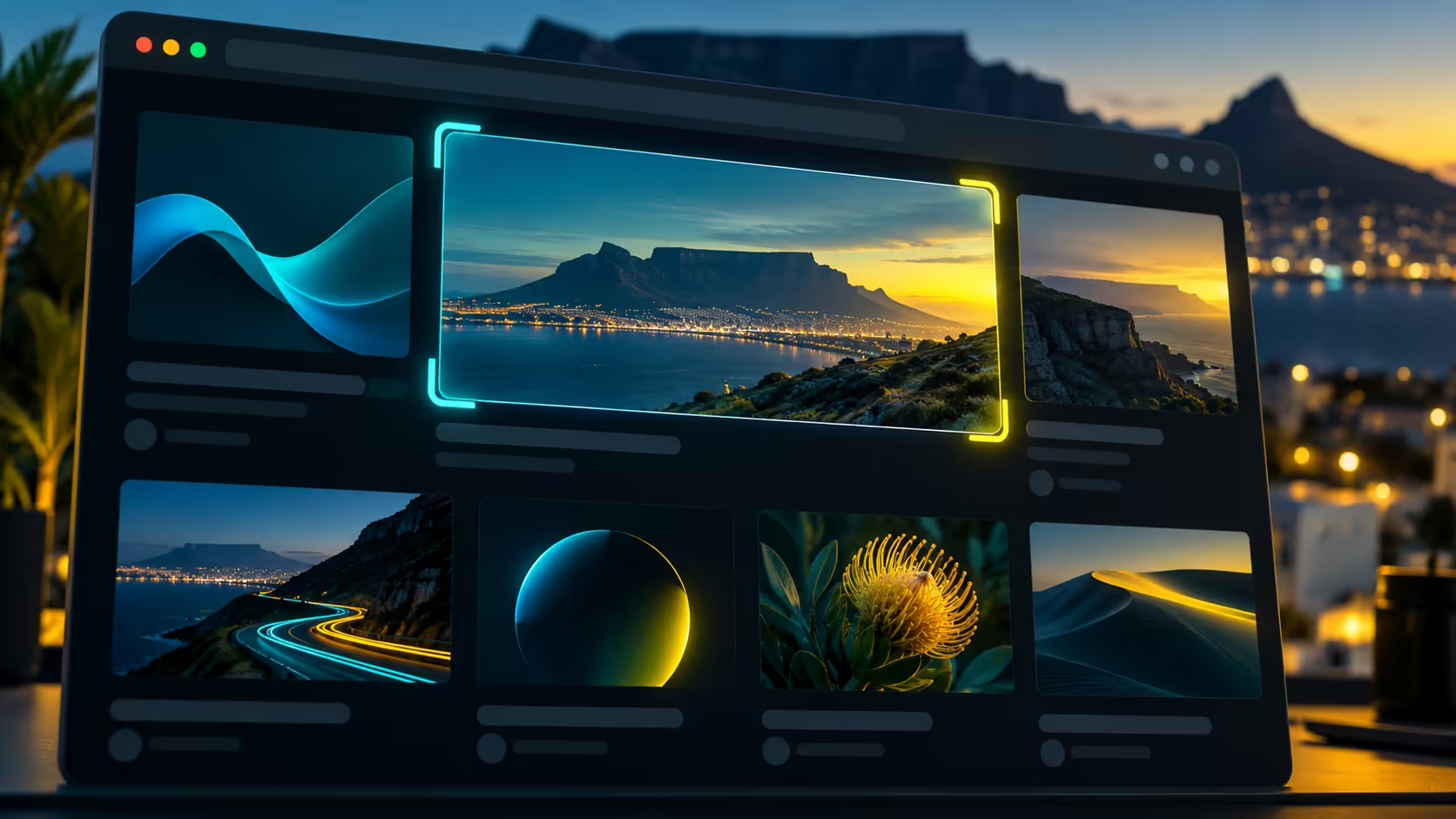
The selection can be adjusted before saving. If the page contains several panels, move over the relevant part and check the highlighted area carefully. A neat boundary is useful for notes and assignments too, but it should not hide a qualifier that changes what the captured text means.
🖼 Understand the three capture choices
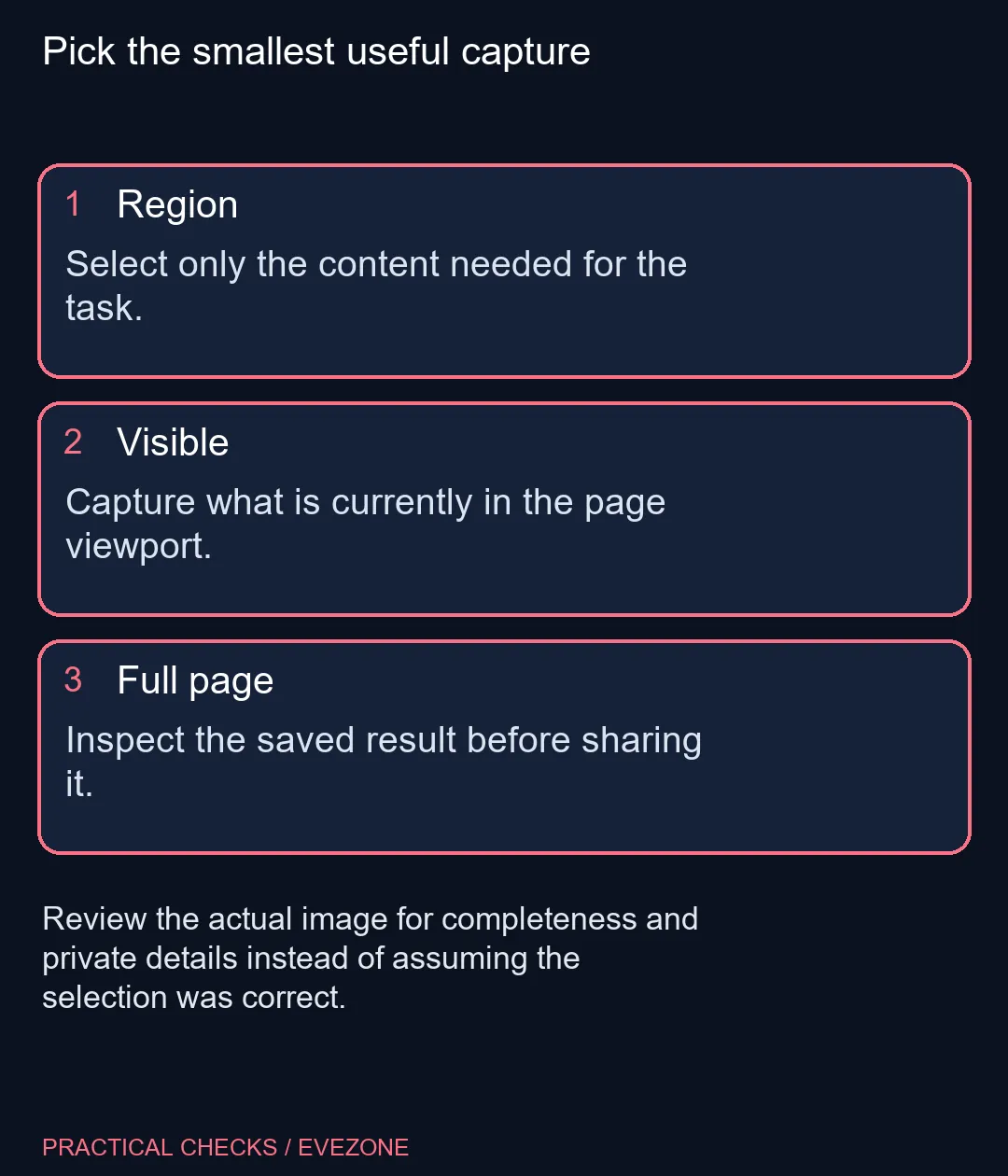
Save visible records the current web-page viewport. Save full page aims to include the broader page. A selected region gives you direct control over a smaller area. These choices concern page content; they are not the same as capturing another application or the entire Windows desktop.
Open the result after a full-page capture and read the part that matters. Long or changing pages should be checked rather than assumed complete. If the task needs the surrounding application interface, use the appropriate operating-system capture instead. Choose the tool according to the evidence required, not whichever shortcut you remember first.
📁 Know whether you copied or downloaded
Copy places an image on the clipboard for pasting elsewhere. Download creates a PNG through the browser's download location. Decide which result you need before closing the tool, then confirm it exists in the document or folder where you expect it.
For a shared South African study computer, review names, email addresses and other personal information before posting a capture. A larger screen from gaming monitors may make working with reference material easier, while all laptops on special offers current portable options, but neither is required to take a clear screenshot. Start with the built-in selection and a careful final look.
Frequently Asked Questions
What is the Windows Firefox screenshot shortcut?
Press Ctrl+Shift+S on a normal web page, or right-click an empty page area and choose Take Screenshot.
How do I capture only one part?
Drag a region or select an automatically highlighted page section, then adjust its boundary before copying or saving.
What does Save visible capture?
It captures the currently visible web-page area. It should not be confused with an operating-system screenshot of every window.
Can Firefox capture a full web page?
Yes, the tool offers Save full page. Open the saved image afterwards and check that the information you need is actually present.
Where does a downloaded capture go?
The PNG is saved through Firefox's download location. Check that folder rather than assuming it was copied to the clipboard.
Must I buy a screenshot utility?
No extra hardware or utility is needed for this Firefox capture. R0 refers to the built-in task, not any internet data charges.
Putting together a study workspace?
Compare laptop and monitor options around readability while using the built-in capture tools you already have.