




Firefox clear cookies for one site: remove only the affected data
Firefox lets you remove cookies and stored data for one website. Expect that site to sign you out, save local work first, and leave unrelated websites alone.
Read moreFirefox can clear temporary page files without clearing cookies. Select the cached-files option carefully, then reload the affected page before changing unrelated browser settings.

A page that keeps showing an old graphic or broken layout can make a working PC feel unreliable. Firefox clear cache is a useful narrow test because it refreshes downloaded page files. The important part is choosing those files without also selecting the cookies that may keep you signed in.
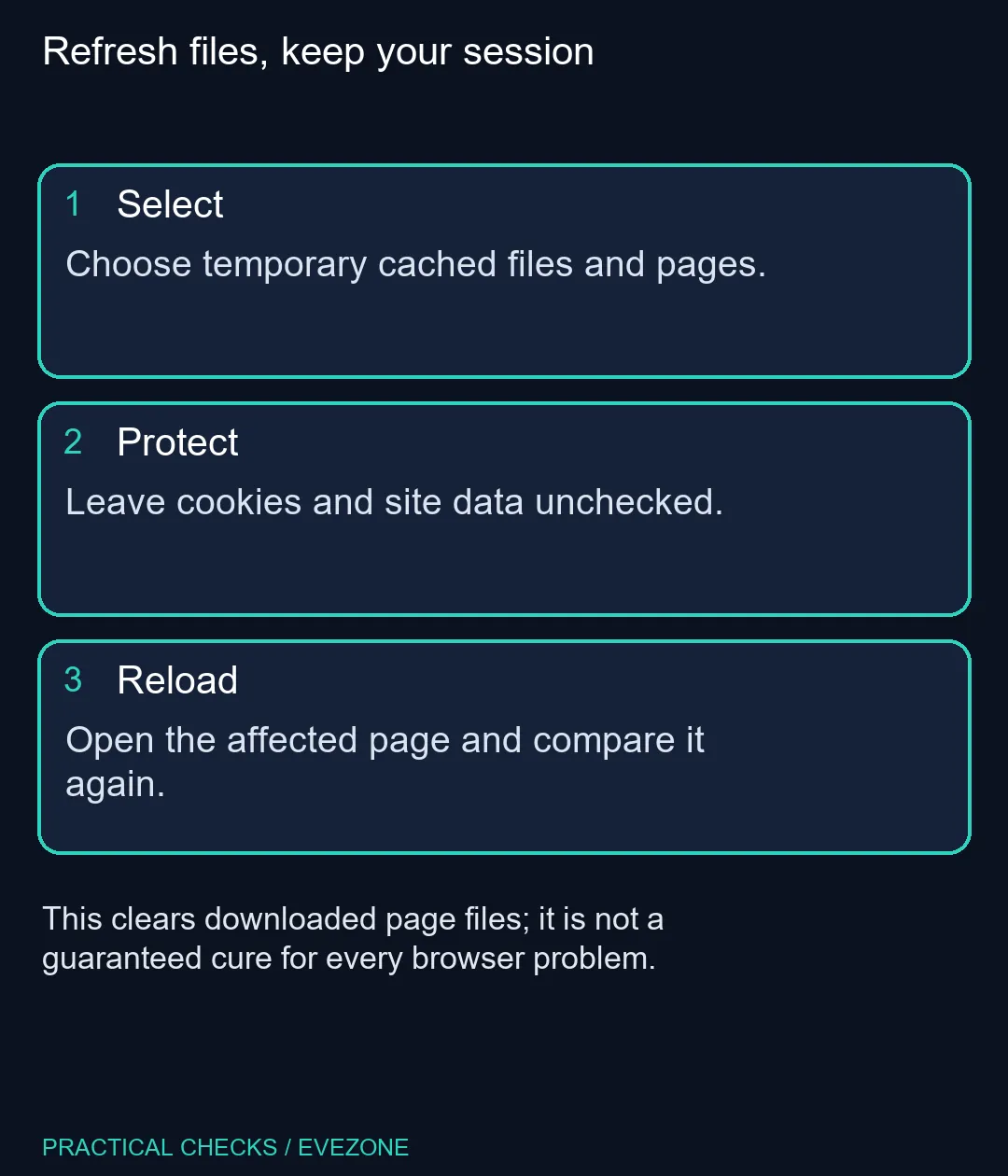
Open Firefox Settings, choose Privacy & Security and find its browsing-data controls. Mozilla's current instructions use Clear browsing data, the Everything time range and only Temporary cached files and pages. Check that cookies and site data are not selected, then clear and reload. This first troubleshooting step costs R0.
Start by saving any work in the affected website. Open forms, drafts and an unfinished checkout deserve attention before troubleshooting the browser. Even when your chosen operation is narrow, reloading a page can discard unsaved work held by that page.
In the clearing dialog, read the whole list instead of accepting whatever was selected on an earlier visit. The cached-files option concerns reusable page resources. The cookie and site-data options concern a different class of information, so they should stay unchecked when the intention is only to refresh the cache.
Firefox versions can use slightly different labels around these controls. Older instructions may place Clear Data under Cookies and Site Data, while the current support article shows browsing-data wording. Match the actual temporary-cache choice rather than treating a familiar heading as permission to clear every box below it.
After clearing, revisit the page that caused trouble. A refresh needs to retrieve resources that are no longer cached, so allow the connection to finish before judging the result. On a capped or mobile connection, repeated clearing can waste data by making the browser download the same material again.
Keep the comparison small: the same page, the same action and the same account. If the stale image disappears, that is useful evidence for this incident. It does not show that cache was responsible for unrelated stutter in a game or every slow site on the connection.
If the symptom remains, note exactly what failed. A page that displays correctly but refuses a login calls for a different investigation from one with missing styling. Cookie clearing may be appropriate for a site-specific session problem, but it can also sign you out and remove local site state. Do not silently turn this cache test into a wider deletion.
An extension or a website-side fault may also explain a persistent problem. Change one thing at a time so the outcome remains useful. Repeatedly deleting more browser data makes it harder to tell which setting mattered and may create recovery work that the original display issue did not require.
When comparing mini pcs or all laptops on special, distinguish a browser-data issue from a machine that struggles with your normal workload. A cache refresh is not evidence that a faster processor or more memory is required. Try the specific page first and base any purchase on the wider tasks you need the computer to handle.
No. Cached files and cookies are separate controls. Leave the cookie and site-data choices unchecked if your aim is only to refresh downloaded files.
Firefox may download page resources again. That first load can use more data than a visit using a warm cache.
Mozilla describes selecting Everything for the cache-clearing procedure. Check the selected data types before confirming the operation.
Bookmarks are not the temporary cached files option. Do not select additional deletion controls or reset Firefox for this narrow task.
The problem may involve cookies, an extension or the website itself. Compare one affected page after clearing cache before attempting a different fix.
That removes the benefit of keeping reusable page resources locally. Use it for a specific troubleshooting reason rather than making it a routine performance ritual.
Planning a more capable browsing PC? Compare Evetech systems against your real workload after isolating the browser issue.
No. Cached files and cookies are separate controls. Leave the cookie and site-data choices unchecked if your aim is only to refresh downloaded files.
Firefox may download page resources again. That first load can use more data than a visit using a warm cache.
Mozilla describes selecting Everything for the cache-clearing procedure. Check the selected data types before confirming the operation.
Bookmarks are not the temporary cached files option. Do not select additional deletion controls or reset Firefox for this narrow task.
The problem may involve cookies, an extension or the website itself. Compare one affected page after clearing cache before attempting a different fix.
That removes the benefit of keeping reusable page resources locally. Use it for a specific troubleshooting reason rather than making it a routine performance ritual.
Firefox lets you remove cookies and stored data for one website. Expect that site to sign you out, save local work first, and leave unrelated websites alone.
Read more
Firefox Sync settings let you choose which supported information a device synchronises. Sign in to the intended Mozilla account, check the selected categories and test with a harmless bookmark.
Read more
Firefox can translate supported web content on the device. Translation controls and preferred website languages serve different purposes, so choose the one that matches the page you want to read.
Read more
Firefox website notifications depend on site permission. Block an unwanted site in the browser, then check operating-system notification controls separately if the alert behaviour still differs.
Read more
Firefox search settings let you choose an available default engine. The default, search shortcuts and installed search extensions are separate controls, so check which one changed your searches.
Read more
Firefox PDF viewer opens documents in the browser and provides annotation and form tools. Check the PDF action, work on a saved copy and reopen the final file to confirm the information you entered survived before submitting an application or assignment.
Read more
Edge not saving passwords needs a check of the browser profile and Microsoft Password Manager settings. Saving, generating and filling a password are separate actions; confirm which one fails before changing account data.

ASUS PG259QWS Ace is the 720Hz model in the newly available 24.5-inch OLED Ace pair. The separate XG259QWPG Ace is 540Hz. Check the exact model, connection and real game performance before choosing a screen.

System76 Thelio Prime is an 11-litre Linux desktop due 18 November, with Ryzen 9000 processors and configuration-dependent graphics. Check application support, connections and the selected build before treating its small footprint as the whole buying decision.

Edge default search engine controls searches typed in the address bar. Choose a supported search provider in browser settings, then test the address bar separately from a website search box or a new-tab page before assuming the change failed.
Firefox PDF viewer opens documents in the browser and provides annotation and form tools. Check the PDF action, work on a saved copy and reopen the final file to confirm the information you entered survived before submitting an application or assignment.

Learn how to share WiFi password on iPhone using nearby Apple devices. Keep Wi-Fi and Bluetooth on, check contacts and the connected phone, then use Share Password; separate this process from sharing a mobile-data hotspot or changing a router password.

Firefox screenshot offers a selected region, visible-page capture and full-page capture. Choose the smallest useful area, copy or download the result, and inspect the saved image before sharing account details or assuming every part of a page was captured.

Firefox proxy settings control the route the browser uses to connect. Compare them with your network requirements when other browsers work, record the old selection and avoid overwriting a work or campus proxy with a random address from the web.

RTX 5080 build low FPS after a GPU driver update needs a careful rollback path. Check drivers, firmware, cables, USB ports, overlays, and recent settings before replacing hardware in an SA gaming setup.

Cheapest 180Hz 1440p build for cinematic story games in SA helps SA readers plan hardware, settings, compatibility, and upgrade trade-offs. Check GPU, CPU, RAM, storage, monitor, and stability needs without risky performance claims.
Best AIO liquid cooler for Alberton-based should be shortlisted around the job it must do. South African buyers should compare airflow, clearance, noise, and upgrade room, warranty path, and upgrade room before treating any pick as best.

Where Boksburg gamers buy a gaming chair that's should be shortlisted around the job it must do. South African buyers should compare fit, performance, compatibility, and upgrade room, warranty path, and upgrade room before treating any pick as best.